







 Adams Johnson
 Last updated: Oct 28, 2026 12:00 am
 Android Unlock
Old photos, forgotten apps, and a phone you want to set up again can all lead to the same question: how do you wipe an Android phone properly? A locked screen adds another complication. This guide covers the practical ways to clear device data, including a computer-based route when you cannot enter Settings.
Quick answer: Use the factory-reset option in Settings when you can unlock the phone. For a supported locked device, LockWiper Android provides a PC-based screen-lock removal and reset workflow.
Forgot the lock-screen password? LockWiper Android helps you reset supported phones from your PC, removing the screen lock and clearing device data so you can start setting up again.
Keep What You Need Before You Wipe the Phone
Wipe Your Android Phone Through Settings
Locked Out? Wipe and Reset with LockWiper Android
Erase an Android Phone Remotely with Find Hub
Keep What You Need Before You Wipe the Phone
Before confirming an erase, check your saved copy of the content you care about. Open a few backed-up photos, locate important downloads, and check whether your messaging and authenticator apps need their own transfer steps.
Pay particular attention to files outside the camera folder, such as recordings, scanned documents, and offline downloads. A backup that contains your photos may still omit those items. Check them individually while the phone remains accessible.
Make sure you can access the Google Account used on the phone. If you are handing the device to someone else and can open Settings, remove your Google Account before resetting it. This helps avoid leaving the next person facing your device-protection verification.
Charge the phone and consider its removable storage and mobile service separately. Take out a physical SIM or memory card you intend to keep. Follow your manufacturer’s instructions for an eSIM or an encrypted SD card.
Keep the purpose clear: a restart leaves your content in place, while a factory reset removes device data. Choose the latter when you deliberately want a clean setup. Google’s factory-reset preparation guide covers backup, account access, and charging.
Wipe Your Android Phone Through Settings
If you know the screen-lock code, the built-in reset control is the most direct place to begin. Open Settings and search for factory reset or erase all data. Menu labels depend on the phone and software version.
On a Samsung Galaxy Phone
- Open Settings > General management > Reset.
- Choose Factory data reset and review the information.
- Tap Reset, then Delete all.
- Enter the requested screen-lock credentials and Samsung account password, if prompted.
- Wait for the initial setup screen.
On Pixel and Other Android Phones
A common path is Settings > System > Reset options > Erase all data (factory reset). Use your manufacturer’s instructions when those labels differ.
Select the full factory-reset option rather than a network-only or preferences reset. Review the confirmation and let the operation finish before disconnecting power or trying to use the phone.
Searches for an Android “software reset” or “factory format” often refer to this operation. The label matters less than its stated effect: check that you are choosing the option that erases device data.
Locked Out? Wipe and Reset with LockWiper Android
A forgotten PIN or pattern can put the reset menu out of reach. iMyFone LockWiper Android is a desktop unlocking tool that provides a screen-lock removal and reset workflow for supported Android devices. You can work from your PC without first remembering the code needed to enter Settings.
Its advantage is practical: device detection, model confirmation, data-package preparation, and removal instructions are organized in one computer interface. The standard Remove Screen Lock route clears device data as it removes the forgotten lock.
Prepare the PC and Confirm Your Device
Install LockWiper Android on your Windows computer. Have a charged phone and a reliable USB data cable ready.
Keep the computer powered and leave enough time to complete the device instructions. If the phone cannot communicate over USB, resolve the connection problem before attempting removal. A damaged connector may need hardware attention.
Remove the Screen Lock and Clear Device Data
Step 1: Choose the removal route. Launch the program, select Remove Screen Lock, and click Start. Review the notice that this mode erases data.
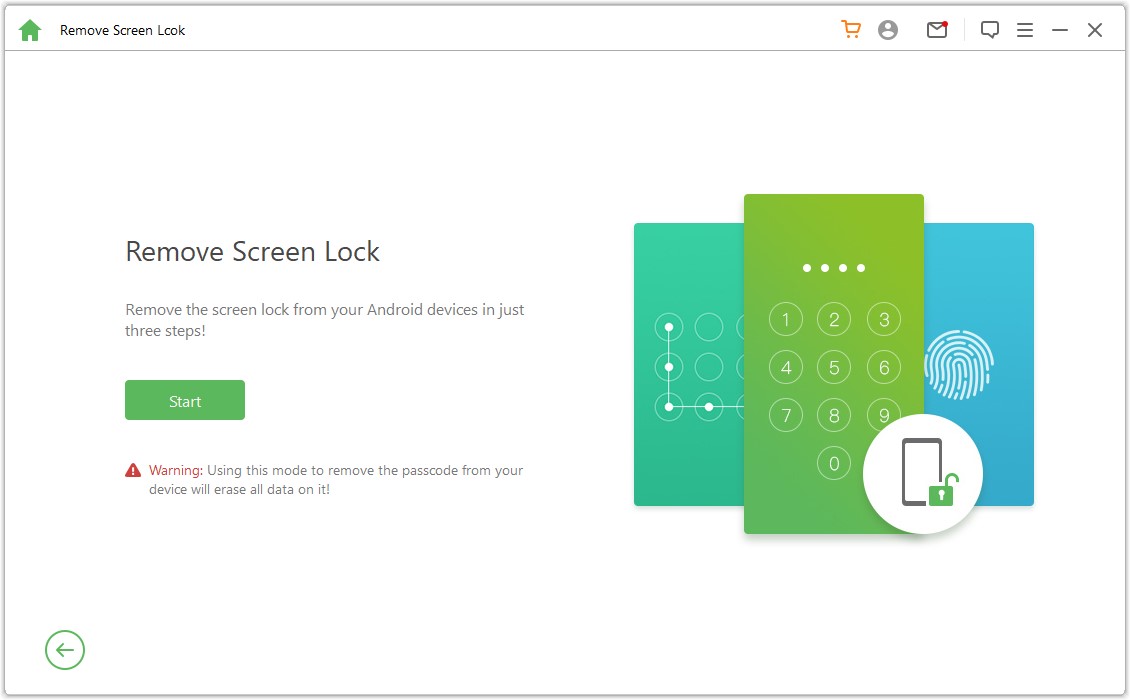
Step 2: Connect and check the model. Attach the phone by USB. Confirm the device information displayed, correcting it if necessary before selecting Start to Unlock.
Step 3: Allow preparation to complete. Wait while the program downloads and sends the required data package. Follow the reset instructions displayed for your device. Preparation can involve actions on the phone, so keep it within reach.
Step 4: Finish and check startup. Keep the connection secure until removal completes. Let the phone restart, then check its setup screen and complete any requested account verification.
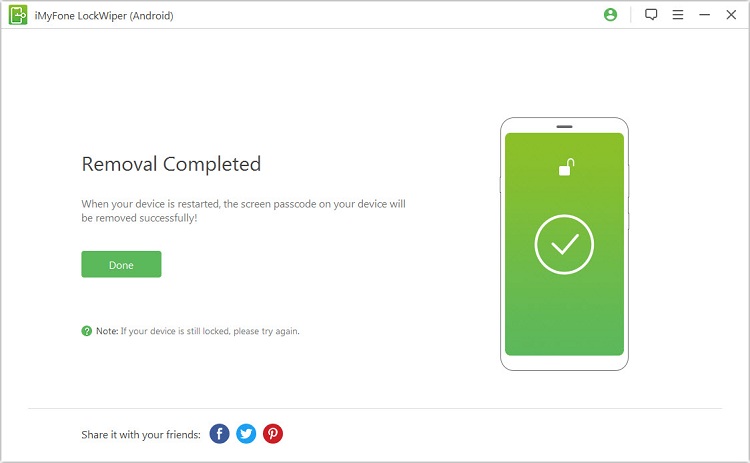
The screenshots show example software interfaces. Follow the detected-device instructions in the LockWiper Android guide. If an error occurs, record its wording and the stage where it appeared before retrying.
A failed download and a disconnected phone call for different checks. For a download problem, review the computer’s connection and available space. If the device disappears during preparation, check the cable and port. Confirm the displayed model again if the information changes when you reconnect.
Download LockWiper Android For Windows
Erase an Android Phone Remotely with Find Hub
If the phone is elsewhere, Google Find Hub can provide a remote erasure route. The device needs power, a mobile-data or Wi-Fi connection, a signed-in Google Account, Find Hub enabled, and visibility on Google Play.

- Open Find Hub in a browser or use its app on another Android device.
- Sign in with the Google Account associated with the phone.
- Select the correct device and open its settings.
- Choose Factory reset, complete the requested verification, and confirm the erase.
Double-check the selected model when several devices are listed. Once erased, the phone is no longer available in Find Hub, and erasure may not cover its SD card. If you recover it, you may need the associated Google Account password to use it again.
An offline phone cannot complete an immediate remote wipe. Use this route when the account and connection conditions are met.
Finish the Reset and Check the Result
After a local reset, look for the initial setup screen. If you are keeping the phone, complete verification and choose an available backup when offered. Check the backup date before restoring it.
If the phone is for someone else, follow the manufacturer’s handover process and leave it ready for their setup. Avoid adding your account again just to test it. Check that any SIM, memory card, or mobile plan you intended to retain has been handled.
Conclusion
To wipe an Android phone, use Settings when you can unlock it, LockWiper Android’s supported PC workflow when a forgotten screen lock blocks access, or Find Hub for eligible remote erasure. The right phone wiper is the route you can complete for your device. Preserve needed content first, then verify the reset and account setup.
FAQs About Android Phone Wipers and Factory Resets
Is There Free Mobile Factory Reset Software for PC?
You can use a computer browser to access Find Hub without buying third-party PC software, provided the device meets Google’s requirements. A phone you can unlock also has a built-in reset option. LockWiper offers a trial for checking support; a free download does not by itself mean the complete removal operation is free.
What Does “Wipe Data/Factory Reset” Delete?
It removes local user data and returns the phone to its initial setup state. That includes installed apps and their local data. It does not mean your cloud account has been deleted, and removable storage or cellular-plan settings need separate checking.
Can I Wipe a Locked Android Phone from a Computer?
LockWiper Android provides a removal-and-reset workflow for supported devices when you have forgotten the screen code. The phone must connect and complete the preparation shown by the software. Check those requirements before choosing a PC reset tool.
Will Factory Formatting Remove Google Account Verification?
Not automatically. A protected phone may request its previously associated account after a reset. If you can access Settings before a planned handover, remove your Google Account there first. Follow Google’s device-protection guidance for your situation.
Do I Need a Phone Wiper App Before Selling My Android?
Start with the manufacturer’s factory-reset and handover instructions. A separate tool is useful when it addresses a specific obstacle, such as a forgotten screen lock. Choose it for that capability rather than assuming every sale requires an additional eraser app.