







 Adams Johnson
 Last updated: Oct 28, 2026 12:00 am
 Android Unlock
Searching for an FRP file can quickly turn into a maze of firmware names, model numbers, and download pages. You want to get past Google verification on your Samsung phone, but it is not obvious which file belongs to your device or whether flashing it will solve the problem.
Quick answer: An FRP bypass file is not a universal Samsung unlock package. Check its purpose and exact device requirements before using it. Odin handles firmware flashing; a completed flash does not by itself confirm FRP removal. LockWiper Android offers a dedicated FRP workflow for supported devices without manually assembling an Odin file set.
Still hunting for the right FRP file? LockWiper Android brings Google-lock removal and device preparation into one PC workflow, helping supported Samsung users proceed without the original Google Account password.
▸ What Is an FRP File, and What Does Odin Do?
▸ Check the File Before You Connect Your Samsung
▸ Odin Says PASS, but Google Verification Is Still There?
▸ Skip the Odin File Hunt with LockWiper Android
What Is an FRP File, and What Does Odin Do?
“FRP file” is a label used across download pages and unlocking tutorials. It may refer to a firmware archive, a file intended for a particular repair process, or another package supplied with a tool. The label alone does not tell you what the download contains.
A Samsung FRP reset firmware file therefore needs more than a recognizable phone name. Its documentation should identify the intended device, software requirements, and operation.
Odin is associated with flashing firmware onto Samsung devices. It is the flashing program, not the firmware itself. Downloading Odin does not supply a matching device package, and loading a file into the program does not establish that it can remove FRP.
This is why searches such as “Odin remove FRP Samsung” can lead to confusing advice. One tutorial may discuss restoring software, while another describes a device-specific account-verification workaround. Those are different tasks, even when both mention the same flashing tool.
Start with the actual obstacle: if the phone boots normally but asks for a previously synced Google Account during setup, you need to address that verification requirement. Reinstalling working software is not automatically the answer.
Check the File Before You Connect Your Samsung
Before extracting a download or opening Odin, put the device information beside the file description. A few clear details are more useful than a folder full of similarly named archives.
Match the Full Model Number
Find the exact model number on the phone, packaging, or purchase record. A product name such as Galaxy A20 is not enough to establish that every package mentioning A20 is suitable. Compare the complete device identifier with the documentation.
If the instructions specify an Android version, firmware build, or other software requirement, check that as well. Where information is missing, ask the package provider or a qualified service technician rather than selecting the nearest-looking entry.
Check What the Package Is Supposed to Do
Read the description before treating an archive as an FRP bypass file. Does it explain a firmware repair, a reset, or an account-lock operation? Does it name the tool and the applicable device state? Those details determine whether it addresses your problem.
| What You Found | What Is Still Needed |
|---|---|
| A download with only a Galaxy model name | The complete supported model number and software requirements |
| An archive labeled “FRP reset” | A clear explanation of its contents and intended operation |
| A screenshot showing Odin PASS | Confirmation that the matching phone completed account verification afterward |
| A reposted file without release notes | A traceable source and instructions matching the package |
Odin Says PASS, but Google Verification Is Still There?
A PASS message reports the result of the flashing operation. It does not confirm that Google account verification has been removed. If setup still asks for the previously associated account, the phone has not reached the outcome you wanted.
Samsung explains that FRP can require account verification after a reset. Clearing the device and proving ownership are separate steps. Do not interpret another successful reset as evidence that the account requirement has disappeared.
If you remember a Google Account previously synced to the phone, try using it. If you have forgotten the login, use Google Account recovery. For a used phone, the seller may be able to help complete verification.
Skip the Odin File Hunt with LockWiper Android
If your goal is Google-lock removal, iMyFone LockWiper Android offers a dedicated desktop workflow. It helps supported Samsung devices get past FRP without the original Google Account password.
The practical advantage is having the removal function, device information, preparation, and next instructions together. You do not have to assemble a separate Odin file set and decide how to combine files from different sources.
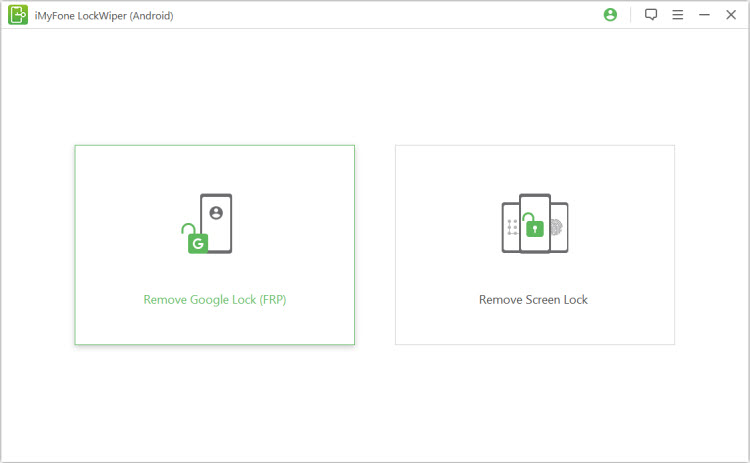
- A direct starting point: choose the Google-lock function for the verification screen you need to resolve.
- Matching preparation: provide the requested device details and follow the corresponding instructions.
- Less manual file handling: let the selected workflow organize any package preparation it requires.
LockWiper can still require downloads and actions on the phone. Its benefit is organizing the supported process, not eliminating every preparation step. Check the exact Samsung model and software in the current program before beginning.
Step 1: Select Google-Lock Removal
Install LockWiper Android on your Windows PC. Open Remove Google Lock (FRP) and select the available mode matching your device. The official guide includes Standard and Advanced workflows with different requirements.
Step 2: Connect and Check the Device Details
Connect the phone using a USB data cable. Confirm the information requested by the program, including the system version where applicable. Use the help provided in the interface if you cannot identify a required detail.
Step 3: Follow the Preparation Shown
Complete the instructions for the chosen mode. Allow any required package download to finish, keep the PC powered, and leave the phone within reach. Some steps require handset interaction rather than computer clicks alone.
Use one matching set of instructions throughout. If the phone is not recognized, check the USB data connection before repeating the operation.
Step 4: Finish and Check Setup
Wait for removal to complete and restart when instructed. Continue through the phone’s setup screens and check whether you can use your own Google Account.
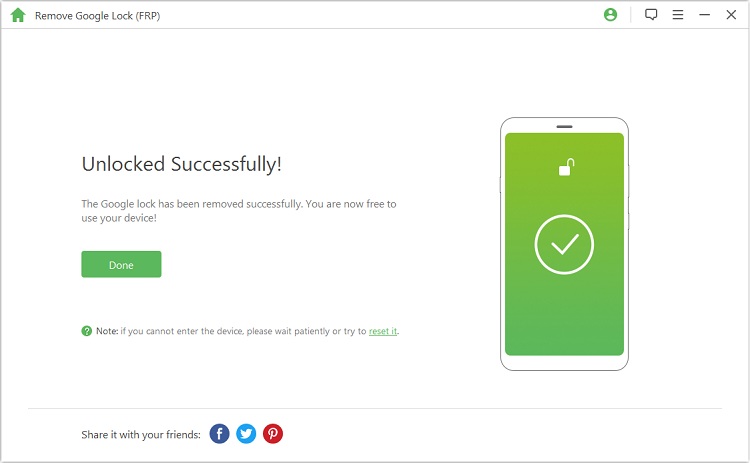
The official LockWiper Android guide gives the mode-specific instructions.
Before You Call the FRP Reset Complete
Check the result on the phone, not only on the computer. Complete setup, sign in with your own Google Account, and restart normally. Confirm that the old verification screen does not return.
Once access works, restore an available backup and check your important apps. Keep your recovery email and phone number current so a future reset is easier to manage.
Conclusion
An FRP file needs a documented purpose and a genuine match to your Samsung device. A successful Odin flash alone does not establish that Google verification is resolved. If you would rather avoid searching for a separate FRP bypass file, LockWiper Android offers a dedicated removal workflow for supported phones.
FAQs About Samsung FRP Files and Odin
Can Odin Remove FRP with Stock Firmware?
Do not assume that flashing stock firmware removes Google verification. Odin completes a firmware operation; a protected phone can still require a previously associated account afterward.
Is There One Samsung FRP Reset Firmware File for Every Model?
No universal file should be assumed from that description. Check the exact supported model, software requirements, and intended operation in the package documentation.
What Should I Check in a fixfirmware/frp-Style Download Listing?
Check who provides the file, which device and software it supports, and where its matching instructions are documented. A directory name or a search result is not proof that a package suits your phone.
Does LockWiper Android Require Me to Select Odin Firmware Files?
Its dedicated FRP workflow does not ask you to assemble an Odin file set. Depending on the mode, it may still require device information, package downloads, and actions on the phone. Follow the instructions displayed for your supported device.