







 Ronnie Barnes
 Last updated: Oct 16, 2026 12:00 am
 iOS System
You connect your iPhone to back up photos, sync music, or install an update—but the device icon never appears. When iTunes is not detecting your iPhone, that missing connection can leave an important task on hold. Start with the checks below to get the phone communicating with your computer again.
Quick answer: Check the data cable and USB port, unlock the iPhone and approve Trust, then update the appropriate device-management app. On current setups, check Apple Devices on Windows or Finder on Mac. If a persistent iOS fault is preventing normal connection, Fixppo offers a separate repair route for supported devices.
Backup or update on hold? Explore Fixppo for iOS-related connection problems. Standard Mode repairs supported software faults while keeping your data, helping you work toward a usable iPhone connection again.
How to Fix iTunes Not Detecting Your iPhone
1. Check the USB Connection and Device List
A phone that charges is not necessarily communicating with your computer. The cable needs to support data transfer as well as power. Use a cable with the correct connectors and check that both ends sit securely.
Try another suitable cable and a different USB port. If you are connecting through a hub or adapter, test a direct connection when possible. Check the phone's connector for visible debris or damage without forcing the plug.
Now look inside the application. Apple Devices lists connected devices in its sidebar; Finder does the same on a current Mac. In iTunes, look for the device icon. A missing sidebar can look like a missing phone, so check the app window before changing anything else.
| Computer response | Next action |
|---|---|
| No device appears | Test a data cable, another USB port, and another computer. |
| The device appears in another app | Investigate the original app rather than treating the USB connection as completely absent. |
| A connection error appears | Record the full wording and check authorization or software requirements. |
Change one detail at a time. Note whether a different cable, port, or computer changes the result. If the phone appears after a cable change, keep that connection for your backup or sync instead of switching back immediately.
2. Unlock the iPhone and Renew Computer Trust
For a normally running iPhone, unlock it with your passcode after connecting. Respond to the computer's trust request and confirm Trust on the phone. Only approve a computer you intend to let access your device's content.
If you previously selected Don't Trust, or the expected request does not appear, use Settings > General > Transfer or Reset iPhone > Reset > Reset Location & Privacy. Reconnect afterward and respond to the new trust request.
After reconnecting, keep the iPhone unlocked long enough to finish the authorization. Check both screens: a request can be waiting on the computer while you are watching only the phone. Once the device appears, select it and confirm that the backup or sync controls are available before starting your task.
This resets remembered trust choices, so previously trusted computers will ask again. Follow Apple's Trust This Computer instructions for the authorization steps.
These actions require an accessible phone. If it shows a recovery graphic or a disabled message, you cannot assume that unlocking and tapping Trust is available. Use the screen-specific help linked in the FAQ rather than trying to change Settings you cannot reach.
3. Update Your Windows or Mac Setup
Windows: Check Apple Devices or Your iTunes Setup
Open the Apple Devices app when it is installed for managing your iPhone. If you use an older supported iTunes setup, update that application through its installation source. Update Windows as well, then reconnect the phone and check the device list.
For iTunes downloaded from the Microsoft Store, Apple also advises checking that iTunes Mobile Device Helper is enabled as a startup item when troubleshooting trust requests. Check that named item rather than enabling unrelated startup programs.
Restart the computer and an accessible iPhone if the authorization sequence still stalls. Then reopen the device-management app and reconnect. If another computer recognizes the phone, focus your next investigation on the original Windows setup.
Mac: Check Finder and Accessory Permission
Use Finder on a current Mac. If its sidebar is hidden, choose View > Show Sidebar, then check for the connected iPhone. If macOS asks whether to allow an accessory to connect, select Allow.
Complete the iPhone's Trust request when available. Update macOS and test another port or cable if the device remains absent. A phone recognized on another Mac gives you a useful clue about the original computer or connection.
Apple identifies VPN and third-party security software as possible sources of interference. Follow the relevant vendor's troubleshooting guidance for suspected conflicts. See Apple's detection checklist if the phone still does not appear.
Get Your iPhone Ready to Connect Again with Fixppo
You want to finish a backup or update, not spend the afternoon repeating the same connection attempt. Once the cable, Trust settings, and computer software have been checked, iMyFone Fixppo provides another route when an iOS software problem is interfering with normal device use.
Fixppo offers Standard Mode for supported iOS faults, with a repair workflow designed to keep your personal data. It works from your PC or Mac without relying on a successful iTunes repair session, which is useful when iTunes cannot complete the task you came to do.
Its product page includes iTunes recognition and update or restore errors among the supported problem scenarios. The practical fit is a software-related failure: for example, the phone is also restarting unexpectedly or cannot finish starting after an update. If it works normally and appears in Apple Devices, use that app for the backup rather than repairing the phone unnecessarily.
A working connection still matters. Fixppo must communicate with the device, normally or through recovery-mode preparation. A damaged cable or port needs attention before software can help.
Repair a Supported iOS Fault, Then Retry Your Connection
1. Choose Standard Mode. Open Fixppo, select Apple System Repair, and choose Standard Mode for the data-preserving repair workflow.
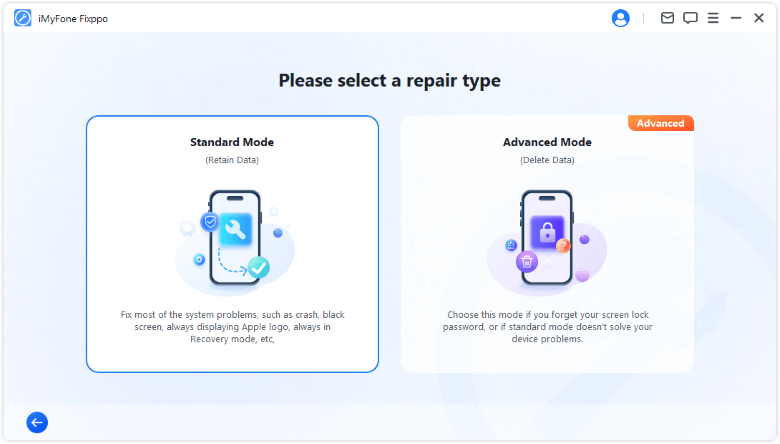
2. Connect the iPhone. Use a data-capable USB cable. If normal detection is unavailable, follow the app's recovery-mode instructions for your model. Keep the connection secure during preparation.
3. Prepare the firmware. Check the detected device model and download an available firmware package. Wait until preparation finishes before starting repair.
4. Start Standard Repair. Leave the phone connected while Fixppo works. After the automatic restart, open your device-management app, approve Trust if prompted, and check for the iPhone again.
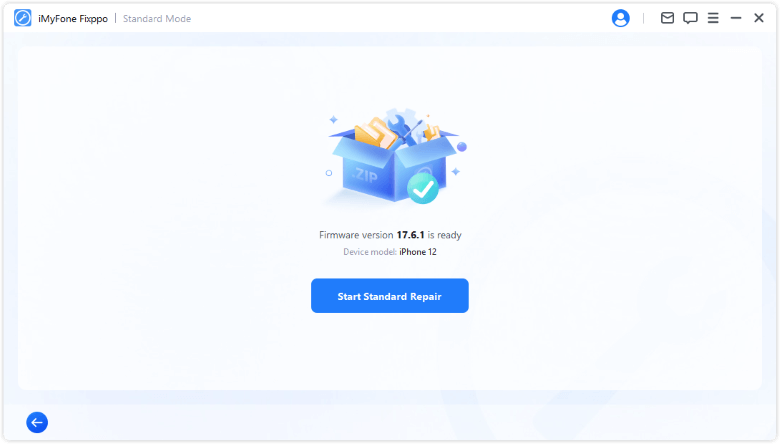
Once the phone appears, return to the original task: create the backup, sync your content, or check the available update. The Fixppo user guide explains the connection and Standard Mode steps.
Conclusion
When iTunes is not detecting your iPhone, check the cable and port, complete computer authorization, and use the correct app for your platform. Fixppo's Standard Mode is a relevant next step when a supported iOS fault is blocking normal device use. Once the connection returns, finish your backup or update while the phone is accessible.
FAQs About iTunes Not Detecting an iPhone
What Should I Do If iTunes Could Not Connect to This iPhone?
Read the full message and note any error code. If it asks you to unlock the phone, do that and complete Trust. If the connection drops repeatedly, test another cable and port. For a numbered error during an update or restore, follow Apple's instructions for that specific code.
Why Does My iPhone Charge but Not Appear in iTunes?
A cable can deliver power without establishing a usable data connection. Try another data-capable cable and USB port, then check that the phone is unlocked and the computer is trusted.
What If Apple Devices Sees My iPhone but iTunes Does Not?
Use Apple Devices for iPhone management when that is your Windows setup. If the phone appears there, the computer is communicating with it. Open the device page in Apple Devices to find the relevant backup, sync, or update controls.
What If My iPhone Shows an iTunes Logo and Cable?
That graphic indicates recovery mode, which needs a different workflow from a normally running phone missing from the device list. See our guide to exiting iPhone recovery mode. A written disabled or unavailable message instead requires the appropriate passcode-recovery steps.
When Should I Get the Connection Checked?
If multiple suitable cables and computers fail to recognize the phone, or its port is loose or damaged, contact Apple or an authorized service provider. Keep a record of which connections you tested to help narrow down the fault.
