







 Adams Johnson
 Last updated: Oct 28, 2026 12:00 am
 Android Unlock
Your Android phone has been reset, but the next screen still asks for an old Google Account. If you are looking for an FRP bypass solution, the goal is simple: finish setup, sign in with your own account, and use the phone normally instead of getting stuck at another verification screen.
Quick answer: Sign in with a Google Account previously synced to the phone if you can recover it. LockWiper Android offers a dedicated FRP-removal workflow for supported devices. Check the matching device requirements, complete removal.
Old Google credentials holding you back? LockWiper Android helps remove FRP on devices without the original password, with specific preparation and instructions that keep your next steps in one place.
▸ FRP Lock After a Reset? Here Is What Unlocks the Next Step
▸ Choose an FRP Bypass Tool That Matches Your Phone
▸ Bypass Google Verification Without the Old Password Using LockWiper Android
▸ Finish Setup and Check That Google Services Work
▸ Keep Your Next Reset from Triggering Another Account Problem
FRP Lock After a Reset? Here Is What Unlocks the Next Step
Factory Reset Protection helps prevent someone else using a protected Android phone after erasing it. Seeing account verification after a reset does not necessarily mean the reset failed. Clearing the phone and satisfying its ownership check are separate parts of getting it ready to use.
If you know an account previously added and synced to the device, try signing in with it. Google says a previously synced account can qualify; it does not have to be the first account ever used on the phone. Guest accounts do not count.
Forgotten the login? Start with Google Account recovery. If the device was bought used, ask the seller to help complete verification. For a phone you own or are authorized to manage, a compatible FRP bypass tool is another route when the original credentials are unavailable.
Choose an FRP Bypass Tool That Matches Your Phone
An Android FRP unlock tool is useful when its supported process fits your phone. Start with the task you need to complete, then check the device information and the available instructions.
Start with Your Exact Model and Software
A brand name is a starting point, not a complete compatibility check. Find the full model number on the device, packaging, or purchase record, and identify the Android version when possible.
Choose a Process You Can Complete
Think about the equipment and access you have. A Windows program needs a compatible PC and a working USB data connection. An APK-based tutorial may require access to a browser or settings screen that your locked phone cannot open. Choose a route whose starting requirements match your situation.
Read the preparation steps before starting. Check whether the process needs an internet connection, a download, or actions on the handset. Keeping those requirements together makes it easier to follow the sequence without changing methods halfway through.
| Your Situation | Useful Next Step | What to Check |
|---|---|---|
| You can recover a previously synced account | Complete account recovery and sign in | The account was associated with this device |
| You need computer-based FRP removal | Check LockWiper Android’s FRP workflow | Exact model, software version, and mode requirements |
| An old tutorial shows options missing from your phone | Find instructions matching your current software | Do not substitute files from another model |
Look for Clear Instructions and Available Support
Download through the software vendor’s official channel and look for a guide that names the feature you need. Useful instructions explain what to select, what the phone should show next, and how to respond if the device is not detected. A headline promising an instant unlock does not provide that help.
For a computer-based option, LockWiper Android combines a dedicated FRP entry, device preparation, and on-screen instructions.
Bypass Google Verification Without the Old Password Using LockWiper Android
iMyFone LockWiper Android is a desktop Android unlocking program with a specific Google-lock removal function. It can remove Google FRP locks from compatible Samsung, Xiaomi, Redmi, and OnePlus phones without the original Google Account password, helping you get past verification and continue setting up your device.
Its advantage is a defined process on your computer: choose the FRP function, provide the requested device details, and complete the preparation for that route. You do not need to assemble a collection of unrelated APKs or guess which screen-lock feature also handles Google verification.
- A dedicated FRP entry: start with Google-lock removal rather than a regular screen-lock reset.
- Device-specific instructions: follow the preparation shown for the selected model and system.
- A clear finish: complete the operation, then check account setup on the phone.
The walkthrough below uses Samsung as the example in the official guide. Check your exact model and software in the current program before starting; screen-lock support and FRP support are different lists.
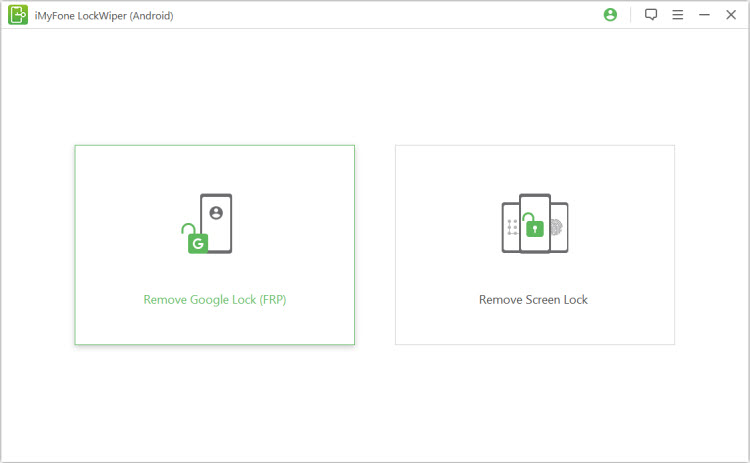
Step 1: Open the Google-Lock Removal Function
Install LockWiper Android on your Windows PC and select Remove Google Lock (FRP). The published guide includes Standard and Advanced modes. Use the route supported for your phone rather than choosing a mode simply because it sounds more powerful.
Step 2: Connect and Confirm the Device
Connect the phone using a USB data cable. Check the information requested by the program.
FRP removal erases device data. Review the confirmation before proceeding and keep any existing backup available for later. The data-preserving option offered for certain Samsung screen locks is a separate feature, not an FRP-removal promise.
Step 3: Complete the Matching Preparation
Follow the instructions displayed for the selected route. Allow any required download to finish, keep the PC powered, and have the handset nearby for the requested actions. The procedure can differ between modes, so use one matching set of instructions from start to finish.
If an expected option does not appear, check the selected device information before trying again. For a download error, check the PC connection and storage. For a connection error, check the cable and port. Record the exact message if you need help from support.
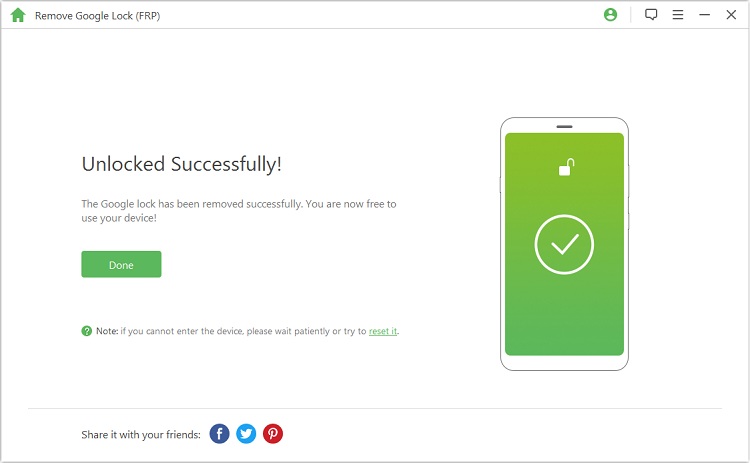
Step 4: Finish Removal and Return to Setup
Let the program complete its operation, then restart the phone when instructed. Continue through setup and check whether you can sign in with your own Google Account.
Finish Setup and Check That Google Services Work
Reaching the home screen is encouraging, but it is not the only result that matters. Check the tasks you need the phone to perform before restoring everything or handing it to someone else.
- Complete setup: continue through the normal setup screens without another request for the previous owner’s account.
- Check your account: sign in with the Google Account you intend to use and confirm it appears in account settings.
- Open Google Play: check that the store opens under your account. Try installing a familiar app when ready.
- Restart normally: confirm that the phone returns to normal use without sending you back to the old verification screen.
If Google verification still appears, the task is not complete. Note where it returns: during setup, when adding an account, or when opening a Google service.
Keep any on-screen error text and the device’s model and software details together. Do not assume that repeating a factory reset will finish an incomplete FRP process.
Once account access works, restore an available backup and check that the content you need has returned. Some apps, including messaging and authenticator apps, have their own sign-in or transfer steps.
Keep Your Next Reset from Triggering Another Account Problem
After recovering access, check your Google Account recovery email and phone number. When preparing a phone for a new owner, remove your Google Account through the device settings before following the manufacturer’s reset and handover instructions. Google’s device-protection guidance explains how removing the account turns off that protection on the device. If you are keeping the phone, set a new screen lock and maintain a current backup. You do not need to leave the device permanently unprotected simply because recovering access was inconvenient.
Conclusion
A useful FRP bypass result means more than reaching a different screen: you should be able to finish setup and use your own Google Account. Recover the associated account when possible, or choose a compatible FRP bypass tool. LockWiper Android offers a dedicated removal route without the original Google password on supported devices. Follow the matching process, then check setup, account access, and Google services.
FAQs About FRP Bypass Tools
Does a Factory Reset Remove FRP?
Not by itself. A protected phone can still request a previously associated Google Account after a reset. Clearing local data and completing Google verification are different tasks.
Is There a Free Windows FRP Tool?
Some tools are advertised as free, but availability and compatibility vary. A free download does not necessarily include complete removal. Check the current terms of the tool you choose. Google Account recovery is a separate option when you can regain access to the associated account.
Can an FRP Tool Bypass the Google Password Itself?
FRP removal addresses the device’s setup restriction. It does not reveal the old password or provide access to the original owner’s Gmail, photos, or other cloud content. Use account recovery if you need that account back.
Why Does Google Verification Return After Reaching the Home Screen?
The device may still require verification even if you have reached part of its interface. Check whether account sign-in and Google Play work. If the old-account request returns, record the exact screen and contact support for the process you used.