







 Adams Johnson
 Last updated: Oct 23, 2026 12:00 am
 iOS Unlock
An iPhone looks ready to use, but promotional content keeps returning, account settings are restricted, or the box says “Demo Not for Resale.” iPhone demo mode can make an apparently ordinary device behave very differently from the phone you expected. What does that label mean, and what needs to change before you can use it normally?
Quick answer: An available demo or management profile may be removable in Settings. LockWiper offers a computer-based option for MDM restrictions. A device still registered to a retailer needs the retailer’s help with release.
Management restrictions blocking your former display iPhone? LockWiper offers a dedicated MDM workflow for this problem, helping you address the restriction from your computer without the original administrator password.
What Is Demo Mode on an iPhone?
Remove an Available Demo or Management Profile in Settings
No Admin Password? Let LockWiper Clear the MDM Barrier
Complete the Retailer Release and Reset Process
What Is Demo Mode on an iPhone?
Demo mode describes a retail display setup used to showcase an iPhone’s features. Depending on its configuration, a display device may show demonstration content, restrict settings, or limit actions such as installing apps and adding a personal account.
An Apple demo unit can also have device-management restrictions or a continuing retailer assignment. These details matter when you want to turn off demo mode: removing an available profile, addressing MDM, and having the retailer release its registration are different tasks.
The phrase “iPhone Demo Not for Resale” identifies the unit’s intended display purpose. A box label alone does not establish whether its current restrictions have been removed. Check the actual device and the seller’s description together.
| What to check | What you want for personal use |
|---|---|
| Account and apps | You can use your account and install the apps you need. |
| Management status | No unresolved retailer or organization restriction blocks setup. |
| Continued use | Your settings remain in place after restarting. |
Remove an Available Demo or Management Profile in Settings
If you can use Settings, inspect the installed configuration before choosing a removal tool. There is no universal consumer “Demo Mode” switch that every display iPhone provides.
- Open Settings > General > VPN & Device Management.
- Open the relevant profile and review its organization and settings.
- If offered, tap Remove Profile or Remove Management.
- Complete the requested authentication, then check whether the original restriction has gone.
Profile removal can delete its associated settings, apps, and data. Save accessible personal content first. Apple’s configuration-profile guide explains where profiles appear and what deleting one affects.
If removal is unavailable or asks for credentials you do not have, note the organization shown. Avoid deleting unrelated profiles simply because they appear on the same page. For a legitimately purchased former display unit, that organization name is useful when asking the seller what remains configured.
Before confirming removal, review which apps or accounts the profile supplies. If you have already added personal files to one of those apps, export what you need while it remains accessible. This is especially relevant when you have started using the phone before noticing its display history.
No Admin Password? Let LockWiper Clear the MDM Barrier
You own a former display iPhone, but management restrictions still prevent the changes you need and the old administrator password is unavailable. iMyFone LockWiper provides a dedicated MDM workflow for supported devices, letting you address that management obstacle from a computer.
The useful advantage is its separate handling of an accessible, restricted device and a device stopped at Remote Management during setup. You choose the situation on your screen instead of treating every display restriction as a forgotten screen passcode.
Prepare the Device and Choose Its Current State
Check compatibility, use a reliable USB data cable, and review the required Find My status. The MDM guide requires Find My to be disabled. If you cannot complete a required preparation step, confirm the available route with support before proceeding.
Open LockWiper and select Bypass MDM. The next screen separates the setup-screen bypass from management removal on a device you can already use.
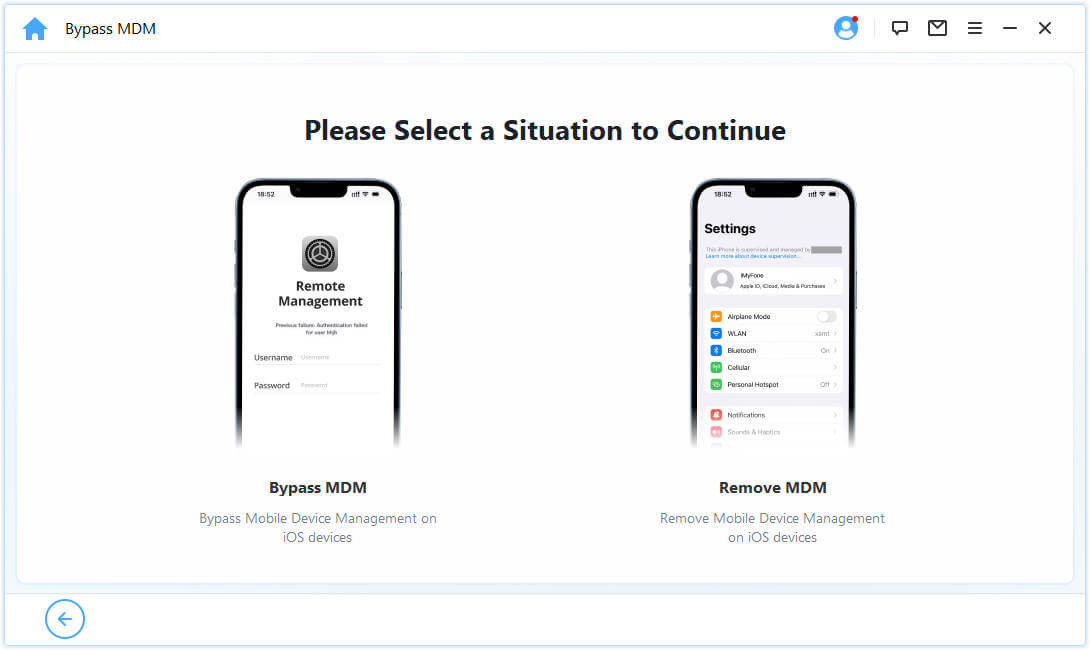
For an iPhone You Can Already Open
- Connect the iPhone, unlock its screen, and approve Trust if requested.
- Choose Remove MDM Restrictions, or the equivalent removal label shown by your version.
- Review the detected requirements and start the removal.
- Keep the cable connected until completion, then check the setting that was previously blocked.
Save a backup of accessible content beforehand. Follow the detected workflow’s data and setup instructions rather than assuming that every removal mode has the same effect.
If the process stops, record the selected branch and any error message. Check the connection and the unmet requirement identified by the program before retrying. That information helps support investigate the actual failure instead of treating it as a generic demo-mode problem.
For an iPhone at the Remote Management Screen
Select the Bypass MDM situation for the setup screen and follow its connection and preparation prompts. Use Start or Start to Bypass when instructed. Follow the setup guidance, including Don’t Transfer Apps & Data where required by this route.
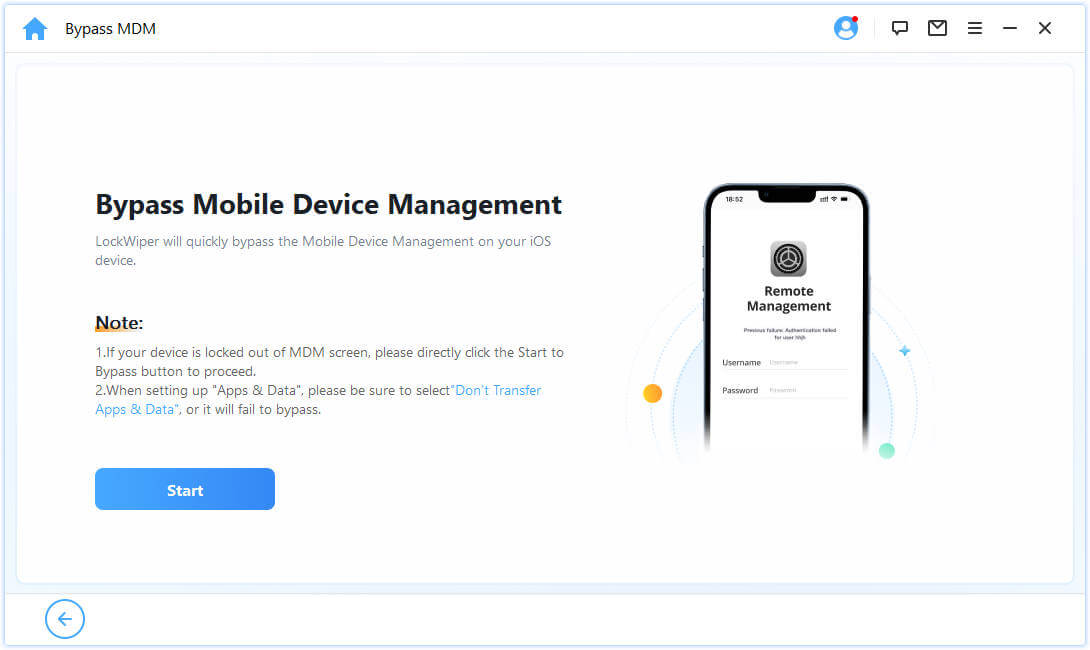
These screenshots show example software interfaces. See the LockWiper MDM guide for the matching workflow.
Download LockWiper For Windows
Complete the Retailer Release and Reset Process
If the iPhone still displays a retailer-ownership notice or returns to a retail setup, ask the seller to confirm its release status. Have the purchase record, serial number, and exact message ready. Ask whether the device was released for personal use, not merely wiped before shipping.
Keep the seller’s response with your purchase details. If they say release is complete, ask what setup result you should expect and whether a reset is required afterward. This gives you a concrete result to check when the phone restarts.
For devices assigned through Apple Business, an authorized administrator can release the device from the organization; it then needs to be erased and restored. Apple documents that organization-release process. Retail demo systems can differ, so the retailer must check the system applicable to your unit.

After the appropriate release is confirmed, complete the cleanup the retailer recommends. If normal Settings controls are available, use General > Transfer or Reset iPhone > Erase All Content and Settings. Back up anything you need and complete the requested verification.
For a computer restore, connect the iPhone and use Finder on Mac or Apple Devices on Windows. Select the device and choose Restore iPhone, following Apple’s preparation instructions. This factory restore erases its information and settings and reinstalls the software.
If setup requests a linked Apple Account, resolve that verification with the account owner. Activation Lock can remain after erasure. If the seller cannot complete the promised release, ask them to resolve the sale rather than repeatedly restoring the phone.
Confirm Your iPhone Is Ready to Use
Once setup finishes, test the functions you bought the phone to use:
- Sign into your own Apple Account and open the settings you need.
- Install a normal app from the App Store.
- Restart and confirm your configuration remains in place.
- Check calling and mobile data with a compatible plan and supported device.
Conclusion
Turning off iPhone demo mode depends on what remains configured. Remove an available profile, use LockWiper for supported MDM restrictions, or have the retailer complete the necessary release. Reset only with a clear purpose, then verify personal account access, apps, and continued use. A successful change should leave you with a phone that works beyond its display setup.
FAQs About iPhone Demo Mode
Can I Turn Off Demo Mode with a Normal Restart?
A restart is not a general removal method for retail configuration or management. If the same restrictions return, check the installed profile and retailer status rather than repeating restarts.
Will a Factory Reset Permanently Remove Demo Mode?
Not necessarily. Erasure clears local data, while an unresolved organization or retailer assignment may still affect setup. Confirm release first and check the result after setting up again.
Is an iPhone Marked “Demo Not for Resale” the Same as a Normal Used iPhone?
The label indicates a display-unit history. Check whether the actual device has been released and supports normal personal setup. Packaging alone does not answer those questions.
Can LockWiper Remove Every Apple Demo Unit Restriction?
Its relevant workflow handles supported MDM cases. A retailer registration, Activation Lock, or a different demo mechanism may require another party’s action. Check the specific restriction before choosing the tool.
Should I Buy an Apple Demo Unit?
Ask for clear release confirmation and a demonstration of normal setup and use. Check battery condition, repairs, connectivity, and sale terms as well. A lower price is only useful if the device meets your needs.