







 Adams Johnson
 Last updated: Oct 21, 2026 12:00 am
 iOS Unlock
The iPhone works, but someone else's name is still at the top of Settings. Or it is your own old account, and the password is long forgotten. If you want to remove Apple ID from your iPhone and use your own login, start with the methods below.
Quick answer: Try Sign Out in Settings and complete the authentication offered on your device. For already activated iPhone, LockWiper provides an Unlock Apple ID workflow without the signed-in account's password. A previous owner can also help remove the device link through Find My.
Remove Apple ID from your iPhone without the account password using LockWiper's dedicated mode.
Remove Apple ID Through Settings
Forget the Old Password—Remove Apple Accounts with LockWiper
Let the Previous Owner Unlink the Device Remotely
Remove Apple ID Through Settings
If you can open Settings, check the built-in sign-out flow first. Have a copy of the personal information you need, and allow recent iCloud changes to finish syncing before you begin.
- Open Settings and tap the account name at the top.
- Scroll down and tap Sign Out.
- Review the options for signing out while keeping device content or erasing the device, if shown.
- Complete the requested verification using the device passcode or Apple Account password offered by the flow.
- Confirm sign-out and return to Settings to check the result.
Apple's current sign-out instructions include device-passcode or account-password verification. Follow what your phone actually requests; the available choices depend on its software and security settings.
For example, if a family member has handed you an older iPad that still uses their account, have them complete sign-out before you add yours. The Settings path is shared, so there is no separate iPad account-removal technique to memorize.
Forgot the Password to Your Own Account?
Use Apple's password-recovery options for your own account. A trusted device or trusted phone number can help verify your identity. If recovery requires a waiting period, complete that process rather than repeatedly trying guessed passwords.
Once account access is restored, return to Sign Out. Avoid deleting synced contacts or photos as a way to disconnect the account: deletion can affect the cloud copy and other connected devices. Account removal should be handled through the sign-out or appropriate removal workflow.
Forget the Old Password—Remove Apple Accounts with LockWiper
iMyFone LockWiper provides a dedicated Unlock Apple ID mode for removing a signed-in account from a supported, activated device when its password is unavailable. LockWiper checks the connected device and presents the applicable removal route, so you can work toward signing in with your own account without first recovering the old account's password.
This also fits an authorized hand-me-down iPad whose previous user cannot supply the old login. Keep the same goal throughout: remove the account attached to the device, then set up the account you intend to use.
Check the Requirements Before Connecting
You need to be able to unlock the device screen and approve Trust if requested. Check the supported model and system version, and back up accessible personal content before starting. The removal process and its data impact vary with Find My and the detected system.
| Device condition | Preparation to expect |
|---|---|
| Find My is off | Connect the activated device and follow the account-removal prompts. |
| Find My is on, with an eligible older system | The applicable route may require resetting device settings before removal. |
| Find My is on, with a supported newer system | Device passcode and two-factor authentication conditions apply; the displayed route can erase device data. |
Let the software identify the applicable route rather than choosing one from a screenshot's example system number. The official LockWiper guide explains the Find My branches and the additional checks for supported newer systems.
Remove the Signed-In Account from Your Computer
1. Select Unlock Apple ID. Install and open LockWiper on your computer, then choose the account-removal mode.
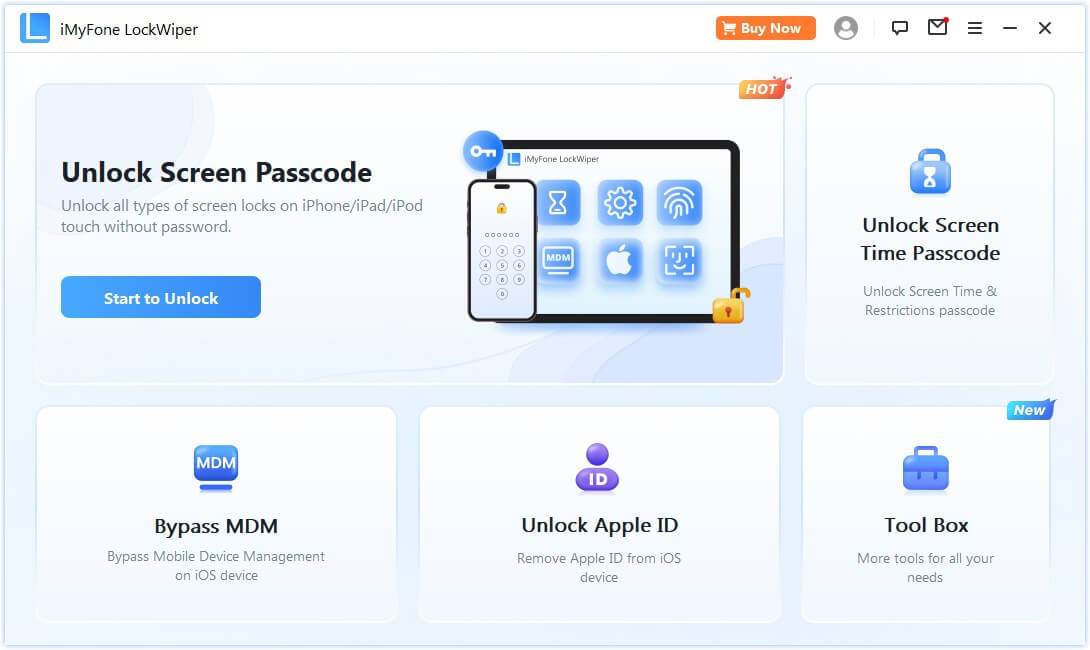
2. Connect and authorize. Attach the iPhone using a data-capable cable. Unlock its screen and approve Trust if asked. Wait for the device details to load.
3. Review the detected route. Check the model, Find My status, and preparation shown. Complete any required device-passcode, two-factor authentication, or settings checks before proceeding.
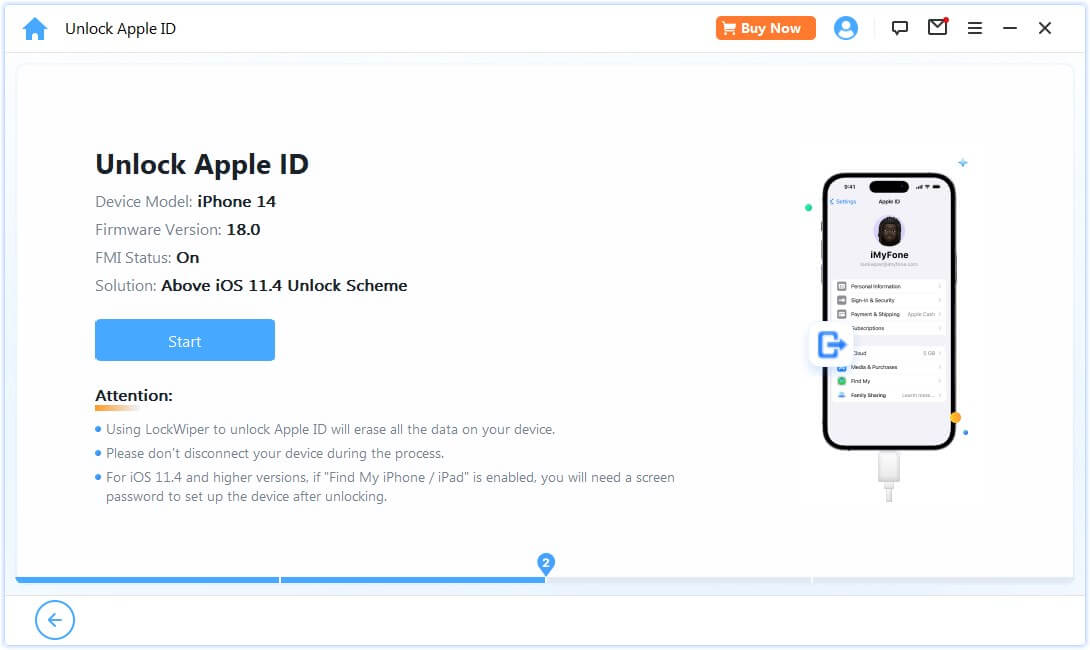
4. Confirm and complete removal. Read the data notice before confirming. The example above explicitly states that its route erases device data. Keep the device connected, then follow the setup instructions after completion.
Let the Previous Owner Unlink the Device Remotely
If you can contact the seller or family member who previously used the phone, ask them to complete the account handover. They can sign out in person or use Apple's Find My process for a device linked to their account. They do not need to share their password with you.
For remote help, ask the previous owner to:
- Open icloud.com/find and sign in to their own account.
- Select the correct iPhone or iPad.
- Follow the available device-removal instructions and choose Remove This Device when offered.
- Confirm the handover with you so you can retry setup or check the account state.
The controls depend on the device's state. Apple documents this under removing Activation Lock.
Set Up Your Account and Check the Result
After removal, open Settings and confirm the old name is gone. Sign in with your own Apple Account, then review iCloud and Media & Purchases. Check iMessage and FaceTime if you use those services.
Make sure new photos, contacts, and backups go to the account you intend to use. If you share other devices with family members, review the account name on each one before turning on syncing. An account change should leave you clear about where new information is stored.
Previously purchased apps and subscriptions belong to the purchasing account. Replacing the device's login does not automatically transfer those purchases. If an app update asks for the old account, check the app's purchase ownership and save any necessary app data before deciding how to replace it.
For a handed-down iPad, repeat these same checks after setup. Avoid merging a previous user's retained contacts or other content into your account; ask them to handle their information before you start personal syncing.
Conclusion
To remove Apple ID from an iPhone or iPad, use the available Settings sign-out flow, recover your own account, or choose LockWiper's dedicated removal mode on an eligible activated device. Previous-owner help is another route when the device link remains. Finish by checking your new account and syncing settings so the iPhone or iPad is ready for your own everyday use.
FAQs About Removing Apple ID from iPhone and iPad
How Can I Remove Apple ID from My iPad Without the Password?
Check the sign-out verification available in Settings, recover the account if it is yours, or use LockWiper on a supported activated iPad. If a previous owner controls the account, ask them to complete the handover. The same options apply to an iPhone.
Does Removing Apple ID Disable the Account?
Removing an account from an iPhone or iPad does not delete or permanently disable the Apple Account itself. If your goal is simply to use a different login on one device, you do not need to close the entire account.
Will a Factory Reset Remove the Old iCloud Account?
Erasing device content does not automatically clear an existing Activation Lock association. Before wiping an iPhone or iPad, resolve the relevant account link rather than assuming another reset will remove it.
Why Is Sign Out Grayed Out on My iPhone or iPad?
Screen Time account-change restrictions or organizational management can affect access to account controls. Check the displayed restriction and use the appropriate account owner or administrator's help. Repeatedly tapping Sign Out will not change an enforced setting.
Will I Keep My Photos and Apps?
Data handling depends on the chosen sign-out or removal route. Review local-copy choices and any erase notice, and back up accessible personal content beforehand. Do not assume that a LockWiper route shown for one iPhone has the same data effect on every iPad.
Can LockWiper Remove Apple ID from a Device That Is Not Activated?
The Unlock Apple ID mode discussed here is for eligible activated devices. If your iPhone or iPad is stopped at Activation Lock before setup, follow the previous-owner or Apple support route rather than applying this Home Screen account-removal workflow.