







 Adams Johnson
 Last updated: Oct 23, 2026 12:00 am
 iOS Unlock
Forgotten the passcode to an iPad you want to use again? Repeated guesses can leave you facing an iPad Unavailable screen instead of your apps. If you need to unlock your iPad after forgetting the passcode, follow the steps below to regain access and set it up again.
Quick answer: If you changed your passcode within the last 72 hours, check the previous-passcode option first. Otherwise, you can remove the forgotten screen passcode with LockWiper, reset from the lock screen when eligible, or restore using a computer.
Forgot your iPad passcode? Get past the locked screen with LockWiper. Connect your iPad to a computer, follow the passcode-removal steps, and get your iPad ready to use again.
Use Apple’s 72-Hour Passcode Recovery Option
Forget the Passcode—Unlock Your iPad with LockWiper
Unlock Your iPad Without a Computer Using the Reset Option
Restore a Locked iPad with Finder or Apple Devices
Use Apple's 72-Hour Passcode Recovery Option
Recently changed your code? On iPadOS 17 or later, select Forgot Passcode? > Enter Previous Passcode when available, enter the old code, and set a new one. The previous code must still be valid within the 72-hour window. See Apple’s Passcode Reset instructions for the account, network, and Find My requirements.
Forget the Passcode—Unlock Your iPad with LockWiper
Your iPad does not need to become a guessing game. iMyFone LockWiper is a desktop unlocking tool with a dedicated workflow for removing forgotten screen passcodes from iPads. You work from your computer instead of trying to open Settings on a device you cannot unlock.
For this task, the useful feature is Unlock Screen Passcode. It combines the preparation instructions, firmware download, and removal controls in one interface. Screen-passcode removal erases its data and settings. If Find My was enabled, the linked Apple Account may still be required during activation.
Prepare Your iPad and Computer
Use a computer with a stable internet connection, a cable that supports data transfer, and enough available storage for the firmware download. Charge the iPad before beginning.
Keep the computer connected to power if it is a laptop. Place the iPad where the cable will stay secure throughout the process. A loose connector is easy to overlook when you are concentrating on the instructions.
Before removal, make a short checklist: which account belongs to this iPad, where an existing backup is stored, and which apps require separate sign-ins. This preparation keeps the unlocking task connected to its real purpose: getting a usable tablet back after setup.
Remove the Forgotten Screen Passcode
Step 1: Open the screen-passcode workflow. Install LockWiper, launch it, and select Unlock Screen Passcode. Review the information shown, then click Start.
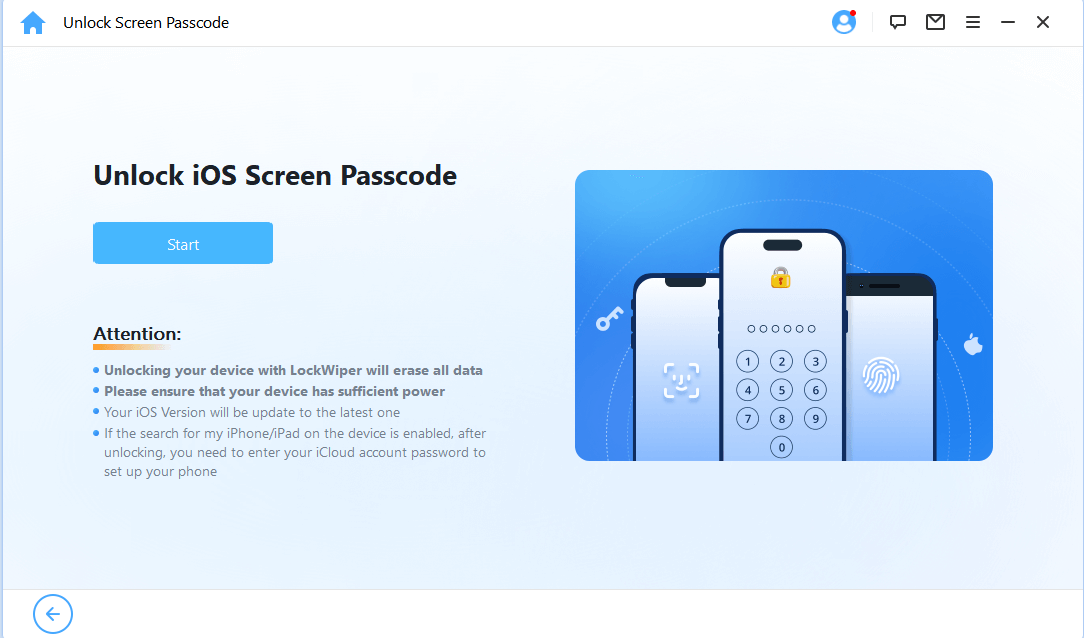
Step 2: Connect and prepare the iPad. Attach it to the computer. If prompted, follow the software’s instructions for your iPad model to enter recovery or DFU mode. The iPad recovery-mode instructions below explain the model-specific recovery sequence.
Step 3: Download and verify the firmware. Check the detected device information before downloading the package. Allow verification to finish. Use the software’s available download or import options if the initial download cannot complete.
Step 4: Confirm passcode removal. Click Start to Unlock when prompted. Read the erasure confirmation and enter 000000 if requested. Keep the iPad connected until the process finishes.
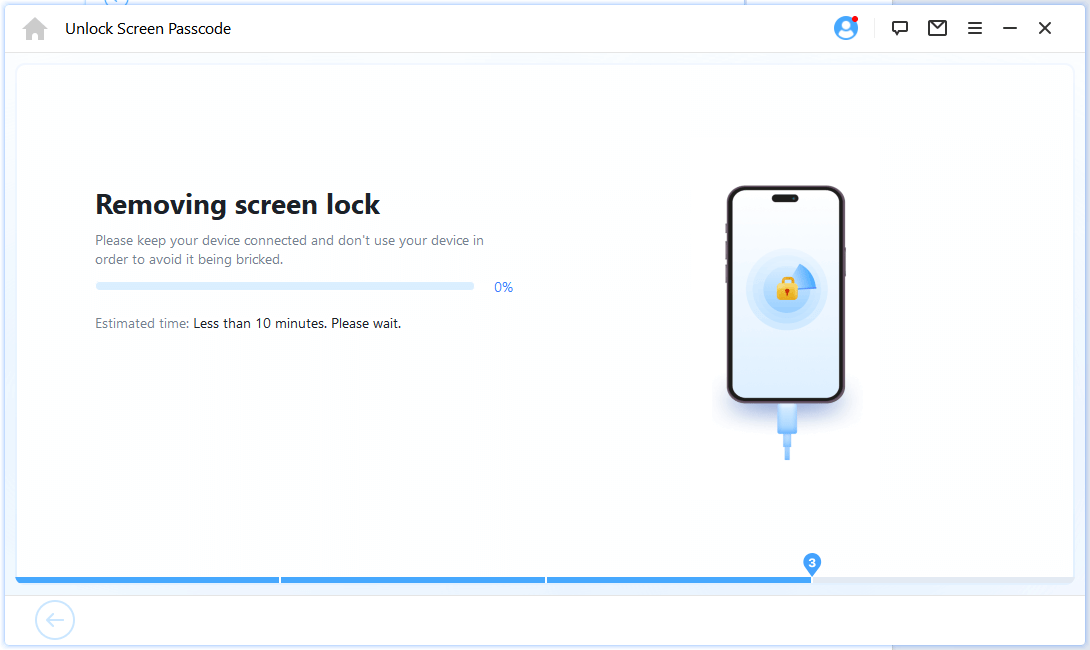
The screenshots illustrate LockWiper’s shared software workflow with example phone graphics. Follow the instructions for your connected iPad. For the complete sequence, see the LockWiper user guide.
If the process stops, note the stage and any error message before trying again. A download interruption, a device that disconnects, and a final removal error need different checks.
Unlock Your iPad Without a Computer Using the Reset Option
No computer nearby? A supported iPad can offer a reset option directly on its lock screen. You need iPadOS 15.2 or later, Find My previously enabled, an active Wi-Fi or cellular connection, and the linked Apple Account password.
On iPadOS 17 or later, follow this route when the option appears:
- On the iPad Unavailable screen, tap Forgot Passcode?.
- Choose Start iPad Reset.
- Enter the linked Apple Account password.
- Tap Erase iPad to confirm.
- After the restart, complete setup and restore an available backup.
Earlier supported versions may show Erase iPad instead. Apple’s reset-without-a-computer guide covers the requirements and interface differences.
Check the option you select: Enter Previous Passcode is the recent-code recovery route; Start iPad Reset begins erasure. If the reset control is missing, prepare a computer rather than continuing to guess.
This route suits someone who remembers their Apple Account password but has forgotten only the screen code. Have those account details ready before starting so the reset does not stop halfway through your planned setup.
Restore a Locked iPad with Finder or Apple Devices
Apple’s computer route uses Finder on Mac or Apple Devices on Windows. Restore erases the iPad and removes its screen passcode.
Put Your iPad in Recovery Mode
Disconnect and turn off the iPad; wait a minute. Then connect it to your computer and use the appropriate sequence:
- Without a Home button: Quickly press and release the volume button closest to the top button, then the one farthest away. Hold the top button.
- With a Home button: Hold Home and the top or side button together.
Keep holding past the Apple logo until the computer-and-cable screen appears. If the passcode screen returns, start again.
Restore and Set Up Again
Select the iPad in Finder or Apple Devices and choose Restore. Wait for completion. If downloading takes over 15 minutes and recovery mode ends, let the download finish, then repeat the recovery procedure.
Follow Apple’s iPad recovery instructions alongside these steps. If a required button is broken, contact Apple or an authorized service provider.
Finish Setup and Restore What You Need
Once the Hello screen appears, follow setup and complete any requested account verification. Choose the backup you want to restore, checking its date before continuing.
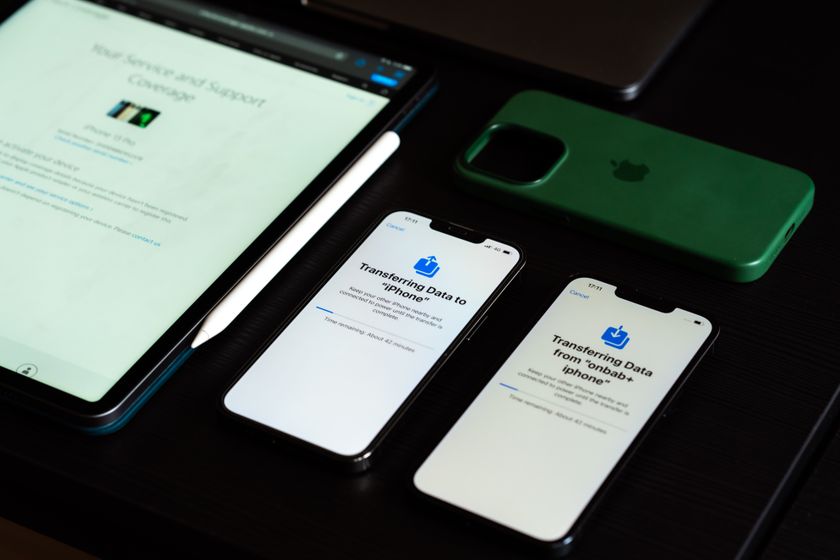
For a tablet that has been unused for months, the most recent backup may still be older than expected. Consider which apps, files, and photos matter before choosing it. Cloud-synced content and a device backup are separate sources; signing in does not guarantee that every locally stored item will return.
Before calling the job finished, open the apps you use most and check the files you expected to recover. Download any missing cloud content, complete the necessary app sign-ins, and confirm that the new passcode works after locking the screen once.
Conclusion
To unlock your iPad after forgetting its passcode, check the recent-code recovery option first. For a fresh setup, LockWiper provides a focused computer workflow, while Apple offers on-device reset and computer restore. Choose the route you can complete, have your account details ready, and restore an available backup after removal.
FAQs About Unlocking an iPad
How Can I Unlock My iPad Without Losing Data?
If you changed the passcode within 72 hours on iPadOS 17 or later, the previous-passcode option may let you regain access without erasing. Otherwise, the reset and screen-passcode removal methods described here erase the device. An existing backup can help restore content afterward; it does not make the erasure itself nondestructive.
How Do I Get into an iPad Without the Password or a Computer?
Use the lock-screen reset option when its requirements are met. You still need the linked Apple Account password for that route. If the option is unavailable, arrange access to a computer. Borrowing one can be more practical than spending hours trying unrelated passcode guesses.
What If My iPad Is iCloud Locked?
An iCloud-locked iPad showing Activation Lock needs the linked account or an appropriate ownership-verification route. For a secondhand iPad, ask the previous owner to remove the device through Find My. Apple also offers an Activation Lock support request with proof of purchase. Screen-passcode removal does not automatically remove Activation Lock.
Can I Unlock an iPad Without the Apple Account Password?
LockWiper’s screen-passcode workflow addresses the forgotten screen code. If activation later requests the linked Apple Account, recover that account or ask its owner for help. Before erasing a secondhand tablet, contact the seller while you still have a clear purchase record and an open conversation.
Why Doesn’t My iPad Show Forgot Passcode?
Check the software version and network availability, along with whether Find My was enabled and an Apple Account was signed in. The available label also varies by version. When the required conditions cannot be met from the locked screen, use the computer route.
Will a Force Restart Unlock the iPad Screen?
No. A restart can help an unresponsive device run again, but it leaves the screen passcode in place. If the iPad responds normally and you have forgotten the code, follow a passcode-recovery or removal method instead of repeating restarts.