







 Adams Johnson
 Last updated: Oct 21, 2026 12:00 am
 iOS Unlock
A second-hand iPad asks for a company's login, or an old management profile keeps blocking changes on your iPhone. To remove MDM, you need a method that matches how the device is managed.
Quick answer: Use Settings when Remove Management is available and you can complete the required authentication. LockWiper offers computer-based MDM removal and bypass workflows for supported personal or authorized devices.
Remove MDM from your iPhone or iPad with LockWiper—no MDM username or password required. Bypass Remote Management or remove device management restrictions from your computer.
Remove MDM from iPhone or iPad in Settings
Leave MDM Restrictions Behind with LockWiper
Remove MDM from iPhone or iPad in Settings
If you can open the device and its management profile allows removal, start here. The path is similar on iPhone and iPad, so you do not need a separate procedure for each model.
- Open Settings > General > VPN & Device Management.
- Select the management profile and check its organization name.
- Tap Remove Management if the option is available.
- Complete the requested authentication and confirm removal.
- Return to the same menu and check whether the profile is gone.
A general configuration profile may instead show Remove Profile. Read the profile details before confirming so you know which settings are being removed. Apple's configuration-profile guide identifies this Settings location and explains that deleting a profile also deletes its associated settings, apps, and data.
Save personal files you need before changing management. Work email, organization-provided apps, certificates, or network access may depend on the profile you are removing. Make arrangements with the administrator for any business information that must be retained.
If the removal control is missing, note the organization name and any supervision message. Repeatedly opening Settings will not change a restriction on profile removal. Continue with the appropriate computer workflow or organization-release route below.
Leave MDM Restrictions Behind with LockWiper
An unavailable MDM login can leave you unable to finish setup or change everyday settings. iMyFone LockWiper brings those two problems into a dedicated computer-based MDM module, with separate options for an accessible device and a Remote Management setup screen.
The advantage is a workflow built around the screen you actually face. You can select the relevant operation rather than search through unrelated unlock features. For supported devices you own or are authorized to manage, LockWiper provides a route that does not require the old MDM username and password.
Before connecting, keep any accessible personal files backed up. You will need a working data cable, device detection, and any Trust confirmation requested on the phone or tablet.
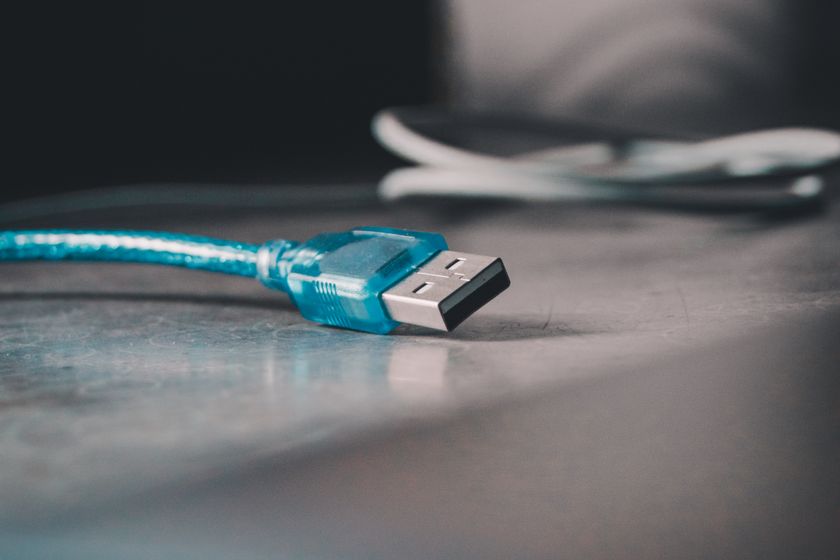
Prepare the connection: Use a cable whose connectors fit your computer and device. The photo illustrates the computer end of one cable type; your iPhone or iPad may require a different connector. A charging response alone does not confirm data communication.
The LockWiper MDM guide also requires Find My to be disabled. Complete that preparation with the relevant account access. If organization policies prevent it, ask the administrator to handle the restriction.
Remove MDM Restrictions on an Accessible Device
Use this route when you can reach the Home Screen but management restrictions remain. Open LockWiper's Bypass MDM module, connect the device, and approve Trust if requested. At the situation-selection screen, choose Remove MDM Restrictions, which some interface versions label Remove MDM.
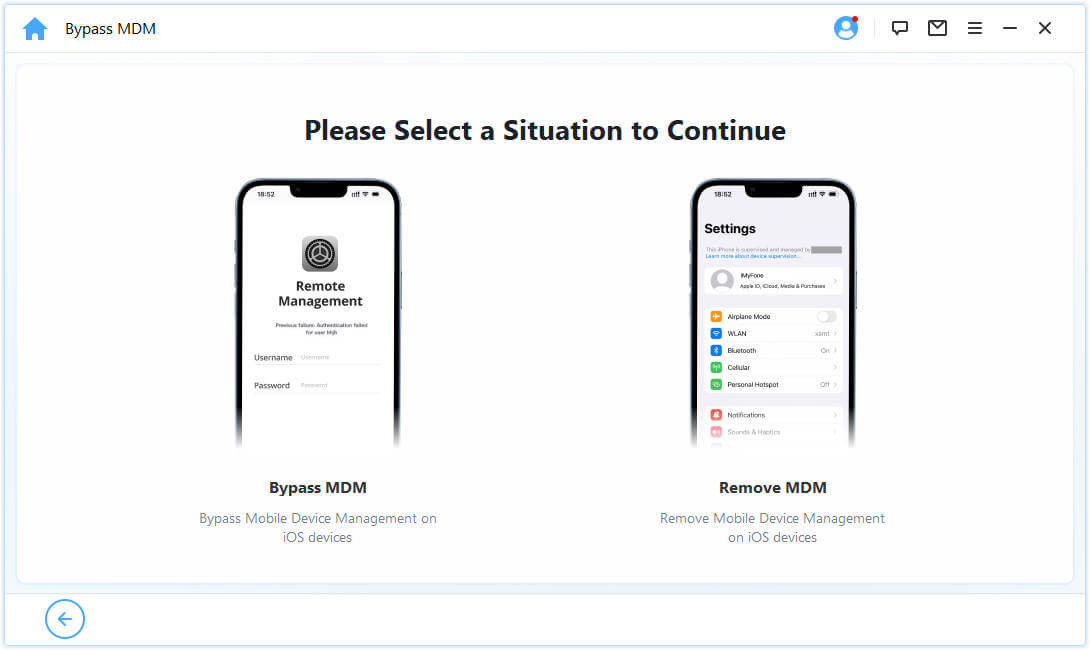
Select Start and keep the device connected until the operation finishes. Then check the management menu and try the setting that was previously blocked. The selected operation should match an accessible device, rather than the setup-screen option shown beside it.
Bypass the Remote Management Setup Screen
For a supported device stopped at Remote Management during setup, choose Bypass MDM at the situation-selection screen. Confirm the device is displaying that screen, then use the start control shown in your version of LockWiper.
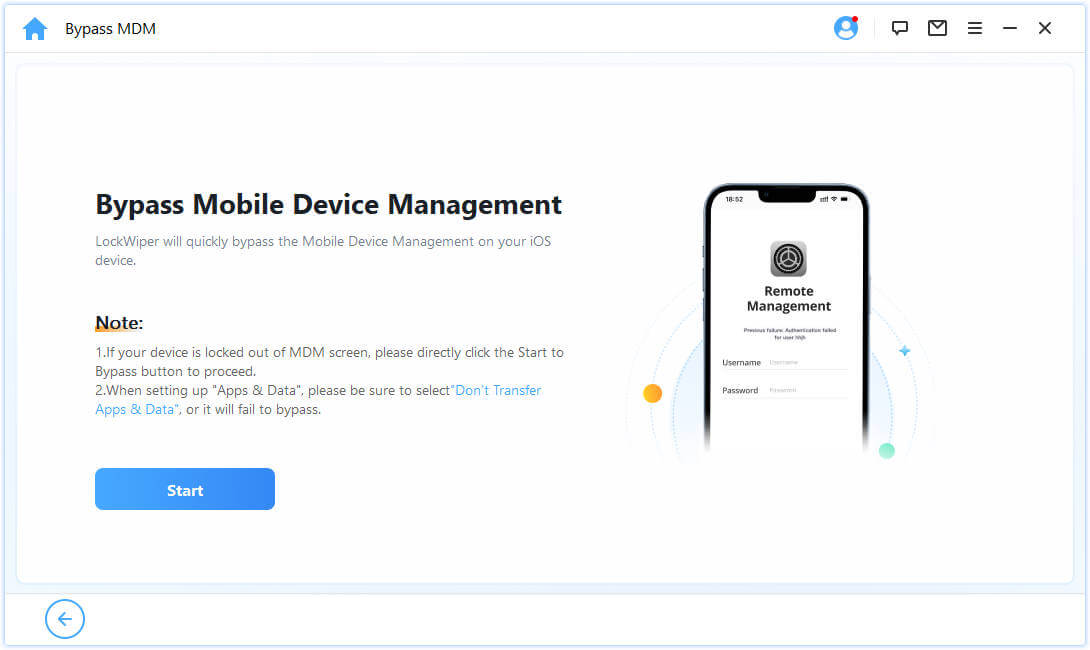
Follow the remaining setup prompts. The official walkthrough instructs you to select Don't Transfer Apps & Data at the Apps & Data stage.
Check That MDM Removal Is Complete
After removal, finish any setup screens and check Settings > General > VPN & Device Management. Test a function that was previously restricted, such as changing an account setting or using an allowed personal app.
Check your personal files and arrange replacements for any work-managed services you still need. Reaching the Home Screen confirms access, but it does not by itself confirm that an organization's automated enrollment record has been released.
Conclusion
To remove MDM from an iPhone or iPad, use Settings for a removable profile or LockWiper's dedicated workflow for a supported, authorized device. Check both device access and enrollment status so the result matches what you need now and during future setup.
FAQs About MDM Removal and Bypass
Can I Remove MDM from an iPad Without a Password?
LockWiper offers MDM removal and bypass options that do not require the old MDM credentials on supported devices. You must still meet its connection and preparation requirements. An organization's device-release process needs an authorized administrator.
Why Is Remove Management Missing?
The management configuration may prevent user removal. Record the organization name and contact its administrator if it manages the device. A missing button is not a reason to erase the device repeatedly.
Will MDM Return After a Factory Reset?
It can return when organizational enrollment remains. LockWiper specifically documents this after its setup-screen bypass. Confirm release with the organization before planning a future reset or handover.
Does Removing MDM Erase My Personal Data?
The effect depends on the operation. Removing a profile deletes its associated settings, apps, and data. A separate device erase removes device content. Back up accessible personal files and read the selected workflow's setup requirements before proceeding.
What Should I Check Before Using a SkipMDM Tool?
Check the developer, official download source, supported device versions, and reset limitations. The name alone does not establish what the tool does. Avoid sending an unknown service your account password or a full device backup.