







 Adams Johnson
 Last updated: Oct 28, 2026 12:00 am
 Android Unlock
A reset should feel like a fresh start. Instead, your Android phone is asking for a Google Account you cannot access. If your search has led to D&G Password Unlocker, you probably want a working download, clear instructions, and an FRP unlocker that actually matches your phone.
Quick answer: D&G Password Unlocker is a Windows FRP utility with brand-specific controls and shortcuts for older unlocking methods. Below, you can explore its interface, learn the basic workflow, and weigh its strengths and limitations before choosing it or LockWiper Android.
Google verification blocking your next step? LockWiper Android offers dedicated FRP removal for Samsung, Xiaomi, Redmi, and OnePlus phones, with device-specific instructions to help you move beyond the old account and finish setting up again.
- D&G Password Unlocker Features and Interface
- Download and Use D&G Password Unlocker
- Is D&G Password Unlocker Worth Using?
- Skip the Old Google Password with LockWiper Android
- D&G or LockWiper? Choose a Clearer Path Past FRP
- If the Phone Is Still Locked After the Attempt
- Conclusion
- FAQs About D&G and Android FRP Tools
D&G Password Unlocker Features and Interface
D&G Password Unlocker is a Windows desktop utility for Android FRP removal. Its interface groups device commands under brand tabs, including Samsung, Motorola, Huawei, HTC, Lenovo, and Xiaomi. The Samsung panel contains controls for reading device information, activating a connection, restarting the phone, and starting FRP removal.
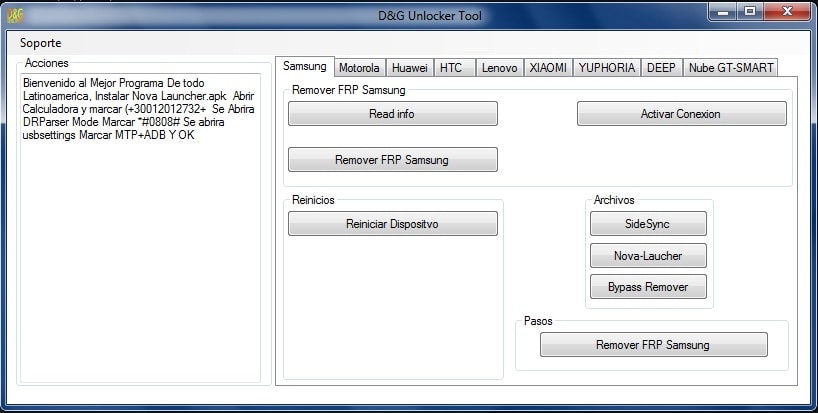
The screenshot above gives you a useful preview of the software. The top row selects the device brand, the left panel displays instructions or status information, and the central panel contains the available actions. Under Archivos, the interface includes shortcuts labeled SideSync, Nova Launcher, and Bypass Remover.
- Brand-based navigation: switch between device tabs to reach the relevant controls.
- Device information: use the Read info control to check communication with the connected phone.
- Samsung FRP controls: the Samsung tab includes a dedicated Remover FRP Samsung button.
- Additional utilities: access the listed tools from the same desktop interface.
FRP means Factory Reset Protection. It asks for a previously associated Google Account during setup after a reset. D&G targets this account-verification stage. A forgotten screen PIN or pattern calls for a screen-lock removal function, so identify the screen you need to unlock before selecting an operation.
Download and Use D&G Password Unlocker
D&G packages circulate through third-party download sites. Before installing one, check the publisher information, package version, and instructions supplied with the archive. Keep Windows security checks enabled and scan the file before opening it.
Prepare Your Phone and Computer
Have a Windows PC, a USB data cable, and the appropriate device drivers ready. Record the phone’s model number and Android version when available. A matching brand tab is a starting point; the model, software build, and connection requirements determine the usable procedure.
Follow the D&G Workflow
For a phone you own or are authorized to service, the basic desktop workflow is:
- Install and launch D&G. Open the verified package on your Windows computer.
- Connect the phone. Use a USB data cable and allow Windows to finish installing the required driver.
- Select the brand tab. For the interface pictured above, choose Samsung to open its FRP controls.
- Click Read info. Check that the program communicates with the connected device.
- Complete the matching preparation. Follow the instructions for your exact device and package version before selecting the removal command.
- Run the FRP operation. In the pictured Samsung panel, the relevant control is labeled Remover FRP Samsung. Keep the connection stable while the operation runs.
- Check setup on the phone. Restart when instructed and confirm that you can continue through account setup.
The published D&G walkthrough also describes the utilities under Archivos. The appropriate selection depends on the device-specific procedure and the options available on its setup screen.
Is D&G Password Unlocker Worth Using?
D&G’s appeal is practical: several brand tabs and service controls fit into one compact window. Someone familiar with Android drivers and older FRP procedures can reach the relevant tools quickly. For a first-time user, selecting the correct preparation and understanding the mixed-language labels takes more work.
| Aspect | Practical Assessment |
|---|---|
| Interface | Compact brand tabs and direct action buttons make the controls easy to locate. |
| Ease of use | Mixed English and Spanish labels and multiple preparation options add a learning curve. |
| Device fit | Check the exact model and software build against the procedure supplied with your package. |
| Download and maintenance | A traceable current developer download and complete release history would make the package easier to assess. |
What About User Reviews?
Verified owner feedback is limited. The available material mainly consists of tutorials and software comparison articles, which provide useful interface details but little consistent evidence about results on individual models. For a useful success report, look for the exact phone model, Android build, D&G version, and confirmation that setup completed.
Our take: D&G is worth considering for an older device with a clearly matched procedure and a traceable package. If you want a direct vendor download, organized instructions, and a support contact, LockWiper Android offers a more straightforward place to start.
Skip the Old Google Password with LockWiper Android
Ready to get back to setting up your phone? iMyFone LockWiper Android provides dedicated Google FRP removal for compatible Samsung, Xiaomi, Redmi, and OnePlus devices without the original Google Account password.
Select the Google-lock function, confirm your device details, and work through the instructions presented for that route. Device preparation and removal stay together in one Windows program, giving you a defined process from connection to account setup.
- A dedicated FRP function: start directly with Google-lock removal.
- Device-specific preparation: follow the prompts appropriate to the selected device and removal mode.
- A route back to setup: complete removal and continue configuring the phone with your own account.
Start with the Right Removal Function
Step 1: Install LockWiper Android on your Windows PC and open the Google-lock removal option. The official guide calls this Remove Google Lock (FRP).
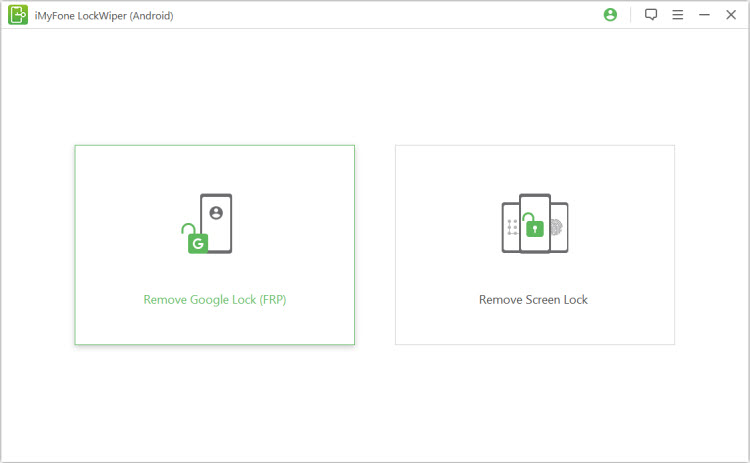
Confirm the Device and Follow Its Instructions
Step 2: Connect the phone with a USB data cable and check the displayed or requested information. The published Samsung walkthrough includes selecting the operating-system version. Other available routes may request different information.
Step 3: Complete the preparation shown in the program. Keep the phone nearby because some routes require actions on the handset. FRP removal erases device data, so review the confirmation screen before proceeding.
Step 4: Let the operation finish without interrupting the connection. Restart when instructed and complete normal setup and account sign-in on the phone.
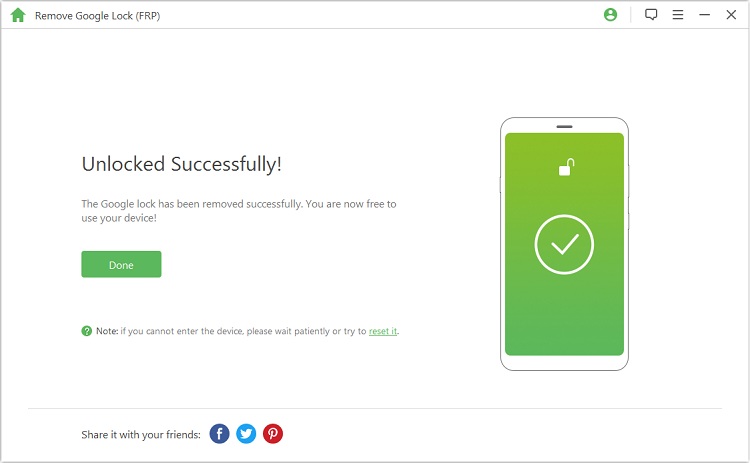
These screenshots illustrate a published FRP workflow. Follow the instructions matching your device and mode.
D&G or LockWiper? Choose a Clearer Path Past FRP
Your choice comes down to the device in your hand and the help you need along the way. D&G brings older service controls together in a compact utility. LockWiper Android provides a vendor-maintained download, device-specific prompts, and a support channel.
| What You Need | D&G | LockWiper Android |
|---|---|---|
| A direct download | Available packages require checking the distributor and archive. | Download directly from iMyFone. |
| Device selection | Brand tabs and service controls; match the procedure to your model and software. | FRP routes for compatible Samsung, Xiaomi, Redmi, and OnePlus devices. |
| Help with each step | Use the matching package instructions and device procedure. | Follow device-specific prompts and the official user guide. |
| Help if you get stuck | Support depends on the package distributor and available community guidance. | Contact iMyFone support with your device details and error message. |
For an older phone with a matched D&G procedure, the compact tool may cover the task you need. For a more organized desktop process, start with LockWiper Android and select the FRP route for your device.
If the Phone Is Still Locked After the Attempt
Start with the stage where progress stopped. For a detection problem, reconnect the USB data cable, try another port, and check the required driver. For a failed package download, check the computer’s connection and available storage.

If Google verification returns after the operation, record the model number, Android version, tool version, and final message before seeking help. These details make troubleshooting more useful than repeating the same steps. You can also use Google Account recovery or ask the previous owner to help complete verification on a used phone.
Conclusion
D&G Password Unlocker combines brand tabs, device-information controls, and FRP utilities in one Windows interface. Its value depends on finding a reliable package and a procedure that matches your phone. For a documented alternative, LockWiper Android offers dedicated FRP removal for compatible Samsung, Xiaomi, Redmi, and OnePlus devices, helping you move past Google verification and return to setup.
FAQs About D&G and Android FRP Tools
Is D&G Password Unlocker Free?
Published guides describe D&G as a free utility. Check the source and terms attached to the particular package you download, especially when a distributor requests payment or bundles additional software.
Which Brands Appear in the D&G Interface?
The pictured interface includes Samsung, Motorola, Huawei, HTC, Lenovo, Xiaomi, and Yuphoria tabs, alongside other service tabs. Check the instructions for your exact model and Android build before choosing a command.
Can an FRP Unlocker Remove a Screen PIN Too?
Programs such as LockWiper Android provide separate Google-lock and screen-lock removal functions. Choose FRP removal for the post-reset Google verification screen and screen-lock removal for a forgotten device PIN, password, or pattern.
What Is the Best FRP Bypass Tool for My Android Phone?
Choose a tool with a procedure matching your model and Android version, a traceable download, and useful support. LockWiper Android provides dedicated FRP workflows for compatible Samsung, Xiaomi, Redmi, and OnePlus phones.
Why Does Google Verification Appear After a Factory Reset?
Factory Reset Protection verifies ownership during setup by requesting a previously associated account. Google’s device-protection guidance explains the requirement. Recovering that account or obtaining the previous owner’s help can restore access.