







 Adams Johnson
 Last updated: Oct 23, 2026 12:00 am
 iOS Unlock
If iCloud is greyed out on your iPhone, even a simple task like checking storage or managing synced photos can feel out of reach. Why are the settings unavailable, and how can you access them again? This guide explains the possible causes and what to do next.
Quick answer: Allow account changes in Screen Time first. If a forgotten Screen Time passcode prevents that change, use account recovery or an appropriate removal method. For a family-managed or supervised iPhone, the person managing its restrictions may need to make the change.
Forgot the Screen Time passcode blocking your iCloud settings? LockWiper can remove it, helping you regain access to account controls without remembering the old restriction code.
Allow Account Changes to Make iCloud Settings Accessible Again
Regain Access to iCloud Settings with LockWiper Without Losing Data
Check Who Controls the iPhone's Account Settings
Fix Loading Problems When Account Changes Are Already Allowed
Allow Account Changes to Make iCloud Settings Accessible Again
When the account area is unavailable, Screen Time’s account-change permission is the first setting to check. Follow Apple’s instructions for a greyed-out Apple Account:
- Open Settings > Screen Time > Content & Privacy Restrictions.
- If All Restrictions is enabled, find Privacy Restrictions > Allow Changes to Settings.
- Select Accounts, then choose Allow. Enter the Screen Time passcode if requested.
- Return to Settings and try opening your account and iCloud again.
Some earlier versions label the permission Account Changes. Look for the account-change control shown on your iPhone. You can adjust that permission without automatically turning off every other restriction.
Make one change, then check the original problem. For example, if you wanted to manage iCloud Photos, return to that exact setting rather than treating an accessible account page as proof that every iCloud feature is working.
| What you see next | Your next action |
|---|---|
| The account and iCloud pages open | Check the feature you originally wanted to change. |
| A Screen Time passcode prompt blocks the change | Recover or remove the forgotten restriction passcode. |
| The permission is controlled by someone else | Check family or organization management. |
Regain Access to iCloud Settings with LockWiper Without Losing Data
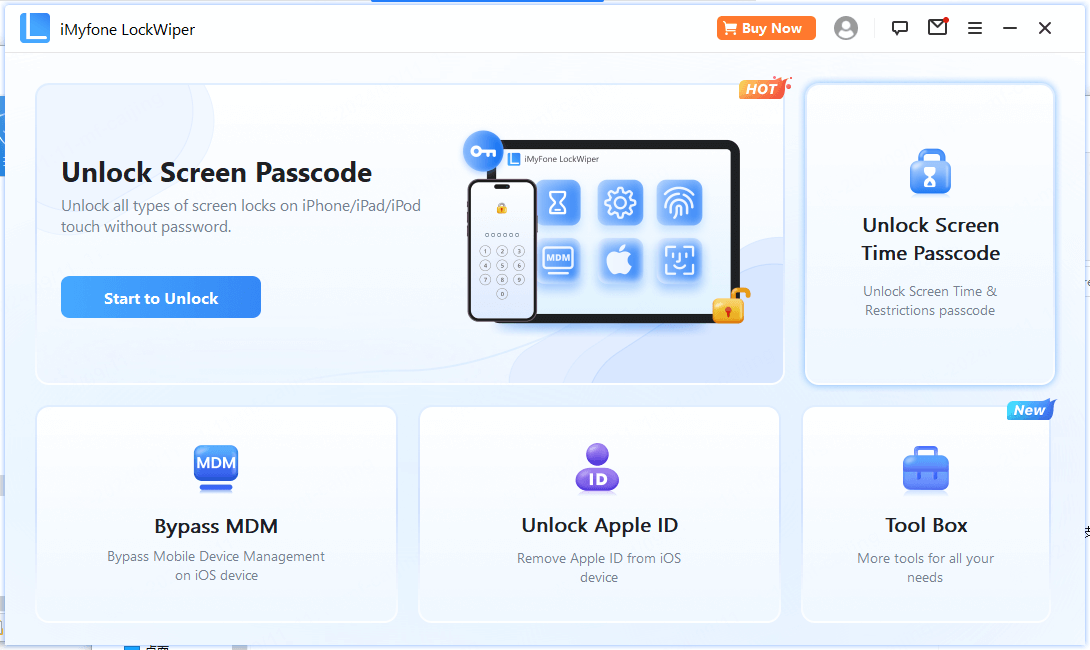
iMyFone LockWiper can remove the Apple ID and linked iCloud account from a supported, activated iPhone without the account password, letting you set up your own account. It also handles Screen Time passcodes and MDM restrictions when these block access to your settings.
The benefit here is specific: remove the code preventing you from managing restrictions, then return to the account permission. You keep the troubleshooting focused on restoring iCloud access rather than replacing your Apple Account.
Prepare for Screen Time Removal
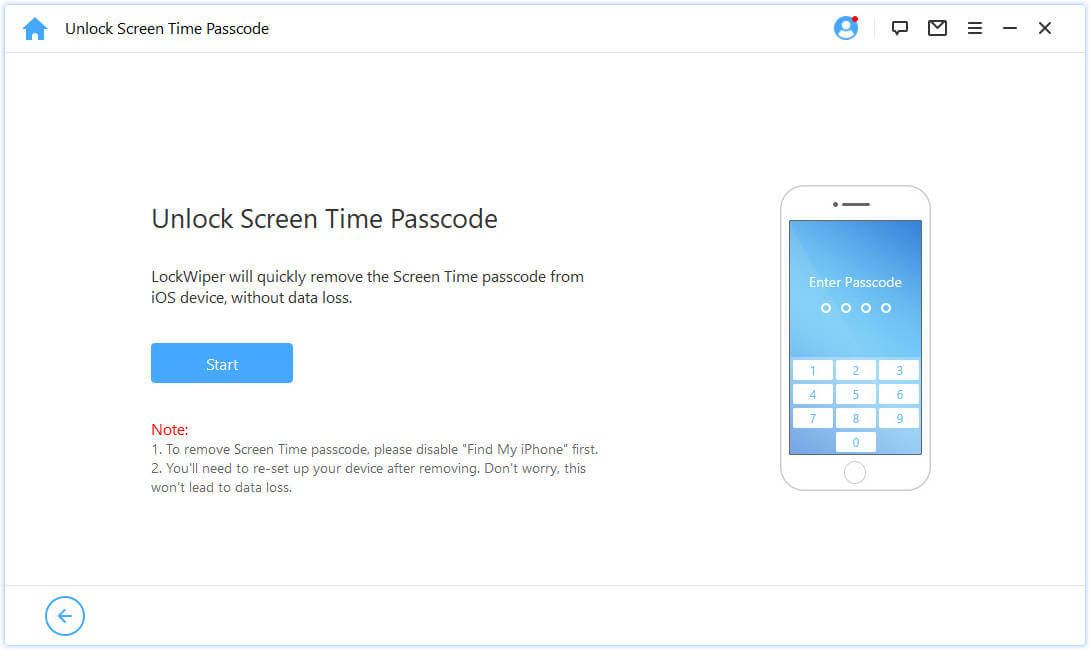
For a passcode set directly on the device, check compatibility and prepare a USB data cable. You need to unlock the screen and approve the computer connection. Make a current backup of accessible content before proceeding.
Find My must be disabled for this removal route. If the greyed-out account area prevents you from doing that, resolve the restriction through recovery or its manager first, or ask support to confirm your options. Do not begin a workflow whose required preparation you cannot complete.
Remove the Code and Recheck iCloud
Step 1: Open LockWiper and select Unlock Screen Time Passcode. This is the mode relevant to a forgotten restriction code.
Step 2: Connect your iPhone, unlock its screen, and tap Trust if requested. Select the option for a passcode set directly on the device when the program asks how Screen Time was configured.
Step 3: Review the detected requirements, then use the displayed Start or Start to Unlock control. Keep the device connected through completion and follow the subsequent setup instructions.
See the LockWiper guide for the full preparation and setup sequence.
Download LockWiper For Windows
Check Who Controls the iPhone’s Account Settings
A restriction may have been set by a family member or an organization. Check who manages it before repeating changes on the same device.
For an iPhone Managed Through Family Sharing
Ask the parent or organizer to review the child’s Screen Time settings. A child’s Screen Time passcode is changed from the parent or organizer’s device: open Screen Time, select the child under Family, then use the passcode controls under Manage Screen Time.
Explain the setting you need to access. Allowing an account change can be handled as a specific request while retaining other family controls. This is more useful than asking someone to disable every restriction without knowing which one matters.
For a School or Work iPhone
Check Settings > General > VPN & Device Management for management information. Supervised devices can have account changes restricted by policy. Apple lists this under device-management restrictions.
Ask the administrator whether your account settings are intentionally restricted. For a secondhand personal iPhone still linked to an organization, contact the seller or that organization about its management status.
Fix Loading Problems When Account Changes Are Already Allowed
If the account permission is allowed but iCloud opens to an error or keeps loading, work through the connection and sign-in checks below. Start with the message actually shown on the screen.

- Check the connection. Try reliable Wi-Fi or available cellular data. If cellular-only access fails, confirm mobile data is enabled.
- Check the relevant service. Visit Apple System Status and look for a reported issue affecting the iCloud service you need.
- Complete account verification. Follow the specific password or verification-code prompt. If you recently changed your account password, update the requested sign-in information.
- Review software and restore status. Check for a supported system update. If a recent restore is unfinished, keep the phone on reliable Wi-Fi and power.
Apple’s iCloud connection guide covers these sign-in and service checks. You can also restart the iPhone once and reopen Settings.
Confirm That iCloud Settings Are Working Again
Return to the original greyed-out control and open it. Check the task you started with: viewing storage, managing an app’s sync setting, or opening account information.
You do not need to sign out or delete cloud content to test access. Once the intended setting works, keep the remaining restrictions you still want and retain your recovery details for future changes.
Conclusion
If iCloud is greyed out, start with the account-change permission in Screen Time. Recover a forgotten restriction code or use LockWiper’s supported removal workflow when its requirements are met. Family and organization controls need the appropriate manager; loading errors need connection and account checks. Finish by confirming access to the iCloud feature you wanted to use.
FAQs About iCloud Being Greyed Out
Why Is My iCloud Greyed Out in Settings?
Screen Time can restrict account changes. Check that permission first. A managed iPhone may also have an organization’s account policy in place. If the page opens but fails to load, investigate the displayed connection or sign-in error.
Why Is My Apple ID Greyed Out in Settings Too?
Apple ID is now called Apple Account. The account area provides access to iCloud, so a restriction affecting that entry can stop you reaching iCloud settings as well.
Can I Fix This Without Removing My Apple Account?
Yes, when a change permission or recoverable Screen Time restriction causes the issue. Start there. Removing your account is not a routine requirement for making its settings accessible.
What If Only iCloud Backup or Find My Is Greyed Out?
Check the specific feature’s message and applicable restrictions. A single unavailable control needs a targeted check; do not assume every iCloud setting has the same cause.
Will These Steps Also Work on an iPad?
The same Screen Time account permissions and management principles apply to iPad. Follow the labels shown by its iPadOS version and use the matching device instructions for any removal workflow.