







 Ronnie Barnes
 Last updated: Oct 16, 2026 12:00 am
 iOS System
Need to put your iPhone in recovery mode, but unsure which buttons to press? iPhone recovery mode lets a computer update or restore iOS when normal startup or updating is not working. The steps depend on your model, especially if you have an iPhone SE.
Quick answer: Connect your iPhone to a Mac or Windows PC. Use the button sequence below and keep holding until the computer-and-cable screen appears. On iPhone 14, quickly press Volume Up, then Volume Down, then hold the side button through the Apple logo. For a button-free option on a detected device, use Fixppo's free Enter feature.
Skip the button timing with Fixppo’s free recovery mode feature. Connect your iPhone, click Enter, and get ready for your next update or restore, without downloading a repair firmware package.
Enter iPhone Recovery Mode: Model-Specific Instructions
Fixppo: Enter iPhone Recovery Mode Free—Skip the Button Sequence
Your iPhone Is in Recovery Mode—What Comes Next?
Enter iPhone Recovery Mode: Model-Specific Instructions
Have your computer and a data-capable USB cable ready. Open Finder on a current Mac or Apple Devices on Windows, and update the computer software first. Older supported setups may use iTunes. If your phone still works normally, make a backup before proceeding.

Connect the cable firmly, then find your model below. A Home button alone does not tell you which sequence to use: the second- and third-generation SE follow the newer sequence despite having one.
| Your iPhone | Button sequence |
|---|---|
| iPhone 8 or later, including iPhone 14 | Volume Up → Volume Down → hold side button |
| iPhone SE, 2nd or 3rd generation | Volume Up → Volume Down → hold side button |
| iPhone 7 or 7 Plus | Hold side button + Volume Down |
| iPhone 6s or earlier; SE 1st generation | Hold Home + side or top button |
iPhone 8 or Later, Including iPhone 14 and SE 2nd/3rd Generation
With the phone connected, follow these three actions in order:
- Press and quickly release Volume Up.
- Press and quickly release Volume Down.
- Press and hold the side button until the recovery screen appears.
Keep holding when the Apple logo appears. Release only when you see the computer-and-cable screen. Releasing at the logo may simply restart the phone, leaving you back where you began.
This is also how to put an iPhone 14 in recovery mode; you do not need a separate method for its Plus, Pro, or Pro Max version. The SE 2020 and SE 2022 use this sequence too.
iPhone 7 and iPhone 7 Plus
Keep the iPhone connected. Press and hold the side button and Volume Down together. Continue holding through the restart until the recovery screen appears, then release both buttons.
Use Volume Down rather than the Home button for these models.
iPhone 6s or Earlier, Including SE 1st Generation
Press and hold Home and the side or top button together while the phone remains connected. Keep holding until the computer-and-cable screen appears. This is the sequence for the original iPhone SE, unlike the later SE generations.
Check the phone and computer afterward. The recovery screen confirms the device's state; Finder or Apple Devices should detect it and offer the next operation. See Apple's recovery mode steps for the model groupings.
Fixppo: Enter iPhone Recovery Mode Free—Skip the Button Sequence
Prefer clicking a button to getting the press-and-hold timing right? iMyFone Fixppo offers a free Enter Recovery Mode feature on Windows and Mac. Once it detects your connected iPhone, you can enter from the computer without performing the phone's button sequence.
The useful shortcut is right on the home screen. You can select Enter without first choosing a repair mode or downloading an iOS firmware package. It suits this task whether you are preparing for a computer update or simply need to reach the recovery screen.
Apple's Official Method vs. Fixppo: Which Is More Convenient?
In Apple's official recovery-mode instructions, you connect the iPhone to a computer and use the button sequence for its model. On iPhone 8 or later, this means Volume Up, Volume Down, then holding the side button until the recovery screen appears.
Fixppo offers a different way to reach that same recovery state: a computer-side Enter command. Its advantage is skipping the physical-button sequence once the app detects the phone. Apple's method remains useful when normal device detection is unavailable and the buttons work.
| Practical difference | Apple's official method | Fixppo Enter feature |
|---|---|---|
| How you enter | Connect to a computer, then use the physical-button sequence for your iPhone model. | Connect the iPhone and select Enter after Fixppo detects it. |
| Buttons and timing | Keep holding the required button or buttons until the recovery screen appears. | No model-specific button sequence is needed for a detected device. |
| What you need | A computer connection and working buttons for the manual procedure. | Fixppo installed on a PC or Mac and a working data connection. |
| After entry | Use Finder or Apple Devices for the next update or restore operation. | The same recovery state is reached; choose the next operation separately. |
Choose by device readiness: Use Apple's button method if you prefer the built-in route. Choose Fixppo for a detected iPhone when you want to avoid button timing. Entering recovery mode alone does not erase data or complete a system repair.
Step 1: Install and connect. Open Fixppo on your computer and attach your iPhone with a data-capable cable. Allow the app to detect it. If the phone is responsive and asks you to trust the computer, unlock it and accept the prompt.
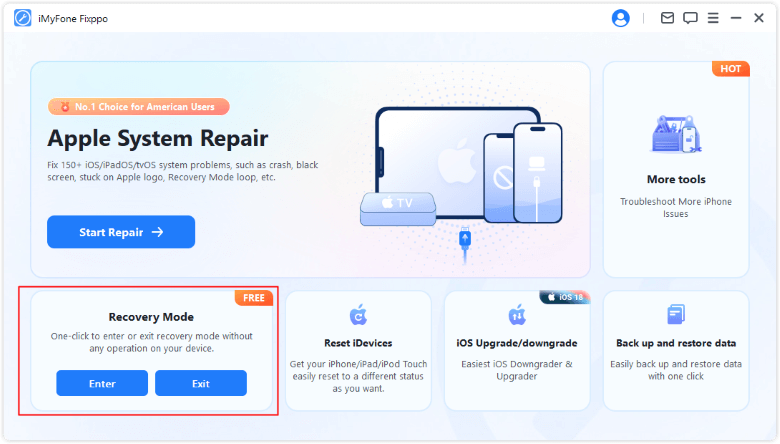
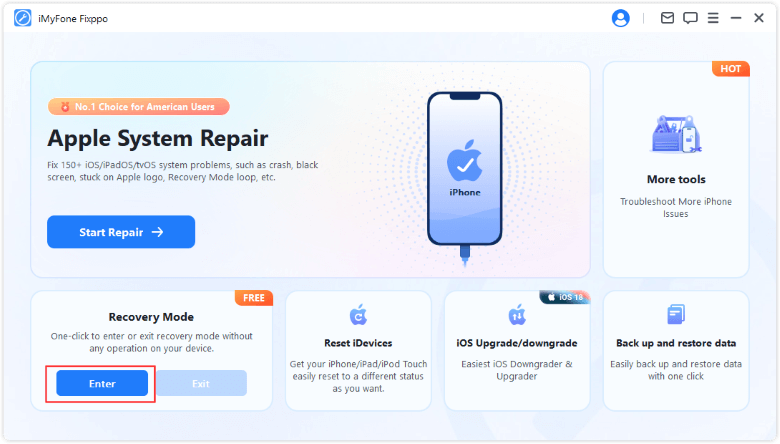
Step 2: Select Enter. In the Recovery Mode area, click Enter. Keep the cable connected while the device changes state.
Step 3: Confirm the result. Wait for the completion message, then check that the iPhone shows its recovery screen. You can now open your chosen computer app for the update or restore.
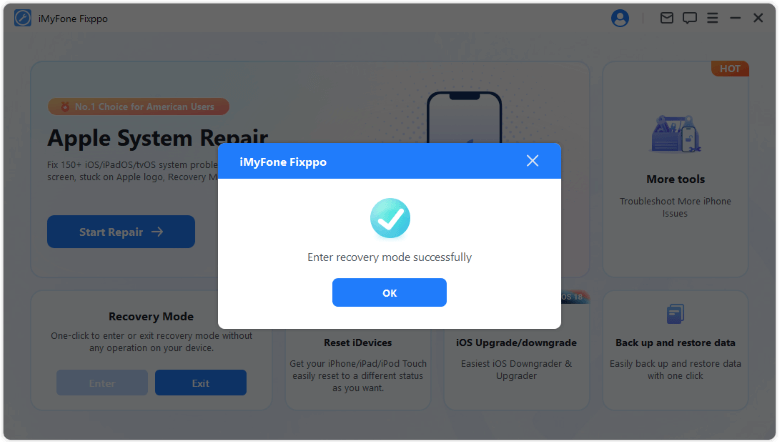
Official screenshots show example devices and app versions.
The official Fixppo guide follows the same connection, detection, and Enter sequence. If your phone is not detected, check the connection before clicking again.
Your iPhone Is in Recovery Mode—What Comes Next?
Entering recovery mode does not itself erase your iPhone. It makes the device available for a computer recovery operation. Select the phone in Finder or Apple Devices and read the available options before confirming.
Update: If you have not tried updating yet, choose this first. It reinstalls iOS while aiming to keep your personal data. Leave the iPhone connected until installation finishes.
Restore: This reinstalls iOS and erases the phone. Check your backup and accept that outcome before proceeding. If you are restoring because you forgot the screen passcode, expect to erase and set up the device again.
Changed your mind after entering? Follow our steps to exit iPhone recovery mode. You can leave the screen without selecting Restore. If it keeps returning, the startup problem needs attention beyond another exit attempt.
Recovery Mode Not Appearing? Check These Details
The Phone Restarts Instead of Showing Recovery Mode
Check your model, then repeat its sequence while connected. On newer iPhones, make the two volume presses quick and separate before holding the side button. Keep holding past the Apple logo. Remove a case if it prevents a button from pressing fully.
The Computer Does Not Recognize the iPhone
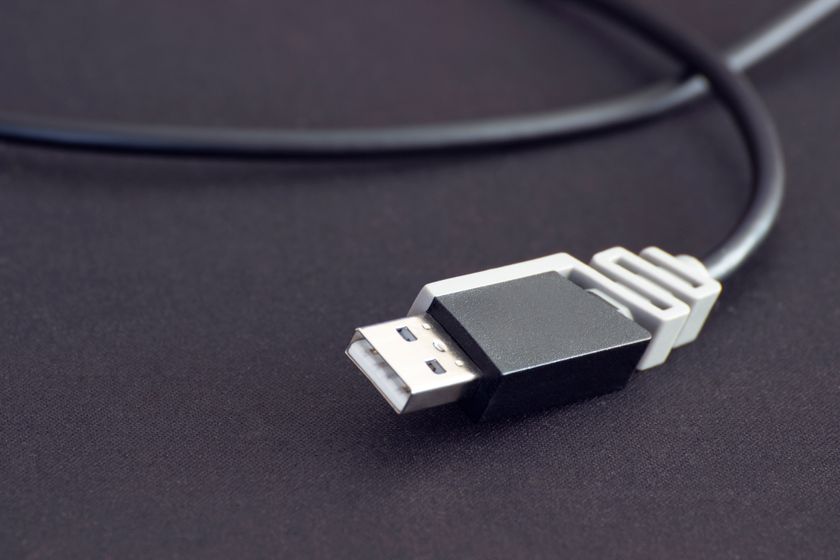
Try another data-capable cable and USB port. Choose a cable with connectors that fit both devices; avoid relying on a loose plug or a chain of adapters. Charging alone does not confirm a working data connection.
Update Finder's host system or the Apple Devices app as needed. A responsive phone may require an unlock and Trust confirmation for normal detection. Once it is on the recovery screen, follow the computer's recovery prompts.
If a firmware download takes more than 15 minutes and your iPhone leaves recovery mode, let the download finish first. Then repeat the entry steps. A broken or stuck button, or a recovery operation that cannot finish, may require service.
Conclusion
iPhone recovery mode starts with the correct model-specific button sequence and a computer connection. Keep holding until the recovery screen appears, or use Fixppo's free Enter feature to skip button timing on a detected device. Once you know how to put an iPhone in recovery mode, choose the next operation carefully: try Update when appropriate, and check your backup before selecting an erasing Restore.
FAQs About iPhone Recovery Mode
How Do I Put an iPhone SE in Recovery Mode?
For SE 2nd and 3rd generation, quickly press Volume Up, then Volume Down, then hold the side button. For SE 1st generation, hold Home and the top button together. Keep the device connected and hold until the recovery screen appears.
Can I Put My iPhone in Recovery Mode Without a Computer?
For the computer-and-cable recovery workflow covered here, connect your iPhone to a Mac or PC before using the buttons. Apple's instructions require that connection, and a computer is needed for the subsequent Finder or Apple Devices update or restore.
Is Recovery Mode the Same as Restore Mode?
People often use “restore mode” to mean the recovery screen. Putting an iPhone in restore mode is different from selecting Restore on the computer: reaching the screen does not execute the erase.
Can Fixppo Enter Recovery Mode If a Button Is Broken?
Fixppo's Enter feature avoids the button sequence when the app can detect the connected device. If detection fails and a broken button prevents manual entry, arrange service rather than assuming software can overcome every hardware fault.
