







 Adams Johnson
 Last updated: Oct 23, 2026 12:00 am
 iOS Unlock
Forgot the code that controls your app limits and iPhone restrictions? A screen time password finder search often starts with one simple goal: remove the forgotten passcode and get back into your settings. You should be able to adjust your own phone without another round of guessing.
Quick answer: Use your Screen Time recovery Apple Account to reset the passcode, then turn off passcode protection in Settings. For a computer-based alternative, LockWiper provides a dedicated Screen Time removal feature designed to keep your personal data on supported devices.
Forgotten Screen Time passcode holding you back? Use LockWiper to remove the restriction password on supported devices, keep your personal data, and take charge of your iPhone settings again today.
Forgot Your Screen Time Passcode? Regain Control of Your iPhone
Remove the Screen Time Passcode Through Settings
Leave the Forgotten Passcode Behind—Keep Your Data with LockWiper
Forgot Your Screen Time Passcode? Regain Control of Your iPhone
Removing a forgotten Screen Time passcode starts with checking how it was set up—on the iPhone itself or through Family Sharing.
Start with the person who manages those settings. On your own device, you can use your recovery account or a suitable Screen Time remover. For a child's device managed through Family Sharing, the parent or organizer has a separate route on their own iPhone.

Keep the goal specific. Removing passcode protection lets you manage Screen Time again. You also need access to the right credentials. Screen Time recovery can use an Apple Account different from the one currently signed in on the phone. Having the phone in your hand does not tell you which account was used when recovery was configured.
Remove the Screen Time Passcode Through Settings
When you can use the recovery account, Settings is a convenient place to begin. You can reset the forgotten passcode and then disable passcode protection, without moving to a computer.
Reset the Passcode on Your Own iPhone
Apple's current instructions use the following sequence. Depending on your iOS version, you may see a Forgot Passcode? option during recovery.
- Open Settings > Screen Time.
- Tap Manage Screen Time, if shown.
- Tap Change Screen Time Passcode, then select the change option again.
- When prompted, enter the Apple Account email address and password used for Screen Time recovery.
- Set a new passcode and confirm it.
To remove passcode protection afterward, return to the passcode menu, select Turn Off Screen Time Passcode, and authenticate with the new code. Then review the limits or restrictions you wanted to change.
A failed account check is a reason to verify the recovery account, rather than keep entering different four-digit combinations. If you have several Apple Accounts, check which one you used when you first protected these settings.
Manage a Child's Passcode Through Family Sharing
On the organizer's or parent/guardian's device, open Settings > Screen Time, choose the child under Family, and open Manage Screen Time. Use Change Screen Time Passcode to set a new code, then manage passcode protection and limits there.
This keeps the change with the person responsible for the family settings. If the controls belong to another organizer, ask that person to make the change rather than treating the child's phone as a separately managed device.
Leave the Forgotten Passcode Behind—Keep Your Data with LockWiper
Your photos, conversations, and everyday apps matter more than an outdated restriction password. iMyFone LockWiper offers a dedicated Screen Time removal feature designed to preserve personal data while clearing the forgotten passcode on supported devices.
For users seeking a screen time unlock app, the practical appeal is a computer-based workflow focused on this task. Choose the Screen Time option, connect your iPhone, and follow the prompts for your setup. You do not need to organize a collection of unrelated unlocking tools.
The important advantage is the feature's focus: removing the password that blocks Screen Time changes while keeping your content in place. You can return to managing your phone without making a factory reset the starting point.
Prepare Your iPhone and Computer
Use a computer you trust, a data-capable USB cable, and a charged iPhone. Check your device and iOS version against the current product requirements. A fresh backup is also sensible before making device-level changes.
The walkthrough below is for Screen Time set directly on a device you own or are authorized to manage. You must be able to unlock the phone and approve the computer if asked. This route also requires Find My iPhone to be disabled; have the account access needed to complete that step.
Remove the Passcode from Your Computer
1. Open the Screen Time feature. Install and launch LockWiper, then select Unlock Screen Time Passcode. Stay in this feature throughout the procedure.
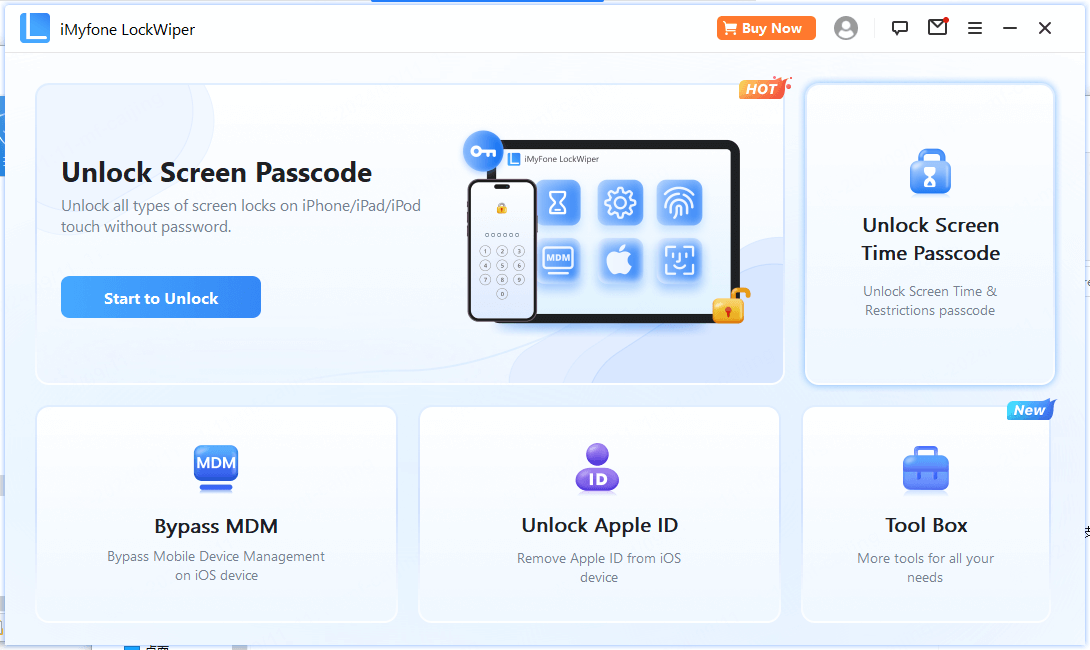
2. Connect and authorize your iPhone. Attach it by USB. Unlock the screen and tap Trust if the phone asks you to approve this computer. Wait for LockWiper to recognize the device.
3. Select how Screen Time was configured. Choose the directly-on-device option for this walkthrough. Read the displayed requirements and confirm they match your phone before proceeding.
4. Start removal. Select Start to Unlock. If prompted, follow the instructions to disable Find My iPhone, then continue. Keep the cable connected while LockWiper processes the device.
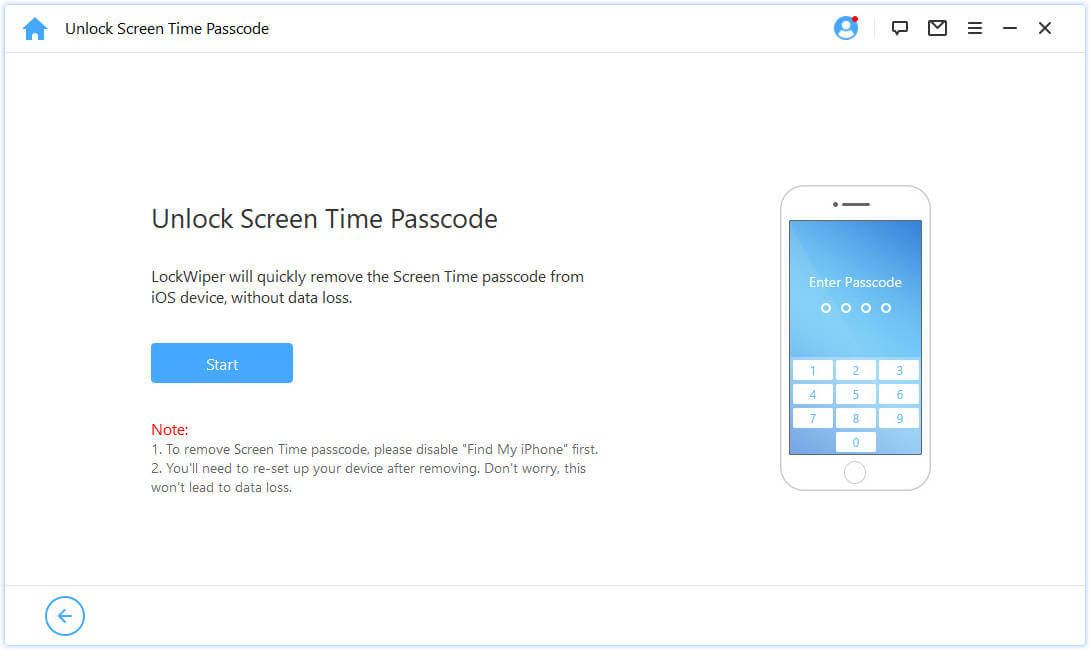
5. Finish the setup prompts. Follow LockWiper's instructions after removal, including any device setup screens. Once the phone is ready, open Screen Time and confirm you can make the intended change.
Completion means more than seeing a success message. Check the specific app limit or restriction that brought you here, and confirm your important content is available. If you want to protect the new settings, choose a new passcode and configure recovery while you have everything to hand.
Conclusion
The best next step after a screen time password finder search is a removal method that fits your setup. Use Settings when your recovery account is available, or choose LockWiper's dedicated Screen Time feature for a computer-based route designed to retain personal data. Once access is restored, update the limits you need and keep recovery details available for next time.
FAQs About Removing Screen Time Passcodes
How Do I Get Rid of Screen Time Without the Password?
On your own iPhone, use the recovery Apple Account to reset the passcode, then turn off passcode protection. LockWiper offers a separate removal route for supported setups when you can satisfy its connection and account requirements.
Can I Remove It Without Losing My Photos and Messages?
LockWiper markets its Screen Time feature as a data-preserving removal option. Use the dedicated Screen Time mode and check the requirements shown for your device. Keep a current backup rather than assuming every unlocking feature has the same effect.
Why Can't I Find the Forgot Passcode Option?
The controls depend on your software and how Screen Time was configured. Check the passcode menu and any Manage Screen Time option. For Family Sharing, have the organizer or parent use their own device. Follow the current Apple instructions for your setup.
Is There a Way to Bypass Screen Time on an iPhone I Own?
If you want to remove a forgotten passcode from your own device, use account recovery or a supported removal tool. For an individual app limit, first check whether changing that limit would meet your need once you regain access.
Does Searching for Screentimeunlock Identify the Right App?
The name alone does not establish a download's identity or capabilities. Choose an identifiable developer and a documented Screen Time removal feature. For LockWiper, use the official download and its Screen Time mode.
What If I Can't Turn Off Find My iPhone?
Resolve the account or device restriction preventing that change before continuing with the directly-set Screen Time walkthrough. LockWiper's published instructions require Find My to be disabled for this route. Contact the account owner or administrator if they manage that setting.