







 Ronnie Barnes
 Last updated: Oct 14, 2026 12:00 am
 iOS System
Your iPhone is unresponsive, and you want to get it running from your PC or Mac. This guide explains how to restart an iPhone from a computer, with practical steps for connecting the device, using Fixppo, and working with Apple's recovery tools.
Quick answer: Connect your iPhone with a data-capable USB cable. Fixppo can repair suitable iOS software faults and restart the device after repair. On a Mac or Windows PC, Apple's recovery tools also offer Update and Restore options. Choose the operation you need before starting.
Restart your iPhone from a computer with Fixppo. Download matching firmware, choose Standard Mode, and repair software that prevents startup, with your existing photos and messages kept in focus throughout.
Can a Computer Really Restart Your iPhone?
Fixppo: Get Your Frozen iPhone Running Again from Your Computer
Use Apple's Computer Tools for a Failed Startup
Can a Computer Really Restart Your iPhone?
It depends on the phone's state. A responsive iPhone usually needs only a normal restart. If iOS cannot finish starting, a computer can reinstall or repair the system so the phone can boot again.
Finder and Apple Devices provide Update and Restore options for recovery. Those are more involved than a simple restart. For an existing supervised work or school device, Apple Configurator on Mac also has a restart command.
| What you see | What to try | Data impact |
|---|---|---|
| Phone responds normally | Restart using the phone's controls | No factory erase |
| Frozen screen; buttons work | Force restart using the correct sequence | No factory erase |
| Unresponsive phone or failed startup | Apple Update or suitable Fixppo system repair | Check the chosen operation |
| Computer-and-cable screen | Recovery exit attempt, then update or repair if it returns | Restore erases data |
After any successful restart, back up your phone before continuing. If the same problem comes back, record what happens rather than treating each reboot as a lasting fix.
Fixppo: Get Your Frozen iPhone Running Again from Your Computer
When your iPhone stops responding, iMyFone Fixppo gives you a way to work on the software from your Windows PC or Mac. Connect the device, select a repair mode, and download firmware inside the same app. After the repair completes, the iPhone restarts so you can check its response.
Restart After System Repair, with Your Photos and Messages in Mind
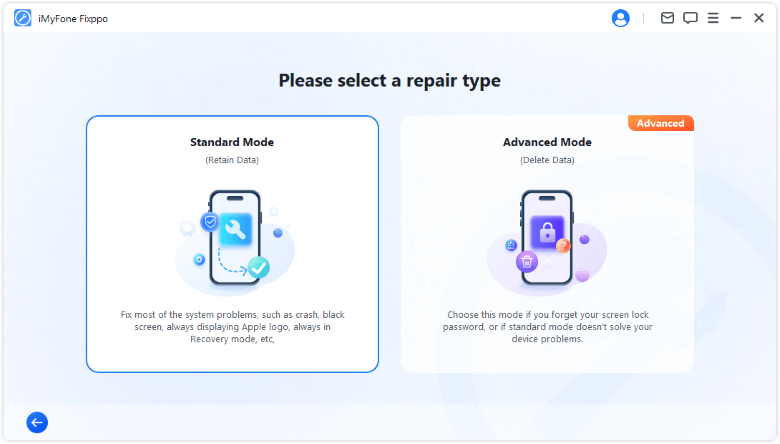
For this task, Standard Mode is the feature to focus on: it repairs suitable iOS faults while retaining existing content. You can work from the computer when the phone's interface is not responding, rather than trying to navigate Settings on the device.
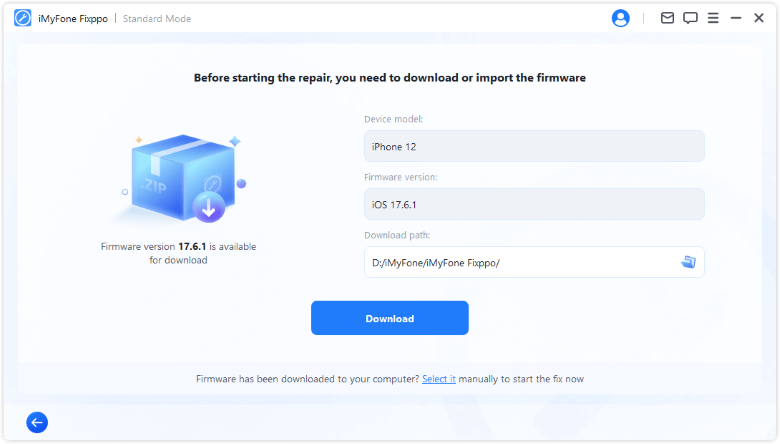
Fixppo detects the connected model and displays available firmware, keeping the download and repair steps together. Review the model, choose the package offered for your device, and start the repair. You do not need to move between iTunes, Finder, and a separate firmware-download page.
Once the phone restarts, unlock it and check the action that was failing before. Confirm that touch responds, open an app, and make a backup when accessible. Choose Standard Mode for this data-preserving repair route; Advanced Mode erases the device.
Run the Computer Repair and Check Startup
Step 1: Install Fixppo on your computer and open Apple System Repair.
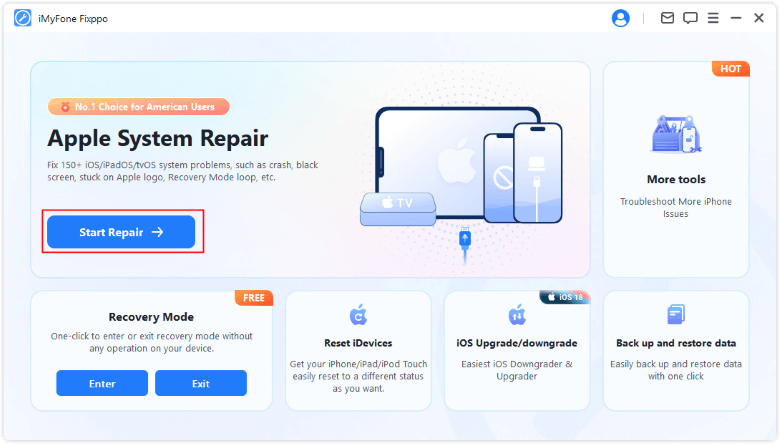
Step 2: Choose Standard Mode, connect the iPhone, and follow the detection instructions.
Step 3: Check the detected model and download available firmware.
Step 4: Select Start Standard Repair and keep the phone connected. Check whether normal startup returns afterward.
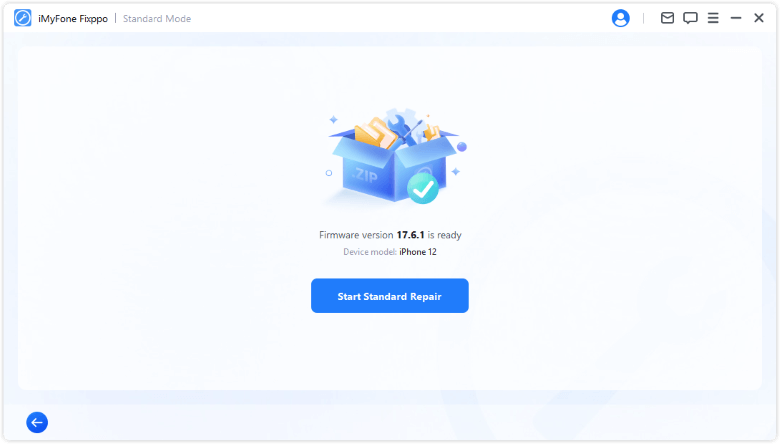
Official screenshots show example devices and firmware versions. Follow the options offered for your connected iPhone.
Use Apple's Computer Tools for a Failed Startup
On Windows, open Apple Devices for Apple's update or recovery route. On a Mac, use Finder. If you choose Fixppo instead, install the version for that computer. The download buttons in this article provide the Windows installer; the official product page provides the Mac option.
Keep the computer connected to power and the internet while downloading firmware. Set aside enough time to finish the operation without unplugging the iPhone. Close any unrelated task that could cause you to disconnect the cable or shut down the computer midway.
If the phone still responds, create a backup before proceeding. If it cannot reach the normal interface, check the date of an existing backup. This helps you decide whether to continue with an update or repair and whether an erasing restore would be acceptable.
Select the connected iPhone in the app before confirming an operation. If the device name or model is unexpected, check which phone and cable are connected. Follow the app's device-detection instructions rather than assuming that charging means the computer can communicate with iOS.
Try Update Before Restore
Connect the phone to an updated Mac or a Windows PC with Apple Devices. Older supported setups may use iTunes. If normal detection fails, follow Apple's recovery-mode instructions for your model.
Select the iPhone and choose Update when offered. It reinstalls iOS while aiming to preserve personal data. If a download takes more than 15 minutes and the phone leaves recovery mode, let it finish, then enter recovery mode again.
Restore erases the iPhone. Accept that outcome before choosing it, especially if your photos or messages are not backed up.
Keep Managed-Device Restart Separate
For a supervised device you administer, connect it to Apple Configurator on Mac, select it, and choose Actions > Advanced > Restart Device. This is an official supervised-device command. Ask your IT team about a work phone.
When the Computer Cannot Detect or Restart Your iPhone
Use a data-capable cable that fits the phone and computer. Check the connector for damage, try another USB port, and update the device software on the computer. A cable can deliver power while still having an unreliable data connection.
If the phone responds, unlock it and accept a Trust prompt when needed. A frozen or recovery-mode phone cannot necessarily do that; use the appropriate recovery instructions rather than repeatedly tapping an unresponsive display.
Write down any error and the point where the process stops. If buttons are broken, the device suffered physical damage, or recovery keeps failing, arrange service. Software repair cannot fix damaged hardware.
If keeping unbacked-up data matters most, pause before Restore, Advanced Mode, or DFU restore. Ask a qualified service provider about your situation. Erasing the phone is a separate decision from trying to restart it.
Conclusion
Now you know how to restart an iPhone from a computer: connect the device, use Fixppo's Standard Mode or Apple's Update for the appropriate software task, and check the phone after it restarts. Keep a backup available and check the data impact before selecting an erasing operation.
FAQs About Restarting an iPhone from a Computer
Can I Restart My iPhone from a Windows PC?
A Windows PC can help a stuck iPhone through Apple Devices or a suitable repair app. Choose the route by the symptoms. If your phone works and you only want a fresh restart, use its controls instead of running a restore.
Can I Restart an iPhone Without Touching the Screen?
Yes, a force restart uses the buttons. If that fails, a computer may help with a software startup problem. Broken buttons or a damaged display may need service; connecting a cable alone does not fix those faults.
Does a Complete Restart Delete Everything?
A normal restart and a force restart do not factory-reset your iPhone. “Complete restart” is an unclear label, so look at the actual action. Factory Restore and erasing repair modes remove data; choose them only after checking your backup.
Is a Force Restart the Same as a Restore?
No. A force restart reboots the phone using its buttons. Restore reinstalls iOS and erases content. If you are simply trying to restart a frozen iPhone, begin with the button sequence and move to recovery tools only when needed.
