







 Ronnie Barnes
 Last updated: Oct 16, 2026 12:00 am
 iOS System
Your iPhone is frozen, the screen ignores your taps, and a normal restart is out of reach. A hard reset on your iPhone can force it to restart using its physical buttons, helping you get past an unresponsive screen without deleting your photos, messages, or apps.
Quick answer: Use the force-restart sequence for your model below. On iPhone 8 or later, quickly press Volume Up, quickly press Volume Down, then hold the side button until the Apple logo appears. If the phone keeps freezing or cannot finish starting, Fixppo offers computer-based iOS repair designed to retain your data.
iPhone still frozen after a hard reset? Let Fixppo repair the iOS issues blocking startup with Standard Mode, designed to keep your photos, messages, and apps while restoring normal use.
How to Hard Reset Your iPhone: Instructions by Model
Get Your Frozen iPhone Running Again with Fixppo—Keep Your Data
How to Hard Reset Your iPhone: Instructions by Model
If your phone still responds, try turning it off and back on normally. When the display stops responding or the power-off slider is unusable, use the physical-button procedure for your model. You can perform this manual hard reset without opening Settings or connecting a computer.
The correct sequence depends on the model. The second- and third-generation iPhone SE use the same volume-button sequence as iPhone 8 and later.
| iPhone model | Force-restart sequence |
|---|---|
| iPhone 8 or later; iPhone SE 2nd and 3rd generation | Quickly press Volume Up, then Volume Down; hold the side button until the Apple logo. |
| iPhone 7 or iPhone 7 Plus | Hold the side button and Volume Down together until the Apple logo. |
| iPhone 6s or earlier; iPhone SE 1st generation | Hold Home and the side or top button together until the Apple logo. |
iPhone 8 or Later, Including iPhone SE 2nd and 3rd Generation
- Press and quickly release Volume Up.
- Press and quickly release Volume Down.
- Press and hold the side button.
- Release the side button when the Apple logo appears.
Keep the first two presses separate and brief. The final action is a sustained hold of the side button. Pressing both volume buttons together or releasing the side button as soon as the display turns black can interrupt the sequence.
iPhone 7 and iPhone 7 Plus
Press and hold the side button and Volume Down together. Keep holding until the Apple logo appears, then release both buttons and let the phone finish starting.
Use Volume Down for these models. The Home button is not part of their force-restart procedure, even though it sits in a familiar place below the screen.
iPhone 6s or Earlier, Including iPhone SE 1st Generation
Press and hold the Home button and side or top button together. Release both when the Apple logo appears. Keep the phone still and allow startup to complete before testing the screen.
These procedures follow Apple's instructions for restarting an unresponsive iPhone. For current models, you can also check the iPhone force-restart guide.
Make the Next Attempt Count
Remove a case if it makes the buttons difficult to press. Confirm the model before repeating the procedure, especially with an iPhone SE. A correct sequence is more useful than repeated presses that mix instructions from different phones.
If the screen stays black, connect the iPhone to a working charger and allow time for charging before another attempt. Apple recommends charging an unresponsive phone for an hour before trying again. Check the cable and power source if there is no response.
Watch what happens afterward. Reaching the lock screen is different from repeatedly showing the Apple logo. If the phone starts but freezes again, note whether it happens in one app or during startup; that detail helps you choose the next action.
Get Your Frozen iPhone Running Again with Fixppo—Keep Your Data
A force restart can bring a frozen phone back, but a recurring iOS fault may leave you facing the same screen again. iMyFone Fixppo gives you a way to address supported software problems from your computer while keeping your personal content in place.
Its Standard Mode repairs iOS problems such as a startup loop or an iPhone stuck on the Apple logo. After a successful repair, the device restarts automatically. This makes it a relevant next step when the button procedure completes but normal startup still fails.
The practical benefit is working through mode selection, device detection, and firmware preparation on your PC or Mac. You can begin the repair without navigating the frozen phone's Settings menus. Standard Mode is the data-preserving repair option to choose for this task.
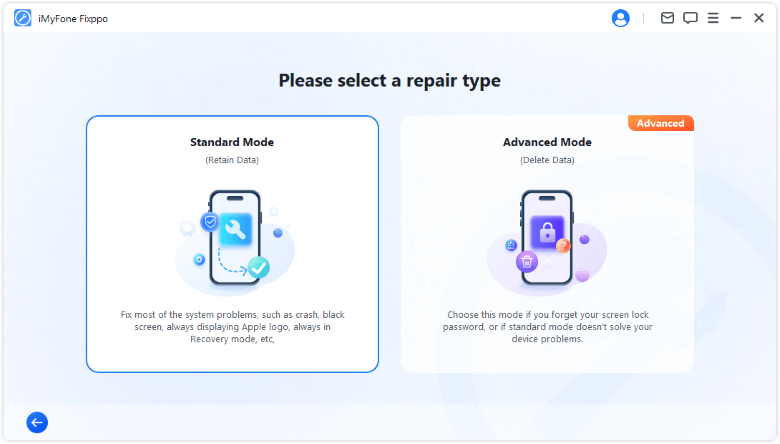
Step 1: Choose Standard Mode
Install and launch Fixppo on your computer. Open Apple System Repair and select Standard Mode. Have a data-capable USB cable ready and keep the computer connected to power.
Step 2: Connect and Prepare Your iPhone
Connect the phone and let Fixppo detect it. If it cannot be recognized normally, follow the recovery-mode instructions displayed for your model. Depending on the phone's condition, this preparation can require physical buttons.
Keep the cable firmly connected. A damaged button or USB port can prevent the necessary preparation, so software repair is most useful when the device can communicate with the computer.
Step 3: Download the Matching Firmware
Check the detected model and select an available firmware package. Click Download and wait for preparation to finish. Use a stable internet connection and allow enough space on the computer for the download.
Step 4: Repair iOS and Let the iPhone Restart
Select Start Standard Repair. Leave the device connected and avoid using it during repair. After completion, wait for the automatic restart and check whether the lock screen and touch controls respond normally.
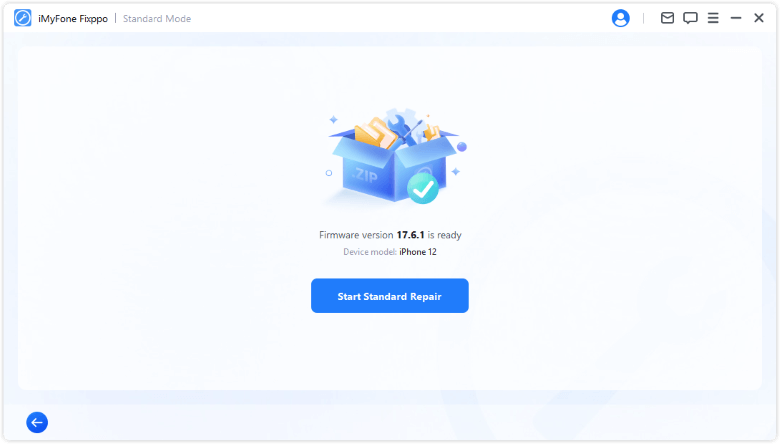
Check the app or action that previously caused the freeze once the phone is usable. A successful startup gives you an opportunity to back up your content and review any recurring symptoms. The Fixppo user guide provides the corresponding connection and repair screens.
Optional: Factory Reset Through Settings
If your goal is to erase the phone and start fresh, a factory reset is a separate operation from the force restart above. Use this option only when you want to remove the device's content, such as before selling it or setting it up again.
Prepare Before You Erase
Back up any content you want to keep and confirm that important photos and files are available elsewhere. Have your device passcode and Apple Account password ready. If you are handing over the phone, unpair your Apple Watch and follow Apple's handover checklist.
Erase Your iPhone Through Settings
- Open Settings and tap General.
- Select Transfer or Reset iPhone.
- Tap Erase All Content and Settings.
- Review what will be removed, then tap Continue.
- Choose whether to keep or delete your eSIM when prompted.
- Enter the requested device passcode and Apple Account password, then let the reset finish.


These example screens accompany Apple's official factory-reset instructions; labels may vary by iOS version. The Hello screen appears when the reset finishes. If you delete an eSIM, contact your carrier to reactivate the plan when needed.
For a frozen phone you want to keep using with its existing content, return to the force-restart or Standard Mode repair methods above. A factory reset serves a different goal and erases the device.
Conclusion
To hard reset an iPhone that has stopped responding, use the force-restart sequence for its model and release the buttons at the Apple logo. If freezing or startup problems continue, Fixppo's Standard Mode offers a computer-based repair route designed to preserve your data. Once normal access returns, make a backup and address any recurring symptoms.
FAQs About Hard Resetting an iPhone
How Can I Hard Reset My iPhone Without Touching the Screen?
Use the physical-button sequence for your model. On iPhone 8 or later, quickly press Volume Up, quickly press Volume Down, then hold the side button until the Apple logo. Older models use the combinations listed above.
Will an iPhone Hard Reset Delete My Photos?
The manual force restart described here does not erase your saved photos, messages, or apps. It restarts the device when normal controls are unavailable. Keep regular backups for any content you cannot replace.
Is There Free Hard Reset iPhone Software?
You can perform the manual force restart without installing software or paying for a tool. If the phone has an ongoing software fault, choose an iOS repair feature suited to that fault rather than treating every computer utility as a restart button.
Can Fixppo Help If My iPhone Keeps Freezing?
Standard Mode targets supported iOS software problems and restarts the device after repair. The phone must connect and complete the preparation shown in the app. Physical damage or a failed button may require service.
Why Does My iPhone SE Use the Newer Button Sequence?
The second- and third-generation SE follow the Volume Up, Volume Down, and side-button procedure. The first-generation SE uses Home and the top button. Identify the generation before trying again.
