







 Adams Johnson
 Last updated: Oct 28, 2026 12:00 am
 Android Unlock
Your Android phone says “Verify pattern,” but the gesture you remember no longer gets you in. Searching through all lock patterns can feel like the next logical step, especially when you are certain yours was something simple. The real question is how to recover access without spending the day drawing guesses.
Quick answer: Android expects the pattern associated with the current verification request; there is no universal pattern or master PIN that replaces it. Remove a forgotten screen lock on a supported device with LockWiper Android.
Forgot the gesture? LockWiper Android removes pattern locks on supported devices without the original pattern, bringing device preparation and removal instructions together on your PC so you can get back in.
▸ Why Your Android Phone Asks You to Verify a Pattern
▸ Will All Lock Patterns or a Universal PIN Unlock Your Phone?
▸ Use a Recovery Option Your Phone Actually Provides
Why Your Android Phone Asks You to Verify a Pattern
A pattern is one of Android’s screen-lock credentials. The phone can request it when you open the device or approve a protected change. Drawing a different recognizable shape will not satisfy a request for the pattern you previously set. The same brief instruction can appear at different points, and the next step depends on what the phone is verifying.
| Where You See the Request | What to Check |
|---|---|
| On the everyday lock screen or before a protected change | The currently configured screen pattern and any offered recovery option |
| During setup after a factory reset | The previous device credential or Google Account option shown on that screen |
| While restoring an encrypted backup | The credential associated with that backup, rather than a newly chosen screen lock |
Removing a screen lock does not reveal its old pattern or decrypt a backup protected by that credential. If the request appears during setup, use the verification choices the phone actually offers instead of assuming it is the ordinary lock screen.
Before continuing, note the device model and whether the phone has already been reset. Those two details help you choose the right instructions without repeating an operation that addresses a different problem.
Will All Lock Patterns or a Universal PIN Unlock Your Phone?
No universal unlock pattern replaces the pattern saved on your phone. A grid of popular shapes is a collection of examples, not an Android recovery feature. The phrase “most common pattern locks” describes what people may choose. It does not identify your own pattern password. The starting point, direction, and connected sequence are part of the credential, so remembering only a rough outline may not be enough.
A claimed master code to unlock any phone has the same problem: it is not a substitute for your device’s configured credential. A PIN consists of numbers; a pattern is a gesture. A “universal unlock PIN for Android” does not become an answer you can draw on a pattern grid.
Repeatedly trying lists of patterns is therefore a poor recovery plan. Pause when the device shows a waiting period and move to an option that can actually restore access.
If you clearly remember your own pattern but the screen does not register it correctly, check for an obvious touch problem, such as moisture or a damaged display. A gesture that cannot be entered properly is a different issue from a forgotten one and may need hardware attention.
Use a Recovery Option Your Phone Actually Provides
Some devices offer a recovery route for a particular situation. Check for those options before choosing a process that clears data, especially if you recently changed the pattern.
Recently Changed a Samsung Screen Lock?
On eligible Galaxy devices running One UI 6.1 or later, the previous PIN, password, or pattern can remain available for 72 hours after a change. You need to remember that earlier credential, and it must not have been deleted.
- Select the Forgot PIN or corresponding pattern/password option when offered.
- Enter the previous credential and confirm it.
- Follow the prompts to replace the forgotten screen lock.
This is a limited recovery window, not a universal code. Samsung’s previous screen-lock guide explains the requirements.
Using an Older Android Phone?
Google documents a Forgot pattern recovery option for Android 4.4 or earlier. If it appears on an eligible device, verify with the Google Account already added to that phone and reset the screen lock. It does not email the original gesture back to you.
Do not expect the same feature on a modern Android phone. A tutorial showing it on an older model is not evidence that your current device has that button.
Stop Guessing and Unlock Your Pattern with LockWiper
When you cannot remember the gesture and need a practical way forward, iMyFone LockWiper Android offers computer-based screen-lock removal. Its pattern-removal function handles supported devices without requiring you to redraw the original pattern.
The useful difference from searching for all lock patterns is straightforward: you follow a removal process instead of trying to guess the credential. Device information, package preparation, and the next instructions are organized in the program.
- Remove the forgotten pattern: work with the screen-lock function rather than a list of suggested gestures.
- Check the device before proceeding: confirm the model and available mode in the software.
- Follow one set of instructions: complete the corresponding preparation with the phone beside your computer.
Check the Data-Preserving Samsung Option First
LockWiper Android offers a separate Remove without Data Loss mode for certain supported Samsung models.
Standard screen-lock removal erases device data. Review that consequence before starting and check any existing backup you can access. The Samsung data-preserving option does not apply to every Android model.
Remove the Pattern with the Standard Workflow
Have the exact model number ready before connecting the phone. You may find it on the packaging or purchase record if the settings screen is inaccessible. Keep the computer connected to power and use a cable that supports data transfer, not charging alone.
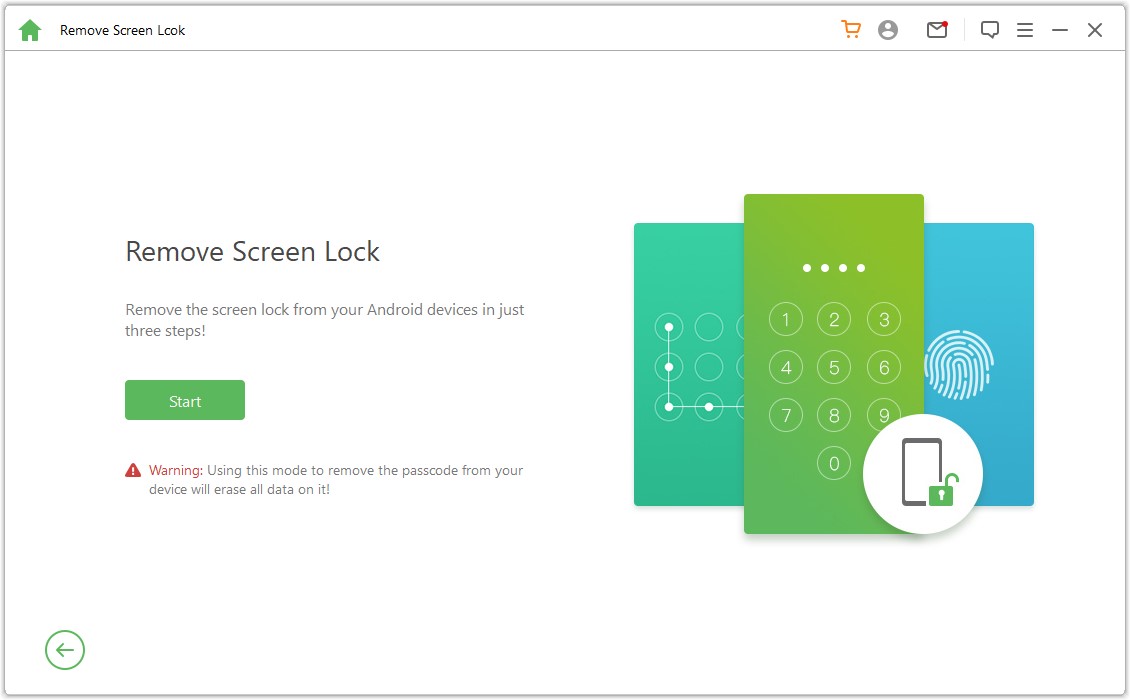
Step 1: Select screen-lock removal. Install LockWiper Android on your Windows computer. Open Remove Screen Lock, choose the standard removal route, and review its confirmation before clicking Start.
Step 2: Connect and confirm the model. Attach the phone using a USB data cable. Review the device information and correct it where necessary before selecting Start to Unlock.
Step 3: Complete device preparation. Allow the required package to download and transfer. Follow the instructions shown for your model. Some preparation requires actions on the handset.
Step 4: Check access after removal. Let the operation complete and restart when instructed. Continue through setup and complete any requested account verification. The old pattern is removed through this process, not displayed for you to recover.
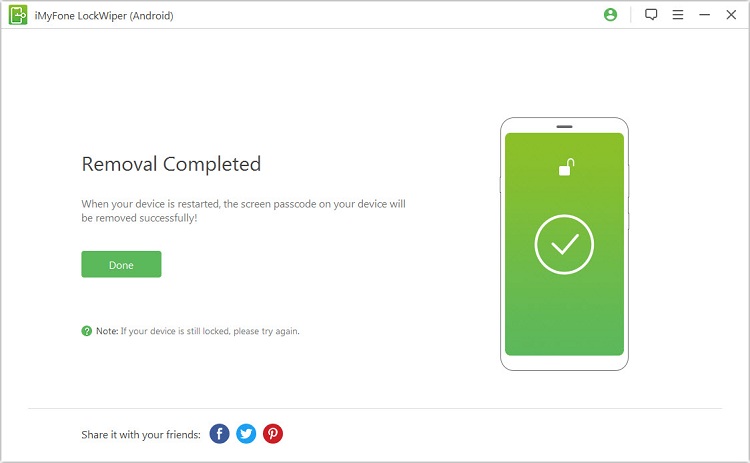
Use the official LockWiper Android guide for the selected mode. If the connection drops, check the cable and USB port before repeating removal.
Conclusion
A Verify pattern request needs the credential associated with that screen. Searching through all lock patterns or trying a supposed master PIN cannot replace it. Use a recovery option your phone provides, or choose a compatible removal route. LockWiper Android offers pattern-lock removal without the original gesture on supported devices, with a separate data-preserving option for Samsung models.
FAQs About Android Pattern Verification
Is There a Master Code to Unlock Any Phone?
There is no universal code that replaces every phone’s configured screen credential. Use the recovery options and supported removal process for your own device rather than relying on a claimed master password.
Can I Use a PIN Instead of a Pattern?
Only if that screen offers a valid PIN-based verification option. Typing an arbitrary PIN does not replace a saved pattern. A previous-code recovery feature also requires the actual earlier credential, not a generic number.
Will Removing the Pattern Keep My Photos?
That depends on the route. Eligible Samsung previous-code recovery avoids a factory reset, and certain Samsung models qualify for LockWiper’s data-preserving mode. Standard LockWiper removal and factory resets clear local data; an existing backup may help restore it.
Why Does Verify Pattern Appear After a Factory Reset?
Setup may request the previous device credential as an ownership check, or a backup may need its associated credential for restoration. Read the surrounding message and use the offered verification route. Removing an ordinary screen lock does not automatically decrypt a protected backup.