







 Ronnie Barnes
 Last updated: Oct 16, 2026 12:00 am
 iOS System
Your iPhone is stuck on the Apple logo, shows a cable and computer, or refuses to let you past the lock screen. Searching for an iPhone flasher brings up plenty of downloads. The useful question comes first: do you need to repair iOS, erase the phone, or recover access to an account?
Quick answer: Flashing an iPhone usually means installing or reinstalling its system software. For a failed installation, try a restart and a data-preserving update before choosing an erase. A forgotten passcode and Activation Lock need different recovery paths.
Flash your iPhone without switching between Apple tools. Fixppo brings firmware downloads, data-preserving system repair, and reset options into one app, so you can choose the route your device needs.
What Does Flashing an iPhone Actually Do?
Choose an iPhone Flash Tool for Your Situation
How to Flash an iPhone with Apple's Tools
How to Flash Your iPhone Without iTunes or Finder
What Does Flashing an iPhone Actually Do?
“Flash” is a broad term. One person means reinstalling iOS after an update fails; another means wiping a used phone and starting fresh. Those jobs have different consequences.
Force restart: Restarts an unresponsive device without reinstalling iOS.
Update or system repair: Works on the operating system. The selected method determines whether it attempts to keep your data.
Factory restore: Erases information and settings and installs iOS through your computer.
Read the operation name before confirming it. “Reset,” “restore,” and “repair” can appear close together in an app, while doing very different things to your photos and messages.
Choose an iPhone Flash Tool for Your Situation
Start with what you can see on the screen. A phone that cannot finish booting belongs on a different path from one asking for its owner's Apple Account.
| Situation | First route to consider | Data and access check |
|---|---|---|
| Works normally; you want a clean start | Back up, then erase or factory restore | Erases personal content; confirm account access first |
| Update failed; stuck on logo or recovery screen | Restart, then Apple Update or suitable system repair | Try the data-preserving route before an erase |
| Forgotten screen passcode | Check Passcode Reset eligibility, then Apple's reset options | A recovery-mode restore erases the phone |
| Activation Lock or “Locked to Owner” | Account recovery, previous owner, or Apple support | Reinstalling iOS does not remove account ownership |
Finder on Mac and Apple Devices on Windows provide Apple's update and restore paths. Fixppo brings firmware installation and system repair into a separate desktop app. Choose by the job and data impact, rather than the number of features on a download page.
How to Flash an iPhone with Apple's Tools
Back Up and Prepare Your Computer
If the phone opens normally, create a backup first. Otherwise, check the date of any existing backup; a phone stuck in recovery mode may be unable to make a new one.
Update your Mac or Apple Devices app, connect a reliable USB cable, and open Finder or Apple Devices. Older supported setups may use iTunes. Keep the computer powered and connected to the internet.
Try Update for a Failed iOS Installation
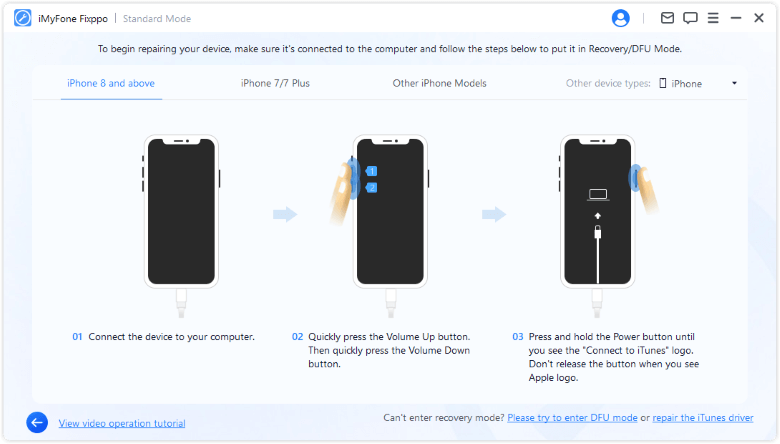
If a force restart leaves the recovery screen unchanged, reconnect to the computer. For iPhone 8 or later, press and release Volume Up, then Volume Down, then hold the side button until the computer-and-cable screen appears.
For iPhone 7 models, hold the side and Volume Down buttons. For iPhone 6s or earlier, hold Home and the side or top button. Keep holding until recovery mode appears.
Select the iPhone and choose Update to reinstall iOS while keeping personal data. Leave it connected. If a long download makes the phone exit recovery mode, let the download finish, then enter recovery mode again. See Apple's recovery-screen instructions.
Use Restore When You Intend to Erase the iPhone
Restore erases your iPhone. Use it when you accept that outcome. For a working device, follow the factory-restore preparation, including backup and turning off Find My when required.
Select Restore in the computer app and follow its prompts. Afterward, set up the phone and recover an available backup. If there is no backup and irreplaceable data matters most, stop before confirming the erase.
How to Flash Your iPhone Without iTunes or Finder
Repair or Reinstall iOS from One App
Want to flash your iPhone without opening iTunes or Finder? iMyFone Fixppo puts firmware downloads, iOS repair, and device reset options in one desktop app. Choose the job you need, connect your phone, and follow the on-screen steps.
The practical advantage is having a clear choice between repairing the system while keeping your content and erasing the phone for a fresh start. Standard Mode is designed for data-preserving repair; reset and Advanced Mode erase data. Apple's Update option also aims to preserve data, so choose by the operation you need rather than assuming every Apple method wipes the phone.
Choose How You Want to Flash Your iPhone
- Work without iTunes or Finder: Download firmware and start the repair inside Fixppo instead of moving through Apple's desktop apps.
- Find firmware for your device: Check the detected iPhone model and choose from the available packages in the app.
- Try repair before an erase: Use Standard Mode for suitable software problems when keeping your existing content is the priority.
- Handle the recovery screen: Use the recovery-mode helper when preparing a detected phone for repair or attempting to leave recovery mode.
- Install an available iOS update: Use the upgrade option when you want to update through your computer.
- Reset when you need a clean start: Choose the appropriate reset option after accepting that it will erase the phone.
Fixppo also provides a hard-reset route for a forgotten screen passcode, with data erased. That is a separate task from Standard Mode repair. Check the locked-iPhone section before choosing a reset; Activation Lock still requires account verification.
Flash Your iPhone with Fixppo in Four Steps
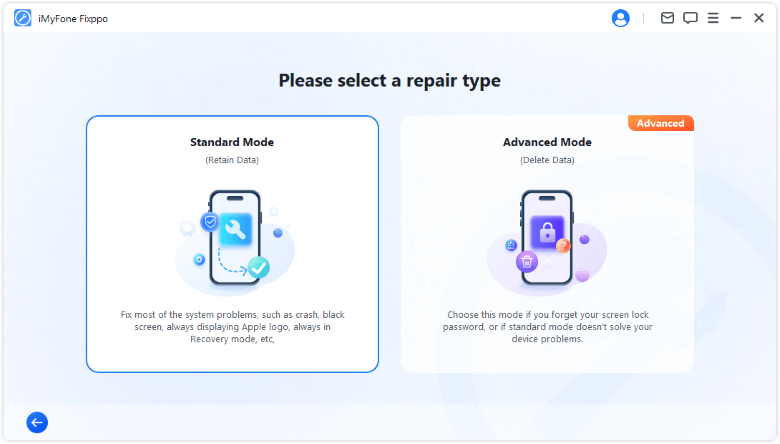
Step 1Install Fixppo on your computer. Open Apple System Repair and select Standard Mode.
Step 2Connect your iPhone. Follow the recovery-mode guidance if detection fails.
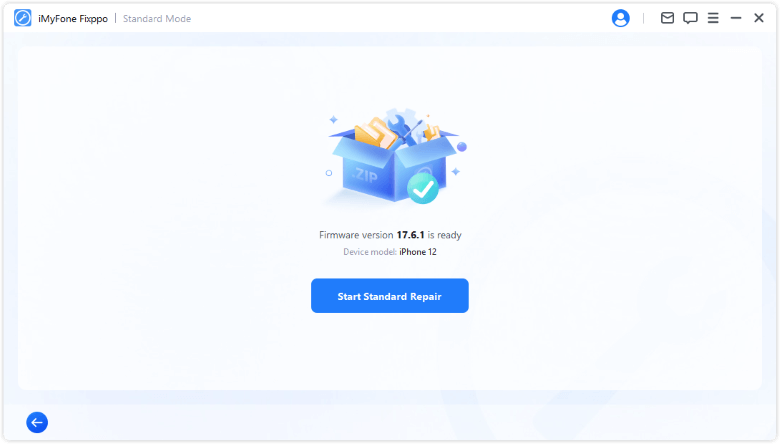
Step 3Check the detected model and available firmware, then choose Download.
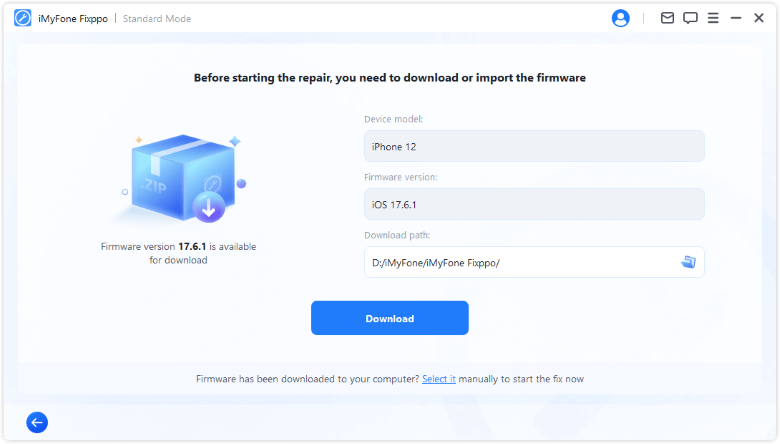
Official Fixppo screenshots show an example device and firmware version. Choose the firmware currently offered for your connected iPhone; screen labels may vary by app version.
Step 4Choose Start Standard Repair. Keep the device connected until the process finishes.
Check compatibility and license requirements before committing to repair. The recovery-mode helper is free; downloading the installer does not make every feature free.
Can an iPhone Be Flashed When Locked?
A Forgotten Screen Passcode
Yes, you can restore your own passcode-locked iPhone using recovery mode, but the process erases its contents. First check whether Passcode Reset applies: on supported software, a recently changed passcode may be reset using the previous code within 72 hours.
If that option is unavailable, use Apple's forgotten-passcode reset instructions. A data-preserving system repair is not a way to reveal an unknown passcode.
Activation Lock
Flashing does not remove Activation Lock. Follow the screen's account verification options. For a secondhand device, ask the previous owner to remove it from their account. With proof of purchase, you can request Apple's Activation Lock support. Contact IT for a work or school device.
FAQs About Flashing an iPhone
Can I Flash My iPhone Myself?
Yes, many owners can update or restore an iPhone at home with a computer, internet access, and a suitable cable. Know the purpose of the operation and have account details ready. If you mainly want to save unbacked-up photos, that priority should shape your next step.
Will Flashing an iPhone Delete Everything?
It depends on the operation. Apple's Restore erases the device. Update aims to keep personal data, and Fixppo's Standard Mode is designed for data-preserving repair. A backup remains important because an unsuccessful repair may leave you needing a different recovery route.
Is Flashing the Same as a Factory Reset?
No. Erasing content through Settings clears personal information and settings; a computer factory restore also reinstalls iOS. To factory reset a working iPhone, start at Settings > General > Transfer or Reset iPhone > Erase All Content and Settings, after backing up.
What If My iPhone Still Won't Start?
Record any error code and check your cable, USB connection, and computer software. If recovery-mode update or restore fails, or a button prevents recovery mode, arrange service. A recurring fault needs diagnosis before you spend more time switching flashing tools.
Choose an iPhone flash tool around your actual problem: repair a failed installation, erase for a fresh start, or resolve account access. Try the data-preserving route when appropriate. For supported software faults, Fixppo lets you download firmware and start repair in one app; check the selected mode before starting.
