







 Ronnie Barnes
 Last updated: Oct 14, 2026 12:00 am
 iOS System
Your iPhone shows a cable pointing toward a computer. You restart it, see the Apple logo, and land on the same screen again. If you are wondering how to exit recovery mode on iPhone, start by checking whether a restart is enough or whether iOS needs attention.
Quick answer: Try a force restart first. You can also use Fixppo's free Exit feature on a computer. If the recovery screen returns, move to Apple's Update option or suitable system repair. Restore erases the phone, so check your backup before choosing it.

Leave the recovery screen with Fixppo's free Exit feature—no iTunes needed. Connect your iPhone, select Exit, and check normal startup before choosing a firmware repair or a full erase.
Recognize the iPhone Recovery Mode Screen
Force Restart Your iPhone to Exit Recovery Mode
Exit iPhone Recovery Mode with Fixppo—Free, No iTunes Needed
If Recovery Mode Returns, Update or Repair iOS
Recognize the iPhone Recovery Mode Screen
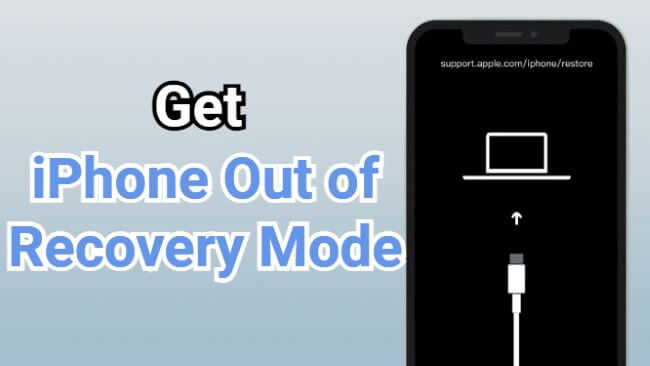
The computer-and-cable screen is the recovery screen people often call “restore mode.” Seeing it does not mean you have already erased your phone. What you choose next determines whether an erase happens.
Force Restart Your iPhone to Exit Recovery Mode
A force restart is the first thing to try when your phone is waiting at the recovery screen. Keep it connected to the computer and use the sequence for your model.
| iPhone model | Force-restart sequence |
|---|---|
| iPhone 8 or later, including SE 2nd and 3rd generation | Quickly press and release Volume Up, then Volume Down. Hold the side button until the Apple logo appears, then release it. |
| iPhone 7 or 7 Plus | Hold the side button and Volume Down together until the Apple logo appears, then release. |
| iPhone 6s or earlier, including SE 1st generation | Hold Home and the side or top button together until the Apple logo appears, then release. |
The stopping point matters: release at the Apple logo when trying to restart. Holding through it is part of entering recovery mode in other instructions. These are the restart steps for Apple's recovery screen.
If the lock screen appears, unlock and back up when possible. If the same recovery screen returns, move on instead of repeating the sequence indefinitely.
Exit iPhone Recovery Mode with Fixppo—Free, No iTunes Needed
Want to get past the computer-and-cable screen without opening iTunes or Finder? iMyFone Fixppo puts a free Exit button on your computer. Once it detects your connected iPhone, you can send the exit command from the app instead of repeating the phone's button sequence.
This feature attempts to leave recovery mode without reinstalling firmware or selecting a factory restore. It is a useful first attempt when you want to get back to your phone without starting a full repair. The result to check is whether the iPhone stays on its normal lock screen.
Step 1: Install Fixppo, open it, and connect the iPhone with a data-capable cable.
Step 2: Once detected, find Recovery Mode and select Exit.
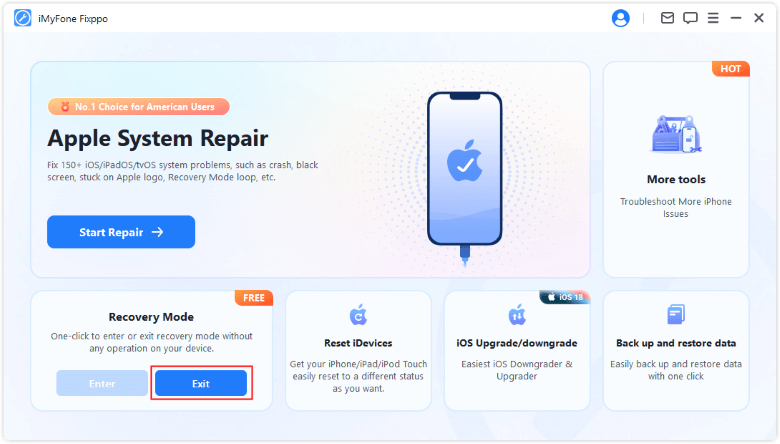
Step 3: After the completion message, check the phone itself. A working lock screen is the result you need.
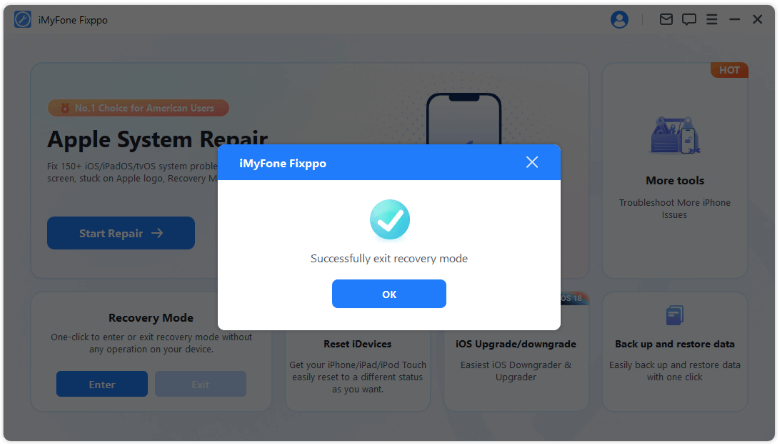
Exiting changes the device's state; it does not reinstall iOS. If the screen returns, investigate the startup problem. If detection fails, check the connection first. The free exit feature is separate from licensed repair functions.
If Recovery Mode Returns, Update or Repair iOS
If your iPhone will not come out of recovery mode, another exit attempt may simply repeat the loop. A failed installation may need its software reinstalled. Before proceeding, check whether you have a recent backup and decide how important unsaved data is.
Reinstall iOS with Apple's Update Option
Use Finder on an updated Mac or Apple Devices on Windows. Older supported setups may use iTunes. Select the connected iPhone and choose Update when offered. This reinstalls iOS while aiming to keep your personal data.
Leave the phone connected during installation. If the software download takes more than 15 minutes and the phone exits the recovery screen, let the download finish before putting it into recovery mode again. Follow Apple's model-specific recovery instructions.
If Update fails, record the exact message. An error is useful information; clicking Restore without checking the consequences changes the task from repair to an erase.
Fixppo Standard Mode: Repair the Loop with Your Data in Mind
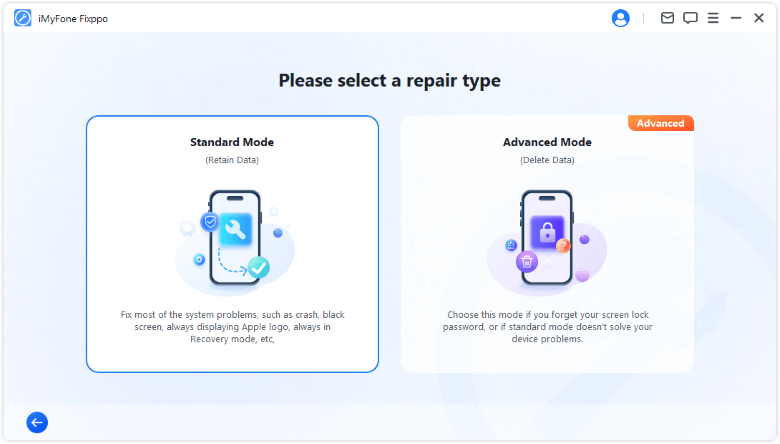
An exit command cannot fix an iOS installation that keeps failing to start. Fixppo's Standard Mode addresses suitable software faults behind a recurring recovery screen, with a repair process designed to retain your existing photos, messages, and other content.
The benefit here is having firmware selection and repair in one app. Fixppo detects the device, shows available firmware, and takes you through the repair. You can review the model and chosen mode before starting instead of jumping straight to an erasing restore.
Apple's Update option also aims to keep personal data. Fixppo provides a separate repair route when you prefer its interface or need another option for a software startup problem. Back up whenever possible; Standard Mode does not guarantee recovery for every fault. Advanced Mode erases data.
Step 1: Open Apple System Repair and select Standard Mode. Connect the phone and follow detection guidance.
Step 2: Check the detected model and available firmware, then select Download.
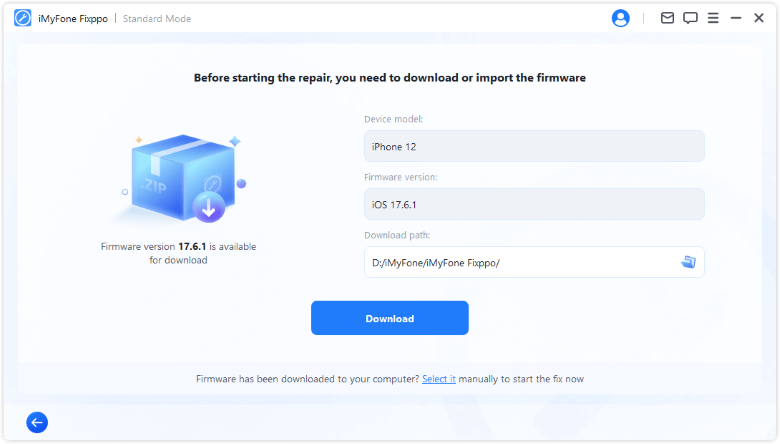
Official screenshots show example devices, firmware, and app versions. Use the options available for your connected device.
Step 3: Select Start Standard Repair and keep the phone connected. Check the official repair guide for interface details.
What to Do If Your iPhone Won't Restore
Check the Connection and Record the Error
If your iPhone is stuck in recovery mode and won't restore, check the computer side before changing methods. Update the computer and its device software, try a reliable data cable, and test another USB port.
A cable that charges a phone may still be unsuitable for a stable data connection. Choose the connector that fits your model: newer iPhones may use USB-C, while older models use Lightning. Avoid forcing a plug or relying on a loose connection.

Write down the error code and where installation stops. If another suitable computer is available, testing it can help identify a connection or host-software issue. A single error message does not diagnose damaged hardware.
Decide When to Restore or Get Service
Restore erases the iPhone. Choose it only when you accept that outcome and have considered your backup. If irreplaceable photos are not backed up, stop before an erase and discuss the situation with a qualified service provider.
DFU restore is also an erasing route, not a way to preserve inaccessible data. If recovery-mode update or restore cannot finish, or broken buttons prevent recovery, arrange service rather than cycling through more download tools.
Conclusion
If you are looking for how to exit recovery mode on iPhone, start with a force restart or Fixppo's free Exit feature. If the recovery screen returns, Apple's Update option or Fixppo Standard Mode can address suitable software problems. Knowing how to get your iPhone out of restore mode also means choosing the right operation: try a data-preserving route first and check your backup before an erasing restore.
FAQs About Getting an iPhone Out of Restore Mode
Can I Exit Recovery Mode Without a Computer?
You can try the force-restart buttons without starting a computer repair. If the phone returns to the recovery screen, it needs further attention. Waiting for the battery to drain does not repair an interrupted installation.
Does Exiting Recovery Mode Erase My Data?
A restart or exit attempt is different from an erase. Apple's Update and Fixppo's Standard Mode are intended to preserve content. Restore and Advanced Mode erase it. Check the operation name before confirming, and back up as soon as the phone becomes accessible.
Why Does My iPhone Keep Returning to Recovery Mode?
A failed software installation can prevent normal startup, but the screen alone cannot identify every cause. Note what happened before the problem, such as an interrupted update, and whether a computer reports errors. Persistent failure needs diagnosis rather than an assumption that more flashing will fix it.
How Long Should Exiting Recovery Mode Take?
A restart or Exit command is a shorter operation than downloading and reinstalling firmware. There is no useful universal countdown for every device. Watch the phone's actual startup result; if it returns to the same screen, move to the next appropriate step.
