


 Adams Johnson
 Last updated: Nov 10, 2026 12:00 am
 Android Unlock
Google verification can leave your Android phone stuck during setup after a reset. If you’re searching for an MTK bypass tool, MTK Meta Utility may be on your shortlist. This guide covers its features, download options, and setup process to help you decide whether it fits your phone.
Old Google password missing? LockWiper Android brings FRP removal and device-specific instructions together on your PC, helping Samsung users move past verification and set up their own Google account.
What MTK Meta Utility Can Do for Your Phone
MTK Meta Utility belongs to the tool family now called Android Utility, developed by MFDL. It is a Windows servicing toolkit for technicians and experienced Android users, bringing device communication, firmware utilities, and maintenance operations into one interface.
Its useful functions include reading device information, working with META and Fastboot modes, extracting firmware, and performing documented operations for particular phones. A MediaTek processor is the starting point; the available operation and software build determine what you can actually do.
- Device information: identify the connected phone and its software before choosing an operation.
- Service-mode access: communicate with the phone through the connection mode required for the task.
- Firmware utilities: inspect or prepare firmware files when a repair procedure calls for them.
The term MTK bypass tool also covers separate authentication utilities. For example, the MTK-bypass project opens low-level communication before a flashing tool takes over. Successful authentication bypass is one stage in that process.
For FRP, check the exact function in your chosen release. MFDL’s release history records both additions and removals, including retired Google-lock tasks in V72. An old interface screenshot can therefore show options that have changed.
MTK Meta Utility Downloads and Device Requirements
Start with the MFDL Android Utility download library. Open Tools and locate the Android Utility package. The library lists AndroidUtility.v200.R2.7z; its release history identifies V200 Offline with a January 1, 2026 entry. Older V34 tutorials describe an earlier generation of the software.
| Item | What to Use |
|---|---|
| Software package | The Android Utility archive linked from MFDL’s Tools directory |
| Computer | A Windows PC and enough space to extract the complete archive |
| USB connection | A working data cable and the driver required by the selected procedure |
| Device details | Full model number, chipset, Android version, and security patch when available |
Download listing checked November 9, 2026. Follow the developer’s release page for subsequent changes.
Android Utility is distributed free of charge without registration. Extract the whole package into its own folder, keeping accompanying files together. If an archive requires a password, use the one supplied with that release.
How to Use MTK Meta Utility for an FRP Workflow
The sequence below explains the setup and decision points:
Prepare the Tool and USB Connection
Extract the downloaded archive, open the application, and note its version. Install the USB driver specified for the intended connection mode. Connect directly to the PC with a data cable, then check whether Windows Device Manager registers the phone.
A phone that charges without appearing in the required mode needs its connection checked first. Try another data cable or USB port. Follow the model’s documented power-off or service-mode instructions, and watch whether the expected device entry appears.
Follow the Procedure for Your Model
Choose the device family and operation described in the matching instructions. When available for the established connection, use the information-reading function to confirm what the program detects before proceeding.
For example, Read META Info is an information function for a device connected in META mode. Reboot META changes the connection state on applicable devices. These labels identify different stages, so follow the order given for your phone.
If the procedure hands off to another application, keep its required connection active and use that application for the next documented operation. A “Protection disabled” message confirms the authentication stage; completing Google verification remains a separate outcome.
Read the selected operation’s data notice before starting. Formatting or firmware changes can erase personal data. Avoid substituting another model’s files or choosing a partition operation simply because its name contains “reset.”
Check the Result on the Phone
After the operation finishes, restart as instructed and continue Android setup. Check whether you can sign in with your own Google Account and reach the home screen. If the previous-account prompt remains, save the exact error and operation log before seeking help.
Is MTK Meta Utility Worth Trying?
MTK Meta Utility is worth considering when you already work with device drivers, service modes, and model-specific procedures. Its appeal is the range of maintenance functions available from one desktop toolkit. Getting the right connection and procedure can take more preparation than the download itself.
User experiences vary. A Samsung A16 5G owner reported success with Android Utility. In another discussion, a Galaxy A03s owner could not get the software to recognize the phone while following a multi-tool tutorial. These are individual experiences, with different devices and incomplete software details.
The practical question is whether you have a documented route for your exact phone. If your main goal is Google-lock removal, compare the preparation involved with a dedicated FRP program. Our FRP bypass tool guide covers that choice in more detail.
Remove Google FRP Without the Old Password Using LockWiper Android
iMyFone LockWiper Android provides a dedicated Remove Google Lock (FRP) feature for removing the account-verification barrier without the original Google password.
The benefit is a focused process: select the FRP function, identify your device, and follow its preparation prompts on your computer. You can work through the relevant stages without assembling instructions from several unrelated utilities.
Step 1. Open the FRP Removal Feature
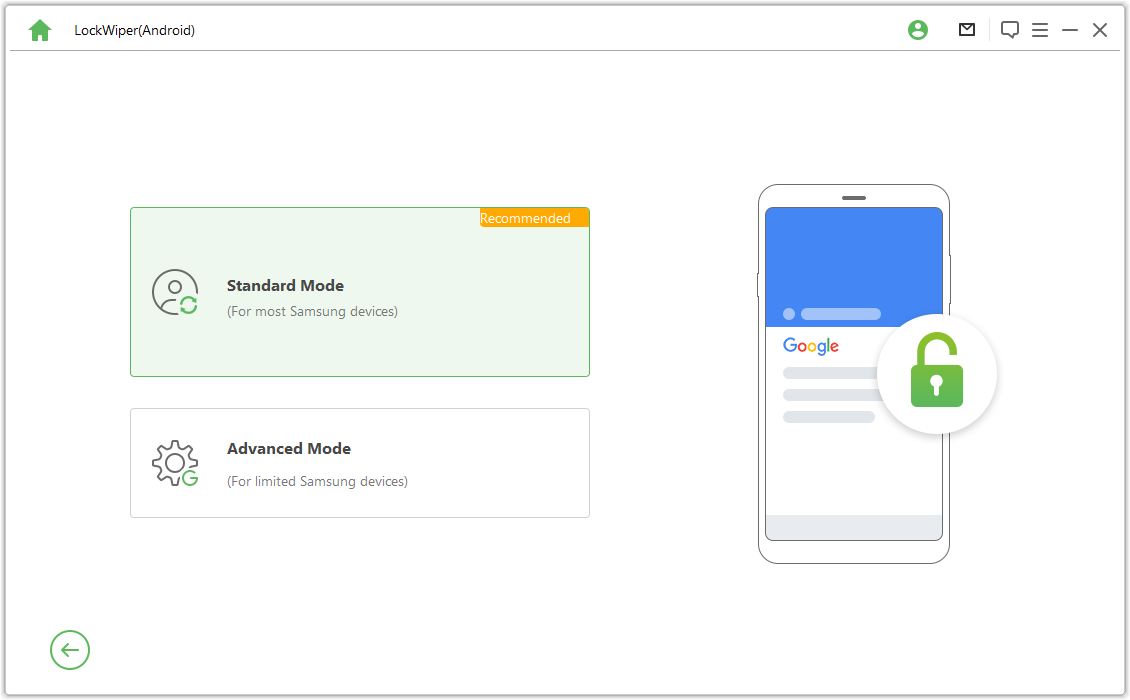
Install LockWiper Android on your Windows PC and open Remove Google Lock (FRP). For the Samsung example, select the appropriate mode. The public guide’s Standard Mode route keeps the installed Android version.
Step 2. Select Your Software Version and Prepare the Phone
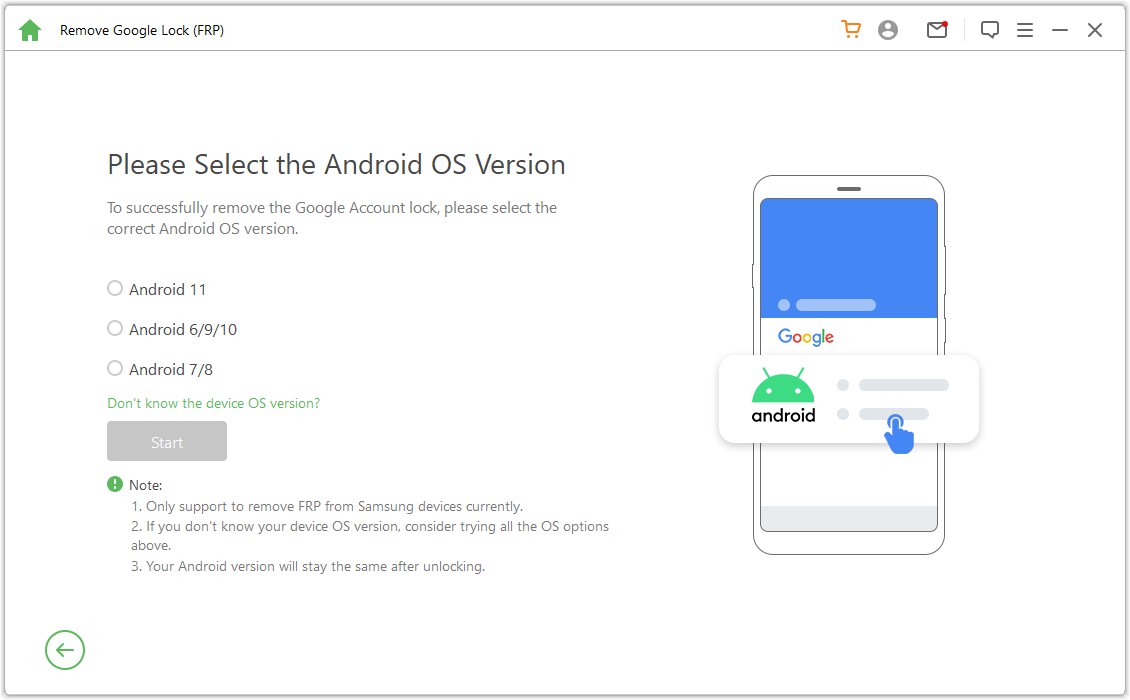
Choose the Android version that matches your Samsung phone. Use the version-identification help if needed, then connect and complete the preparation displayed for that route. Some steps require actions on the handset.
Step 3. Complete Removal and Set Up Your Account
Follow the remaining prompts, keep the required connection stable, and let the process finish. Restart when instructed and continue setup.
Conclusion
For users considering MTK Meta Utility or an MTK bypass tool, LockWiper Android offers a dedicated FRP-removal process without the old Google Account password. Its device-specific instructions and removal steps stay together on your Windows PC, helping you work through preparation and complete setup on a compatible phone with your own account. Download LockWiper Android and get started with the steps for your device.
FAQs About MTK Meta Utility and MTK Bypass Tools
Is MTK Meta Utility the Same as an MTK Bypass Tool?
MTK Meta Utility is a specific tool name in the Android Utility release history. “MTK bypass tool” is a broader search term used for several programs. Match the developer, version, and interface to the tutorial you intend to follow.
Where Can I Find an FRP Bypass Tool Free Download?
For Android Utility, use MFDL’s download library and the release linked there. For LockWiper Android, download from iMyFone. Check the feature and device requirements before beginning an unlock operation.
Why Does MTK Meta Utility Fail to Detect My Phone?
Check the USB data cable, driver, and required connection mode. Compare the Windows Device Manager entry with the procedure’s requirements. If detection still fails, provide the model, software version, and error log when requesting help.
Does LockWiper Android Support Every MediaTek Phone?
FRP compatibility depends on the phone model and software. Check the current FRP device selection for your Samsung, Xiaomi, or Redmi; a MediaTek chipset alone does not establish compatibility.