


 Adams Johnson
 Last updated: Nov 11, 2026 12:00 am
 Android Unlock
Your Huawei has been reset, yet Google verification stands between you and the home screen. The account may belong to a previous owner, or the password may have been forgotten years ago. An FRP lock on Huawei can turn a fresh start into a frustrating dead end, especially when every tutorial seems to use a different tool or software version.
Get your Huawei past Google verification with LockWiper Android. Remove FRP without the old Google password, follow the instructions on your PC, and move forward with your own account again.
Why Your Huawei Is FRP Locked After a Reset
Factory Reset Protection links device setup to an account previously used on the phone. After certain resets, a Huawei running Google services asks for that account to verify ownership.
This is why an FRP-locked Huawei phone can reach the welcome screen and connect to Wi-Fi while still requiring account verification. Google’s device-protection guidance explains which previous credentials can complete this check.
A message asking for a HUAWEI ID belongs to Huawei’s account system. If you instead see PHONE Locked / FRP Lock in Fastboot, first restart into normal setup to check the actual account prompt.
Bypass Huawei FRP Without the Old Google Password With LockWiper
iMyFone LockWiper Android supports Huawei FRP removal without the original Google Account password. Its dedicated Remove Google Lock (FRP) function addresses the verification barrier that appears after a reset, helping you continue setting up the phone with your own account.
The benefit is a focused process on your Windows computer. You choose the FRP function, identify the device, and work through the preparation and removal instructions in the same program. This is especially useful when the old account is out of reach and you want a clear next step for the Huawei in front of you.
- Move beyond a forgotten Google password: use the FRP-removal function when you cannot supply the old login.
- Keep preparation and removal together: follow the prompts for the selected device and software instead of assembling steps from several tutorials.
- Return to account setup: after removal, continue through the welcome screens and sign in with the Google Account you intend to use.
Start the Huawei FRP Removal Process
Have your Windows PC, a USB data cable, and the Huawei ready. Note the full model identifier from the packaging or purchase record and have the Android or EMUI version available if you know it.
- Install and open LockWiper Android. Download it from iMyFone, launch the program, and select Remove Google Lock (FRP).
- Connect your Huawei. Use a cable that supports data transfer and allow the program to recognize the connection.
- Select the matching device option. Follow the choices presented for your Huawei.
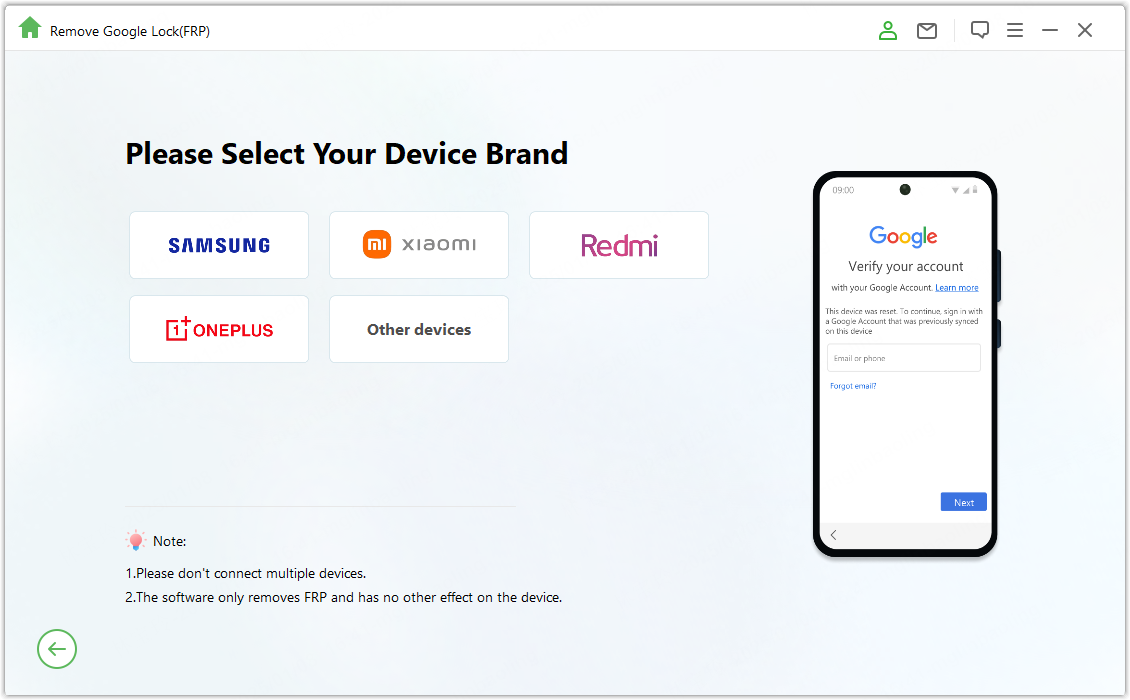
Follow the Device Instructions and Complete Setup
Complete the preparation shown in the program. Follow the instructions for your selected Huawei route, including any requested actions on the handset. Keep the cable firmly connected, and let each preparation stage finish before continuing.
Run the removal and check the phone. Start the operation when the program indicates that preparation is complete. Once it finishes, let the device restart, connect to Wi-Fi, and continue setup. The practical result to check is that you can proceed without the previous Google credentials.
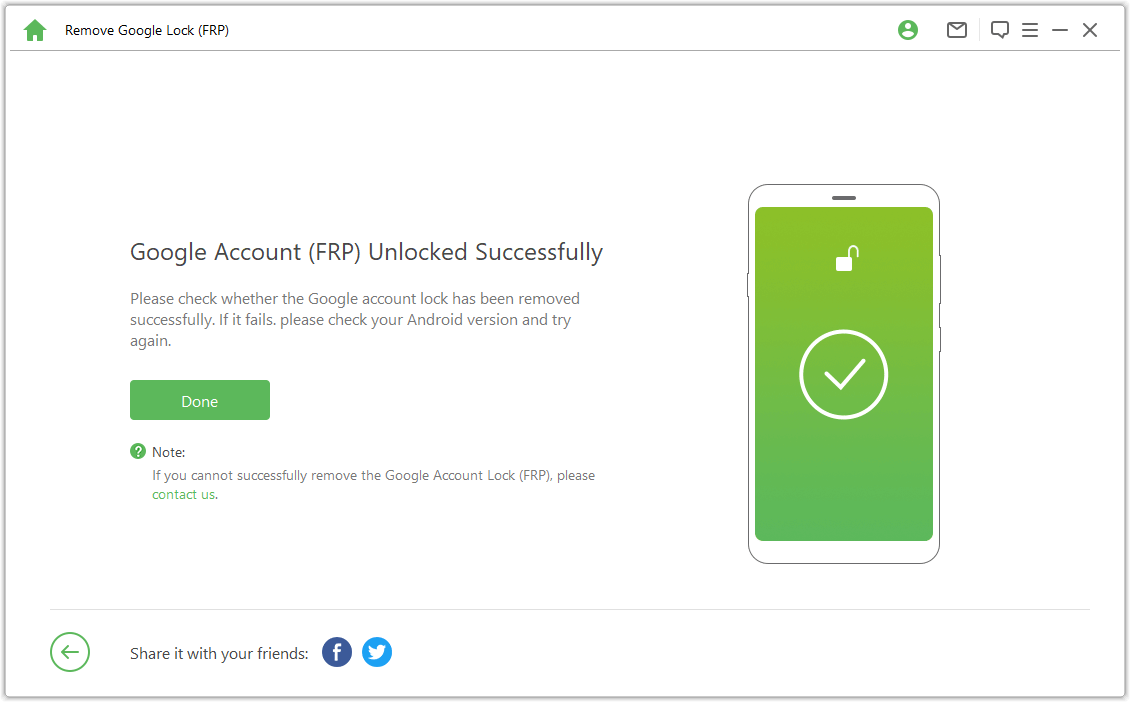
Sign in with your own Google Account, then check that you can reach the home screen and open Google Play.
Recover Huawei Access With Your Existing Google Account
If the previously synced account is yours, recovering it gives you another way to complete Huawei setup. You can handle account recovery on another phone or computer while the Huawei remains at the verification screen.
Recover the Email Address or Password You Used Before
- Open Google’s account-recovery instructions and choose the path for a forgotten password or email address.
- For a forgotten email address, use the recovery phone number or email and the full name associated with the account. Identify the account that was used on the Huawei.
- For a forgotten password, answer the recovery questions and reset the password when prompted.
- Return to the Huawei setup screen and enter the recovered credentials.
Check the selected account carefully if you have several Gmail addresses. The relevant account is one that was added and synced before the reset. A newly created account becomes useful after the existing verification requirement has been resolved.
Get Help From the Previous Owner of a Used Huawei
For a secondhand phone, ask the previous owner to complete verification in person when possible. They can enter their credentials privately and remove their Google Account from Settings once access is restored. Then complete the handover and set up the phone for your own use.
Huawei FRP Tool Downloads and Other Unlock Options
Choosing a Huawei FRP tool starts with the exact device and its software. Older Huawei tutorials often involve service utilities, drivers, and connection modes that differ from a desktop program’s built-in removal flow. Compare those preparation requirements before choosing a download.
Compare the Tools for Your Huawei Phone
| Huawei FRP option | How it helps | Preparation |
|---|---|---|
| LockWiper Android | Dedicated Google FRP removal without the old password. | Windows PC, USB data connection, and the matching device instructions in the program. |
| DC-Unlocker | A Huawei FRP service for devices meeting its legacy support requirements. | Huawei drivers, Fastboot detection, and a service account with credits. |
| DC-Phoenix | A service-tool route using Update or Fastboot mode. | An appropriate license or dongle, correct device detection, and matching firmware. |
The DC-Unlocker Huawei FRP guide excludes Android 8 or later with the latest security patches for that particular service. It also requires a working phone. This makes the guide relevant to a narrower set of older devices.
For the DC-Phoenix Update/Fastboot procedure, the developer specifies a firmware file of the same or a higher Android version, preferably with the same customization. This route suits users comfortable with firmware preparation and service-tool requirements.
LockWiper keeps the focus on removing Google verification through its dedicated FRP function. For a broader overview of the available approaches, see this FRP bypass tool guide.
Download the Version That Matches Your Procedure
When looking for the latest Huawei FRP tool download, start with the developer of the tool you intend to use. Get LockWiper from iMyFone or use DC-Unlocker’s own download directory for its client or DC-Phoenix resources.
As checked on November 10, 2026, the DC-Unlocker download page lists Windows client 1.00.1442. That version belongs to DC-Unlocker; other Huawei FRP tools maintain their own releases and device requirements.
Before connecting the phone, match the downloaded program to its instructions and read the preparation steps through once.
Conclusion
An FRP lock on Huawei needs a solution that addresses Google verification. LockWiper Android offers Huawei FRP removal without the old Google password, with preparation and removal brought together on your PC. For an FRP-locked Huawei phone, this gives you a practical route toward completing setup with your own account. Download LockWiper, select the matching device procedure, and check the result on the phone. Account recovery remains an option when you can regain access to the previously synced Google Account.
FAQs About FRP-Locked Huawei Phones
Can LockWiper Remove FRP Lock on Huawei?
Yes. LockWiper Android supports Huawei Google FRP removal without the old account password. Open Remove Google Lock (FRP) and follow the device options provided for your model and software. Confirm an unclear device selection with support before starting.
Can I Reset a Huawei Phone Without a Google Account?
You can erase some Huawei phones through Recovery, but a protected device may still request the previously synced Google Account during setup. If you are researching how to reset a Huawei phone without a password, account verification is a separate step to plan for afterward.
Where Can I Download the Latest Huawei FRP Tool?
Download LockWiper Android from iMyFone. For DC-Unlocker or DC-Phoenix, use the developer’s own download links and the instructions for that particular tool. Check that the release covers the procedure you need for your Huawei.
Why Does Fastboot Still Say FRP Lock?
Fastboot’s FRP status and Google verification during setup can differ. DC-Unlocker specifically notes that its Huawei account-removal service leaves the Fastboot status unchanged. Check whether normal setup accepts your own account before deciding that another removal attempt is necessary.