


 Adams Johnson
 Last updated: Nov 12, 2026 12:00 am
 iOS Unlock
A few wrong entries can turn an ordinary iPhone lock screen into a countdown that stretches from minutes to hours. You may be wondering how many attempts remain, whether the phone will erase itself, or whether the next code you try will make things worse. Understanding how long it takes to unlock an iPhone starts with the message on that screen.
Forgotten your passcode and facing Security Lockout? LockWiper brings screen-passcode removal, device preparation, and firmware download together on your computer, helping you set up your iPhone with a new code.
How Long Does an iPhone Lock You Out?
An iPhone Security Lockout can last minutes or several hours while another passcode attempt is delayed. Apple’s current security documentation includes waits of 1 minute, 5 minutes, 15 minutes, 1 hour, 3 hours, and 8 hours. Further failures can require recovery.
The table below shows the iOS and iPadOS lock-screen row in Apple’s Platform Security guide. Use the countdown displayed on your own iPhone when deciding when to try again.
| Failed attempt number | Delay or result |
|---|---|
| 3 | / |
| 4 | 1 minute |
| 5 | 5 minutes |
| 6 | 15 minutes |
| 7 | 1 hour |
| 8 | 3 hours |
| 9 | 8 hours |
| 10 or more | Locked; computer recovery required |
These are documented stages, rather than a guarantee that every historical iOS version displays identical messages at identical points. Device settings and management policies can also affect the outcome.
A screen showing “try again in 59 minutes” may already be counting down from an hour. The number remaining on the display is the useful number to follow. Once you reach a longer stage, a fresh guess can carry a much greater cost in waiting time.
There are also two different clocks involved: the lockout countdown and the time needed for a reset or passcode-removal process.
What Happens After 10 Failed Passcode Attempts?
What happens after 10 failed passcode attempts on an iPhone depends partly on its settings. If Erase Data was enabled, ten consecutive incorrect passcode attempts can trigger automatic removal of the phone’s content and settings.
With automatic erasure turned off, repeated failures can still leave the iPhone locked and needing recovery. You cannot rely on getting another attempt simply by leaving it overnight. Access to the relevant recovery options becomes more useful than another uncertain guess.
The phrase “disabled forever” sounds like the phone is ruined. In practice, a locked iPhone can often be erased and set up again. The important question is whether you can regain access with a valid credential or need to reset it and restore an existing backup.
Check backup availability from another device or account you can still access before choosing an erasing method. You cannot change the Erase Data setting from inside Settings while the iPhone remains locked.
When Waiting Can Still Get You Back Into Your iPhone
Let the Current Timer Finish Before Trying the Correct Code
If you know the current passcode, let the displayed wait finish and enter it carefully once the keypad becomes available. Keep the phone somewhere its screen will not receive accidental input.
Restarting during a security delay keeps the restriction in place and starts the current delay period over. It can therefore make the wait longer. Waiting gives you another opportunity to enter a valid code; it cannot supply a forgotten one.
Changed Your Passcode Recently? Use the 72-Hour Reset Option
On iOS 17 or later, Passcode Reset can let you use a previous passcode within 72 hours of changing it, provided that old code is still valid. This is useful when the new code is the one you have forgotten.
- On the unavailable screen, tap Forgot Passcode? when the option appears.
- Select Enter Previous Passcode or the available Passcode Reset option.
- Enter the previous code and follow the prompts to choose a new one.
Check Apple’s Passcode Reset instructions for the requirements and the option shown on your version. This route can restore access without erasing the device when you qualify.

Stop Guessing and Remove the Forgotten Passcode With LockWiper
Hours of waiting feel especially frustrating when you no longer remember the code. iMyFone LockWiper is a desktop iPhone unlocking program that removes a forgotten screen passcode so you can set up the device again. It addresses unavailable, disabled, and Security Lockout situations through its screen-passcode removal workflow.
The practical advantage is keeping device preparation, firmware download, and removal in one program. You can follow the model-specific connection instructions on your PC, including recovery-mode preparation when the phone cannot be detected normally.
- Leave the forgotten code behind: remove the existing screen passcode without remembering its digits or characters.
- Work from your computer: use a desktop workflow when the lock-screen reset option is unavailable.
- Prepare the matching firmware: review the detected device and download the package through the program.
Connect Your iPhone and Prepare the Firmware
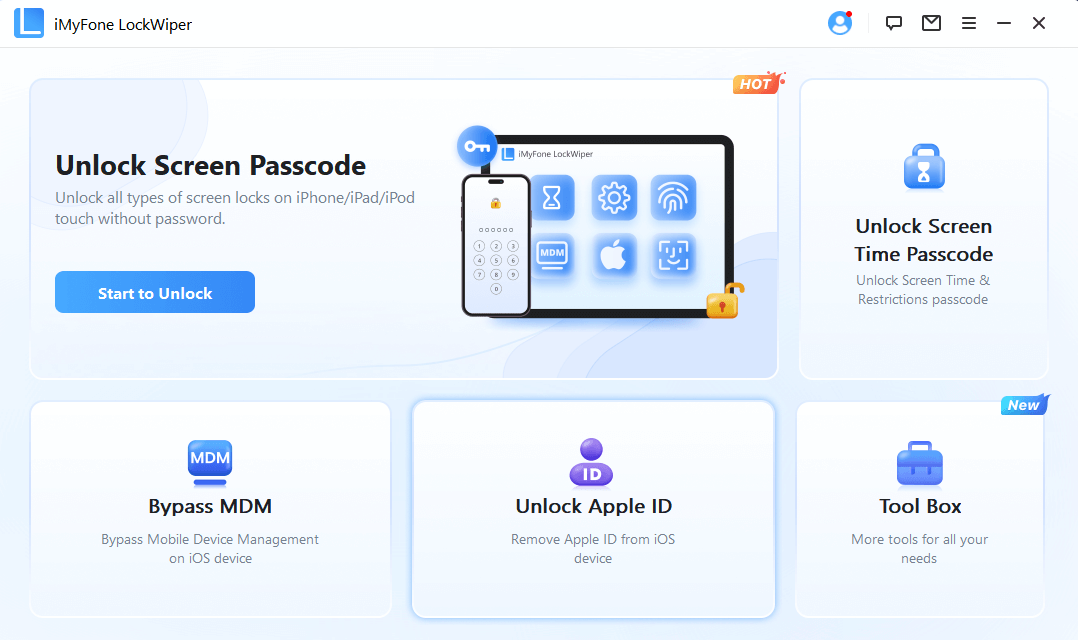
Install LockWiper. Open Unlock Screen Passcode and select the option to begin.
Connect the iPhone with a USB cable. Follow the instructions for your model to enter Recovery Mode if required.
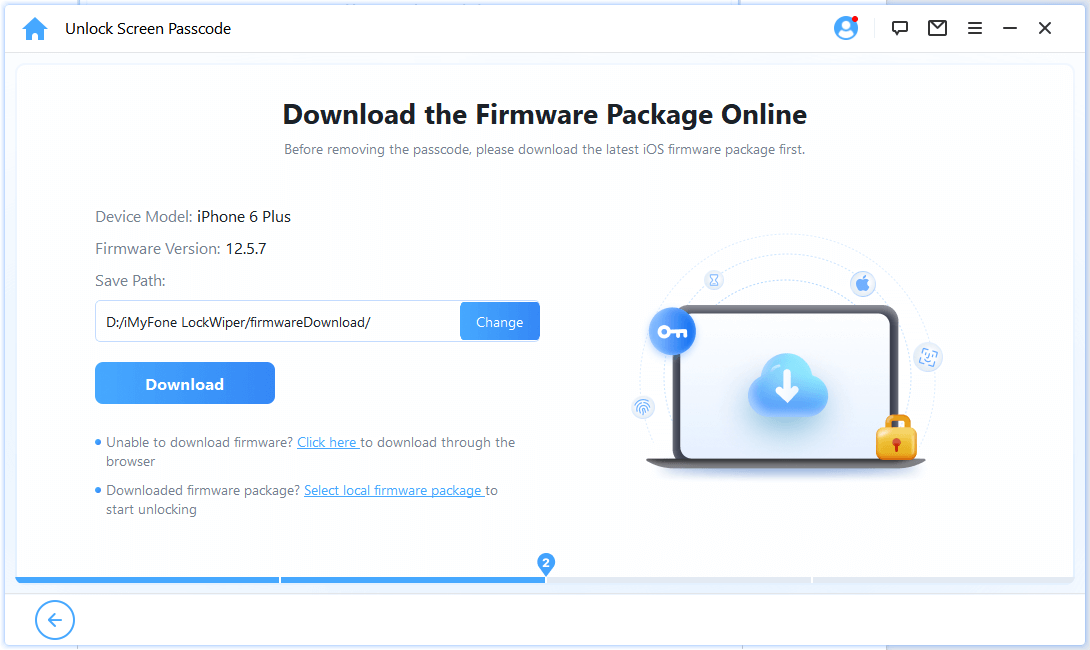
Review the detected model and firmware information, then download and verify the package.
Remove the Passcode and Set Up Your iPhone Again
Once the firmware is ready, choose the unlock action. Keep the cable connected while removal runs.
After the iPhone restarts, complete setup and choose a new passcode. Restore your backup if available. If activation asks for the Apple Account previously linked to the phone, complete that verification as prompted.
Reset a Locked iPhone With Apple’s Recovery Options
Apple also offers reset methods from the lock screen and through a computer. These erase the iPhone, allowing you to create a new passcode during setup.
Reset from the lock screen: this requires Find My to have been enabled, an active cellular or Wi-Fi connection, and the Apple Account password. On iOS 17 or later, the reset path usually starts under Forgot Passcode?; iOS 15.2 and iOS 16 may show Erase iPhone.
Open the reset option shown on your unavailable screen.
Confirm the device reset and enter your Apple Account password when asked.
Choose the erase action, follow any eSIM choices, and complete setup after the restart.
Reset using a computer: connect the iPhone and enter Recovery Mode using the instructions for its model. Open Finder on a Mac or Apple Devices on Windows, select the iPhone, and choose Restore. Older supported setups may use iTunes.
Let the software download and restore finish before setting up the phone again. Have your Apple Account details and backup information ready so you can complete the remaining steps in the same session.
Conclusion
How long it takes to unlock an iPhone depends on the current lockout stage and whether you remember the passcode. Wait for the displayed timer when you have the correct code, or check Passcode Reset after a recent change. For a forgotten code, LockWiper brings preparation and screen-passcode removal together on your computer. Complete the process, set a new code, and restore an available backup to get your iPhone ready for use again.
FAQs About iPhone Lock Times and Passcode Attempts
How Many Tries Do I Get to Unlock My iPhone?
Attempts are limited by escalating delays and the device’s settings. Use the current Apple table above as context and follow your iPhone’s displayed countdown.
Is Eight Hours the Longest iPhone Lockout?
Apple’s current table lists an eight-hour stage before a recovery-required state. Older versions and unusual device conditions can display different messages.
Will Restarting My iPhone Reset the Lockout Timer?
A restart keeps the security delay enforced and starts the current period again. It does not provide immediate access to the keypad.
Is My iPhone Disabled Forever After 10 Failed Attempts?
The phone may need erasure and setup rather than another timed retry. That does not mean the hardware is permanently unusable; existing backups can help restore content afterward.