



 Ronnie Barnes
 Last updated: Nov 18, 2026 12:00 am
 iOS System
You open Facebook in your browser, enter your login details, and land back on the same page. Then you see “Facebook redirected you too many times” or Chrome’s ERR_TOO_MANY_REDIRECTS. This Facebook browser redirect error can appear on the homepage, after a security check, or when opening Business Suite.
Quick answer. Type facebook.com directly into the address bar and see whether the homepage opens. If Facebook works in another browser, start with the affected browser’s site data. If the same account keeps returning to a verification screen on a familiar device, follow Facebook’s account recovery prompts.

▸ Find Where the Facebook Redirect Loop Starts
▸ Clear Facebook Site Data in Chrome or Safari
▸ What to Do When Facebook Keeps Redirecting After Login
Find Where the Facebook Redirect Loop Starts
A redirect sends your browser from one address to another, such as from a login page to your feed. When pages keep sending the browser back and forth, it eventually stops. The error tells you that the page couldn’t finish loading. To find the cause, look at what you were opening and whether Facebook had already asked you to sign in or verify your identity. Chrome’s guide to redirect errors
Open the homepage in a fresh tab and retry the page that originally failed. If you opened Facebook inside another app, repeat the test in Safari or Chrome. Keep any session that still works open, especially if it belongs to a browser or device Facebook already recognizes.
| Test result | What it suggests | What to check next |
|---|---|---|
| Facebook works in another browser | One browser or profile is affected. | Check Facebook site data and extensions in the affected profile. |
| One account loops after verification on familiar devices | The loop follows the sign-in flow. | Use Facebook’s displayed verification or recovery options. |
| The Facebook homepage loads, but a business tool loops | The issue is limited to the business destination. | Check the selected account, asset access, and product status. |
| Unrelated sites and apps also fail on one iPhone | The issue extends beyond Facebook. | Test another network and check the device for broader symptoms. |
A private window is useful for testing a fresh browser session. It may use different cookie or extension settings, so a different result gives you a lead rather than identifying the exact cause. If a private window also fails, compare with a regular window in a second browser on a device you commonly use. Change one thing per test so you know which change made a difference.
Pay attention to whether the homepage opens before sign-in and the loop starts only after you enter your details. That points you toward the next screen Facebook is trying to load. If an old bookmark fails and the same page opens from the homepage, replace the bookmark with the working address.
Clear Facebook Site Data in Chrome or Safari
When Facebook works elsewhere and only one browser profile gets stuck, start with the browser data that remembers your session. Clearing that data can sign you out, so make sure you can access your password and any two-factor authentication method before proceeding.
Delete Facebook Site Data in Chrome on a Computer
Open Chrome’s Settings and select Privacy and security.
Open Third-party cookies and choose See all site data and permissions.
- Search for facebook.com. Delete the matching site data and confirm.
- Close the affected Facebook tabs, open the homepage again, and sign in. Test the original page once the homepage loads.
Chrome lets you clear records for a single site, which saves you from signing back into unrelated sites. If the problem returns only when one extension is active, test with that extension paused for Facebook where supported.
Clear Safari Website Data on iPhone
On your iPhone, open Settings > Apps > Safari > Advanced > Website Data. Apple’s documented option is Remove All Website Data, followed by Remove Now. It clears Safari’s cookies and cache while keeping browsing history.
Try another browser or a private tab before taking that broader step if you want to preserve your existing sessions. After clearing the data, open the Facebook homepage in a regular Safari tab and check whether the login completes.
What to Do When Facebook Keeps Redirecting After Login
A loop that starts right after login may follow the account across browsers. Look at the last page that appears before you’re sent back. A prompt to confirm your identity, verify a sign-in, or secure the account calls for the verification steps Facebook displays. Use a phone or computer you normally sign in from and keep a working Facebook session open if you still have one.
If your usual sign-in path won’t open, use Facebook’s official account lookup and follow the options it offers. Access can depend on your account and device. If you see a temporary block, pause repeated attempts and follow the displayed instructions.
If the Loop Only Affects Business Suite or Ads Manager
From a working Facebook session, reopen the business tool and check which personal account, business portfolio, Page, or ad account is selected. If colleagues can open the same asset, ask an administrator to verify your access to it. If Facebook displays a permissions, verification, or consent prompt, complete only the step the official interface requests.
If multiple people lose access to the same business tool around the same time, check whether Meta lists a matching incident. The business status page covers listed products, and a healthy status there leaves individual account or permission issues open.
When you report the issue to your administrator or Meta support, name the destination that fails and the one that still works. For example, say that the personal Facebook homepage opens but Ads Manager loops when you select one ad account.
When Broader iPhone Problems Point to iOS
Open a few unrelated sites and apps on the iPhone. If only Facebook is affected, the browser or account checks above are the best place to continue. If Safari also fails on unrelated sites, test another network you trust and restart the device. Check for an available iOS update if the issue persists. Look for patterns outside Facebook, such as the phone repeatedly freezing after an interrupted update.
iMyFone Fixppo is a desktop option when you have an independent iOS issue, such as a phone that keeps freezing after a failed system update. Its Standard Mode is designed to repair supported iOS faults while keeping existing data.

Back up your iPhone if you can access it. Open Fixppo on Windows or Mac, then select Apple System Repair and Standard Mode.
Connect the iPhone using a data-capable cable and follow the on-screen instructions.
- Download the firmware, start the repair, and leave the phone connected until the process finishes. After the iPhone restarts, verify whether the broader freezing or startup problem has improved.
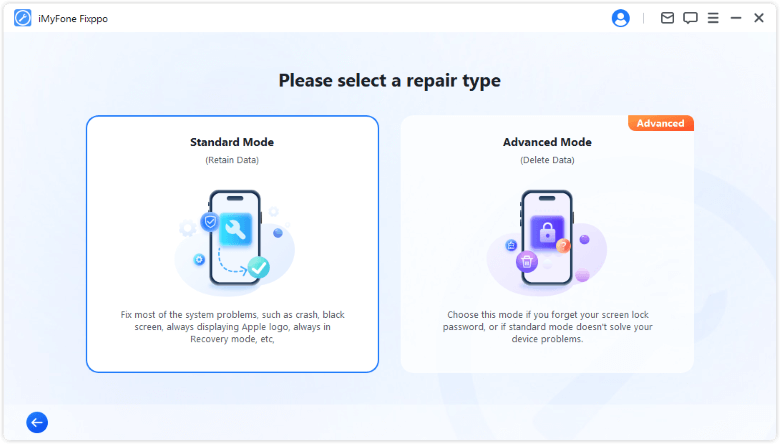
Has your iPhone been freezing since an iOS update failed? Use Fixppo Standard Mode to attempt a system repair from a computer while keeping your existing data in mind.
Conclusion
A Facebook too many redirects error can keep you locked out of your feed or business tools. Clear Facebook’s browser data, complete any pending account verification, and check your business permissions to restore access. If your iPhone also freezes or struggles after an iOS update, Fixppo Standard Mode offers a computer-based repair option designed to preserve your data.
FAQs About Facebook’s Too Many Redirects Error
Why Does Facebook Still Redirect After I Clear Cookies?
A new session can still hit the same identity check, browser restriction, or business permissions issue. Check whether the loop starts before you sign in or only after a specific prompt. If it follows your account on a familiar device, use Facebook’s official recovery prompts.
Why Does the Facebook App Work When the Browser Loops?
The app and browser can have separate sign-in sessions. The app may already be signed in while the browser is trying to start a new session, especially when you open a saved link. Keep the working app session available and troubleshoot the browser separately.
Will Switching to Another Phone Fix Facebook’s Redirect Error?
Another phone can help you test whether the issue follows the account. Start with a device you already use for Facebook so you can complete any sign-in verification it requests.
What if Only Facebook Business Suite Keeps Redirecting?
Open Business Suite again from a session where your Facebook homepage loads. Confirm that you selected the right business and Page. If you still can’t open an asset that teammates can access, ask the business administrator to check your permissions for that specific asset.
