







 Ronnie Barnes
 Last updated: Oct 30, 2026 12:00 am
 iOS System
Your feed disappears behind a dark rectangle. A refresh brings back the logo, then nothing. When your Facebook screen goes black or the Facebook website won't load, even checking a message becomes a chore. On an iPad, you might still see the sidebar while posts vanish; on a computer, the entire page may stay blank.
Quick answer: Start with a fresh session and a connection check. Use the browser steps for facebook.com and the app steps for Facebook on iPhone or iPad. Persistent problems affecting other device functions also deserve a system check.
Facebook trouble alongside persistent iPhone glitches? Fixppo helps repair common iOS software problems while keeping your data, bringing firmware preparation and system repair together on your Windows PC or Mac.
- Facebook Not Loading? Start with These Quick Checks
- Get the Facebook Website Loading Again
- Fix a Facebook Black Screen on iPhone or iPad
- Restore Messenger When It Opens to a Black Screen
- Repair Persistent iPhone Software Glitches with Fixppo and Keep Your Data
- Conclusion
- FAQs About Facebook Black Screens and Loading Problems
Facebook Not Loading? Start with These Quick Checks
Refresh the page or close and reopen Facebook. Then load another website and compare Wi-Fi with another trusted network. On a cellular iPhone or iPad, mobile data provides a useful second connection.
Next, try the same account in both the app and a browser. Keep track of which one works:
| What Happens | Where to Start |
|---|---|
| Website blank; app works | Start with browser data, extensions, and updates. |
| App black; website works | Reopen, update, and check the Facebook app. |
| Facebook fails across devices | Check the connection, account prompts, and wider service reports. |
A readable Facebook black background usually reflects Dark Mode. These fixes address missing content, frozen pages, or an unresponsive app. If many people report the same failure, give Facebook time to recover before changing more settings.
Get the Facebook Website Loading Again
If the Facebook website won’t load, test these changes one at a time. Reopen the same page after each change so you can see what helped.
Refresh Facebook in a Private Window
Open a private window from your browser’s menu: Incognito in Chrome, InPrivate in Edge, or Private Browsing in Firefox and Safari. Visit facebook.com directly and sign in.
If the feed appears, focus on the regular browser session’s stored data and extensions. A private window provides a separate session for comparison; it does not identify a single cause. You can also test another updated browser while troubleshooting.
If Facebook presents a security or identity check, complete it through Facebook itself and record any error message. A visible account checkpoint needs account assistance; repeated browser cleanups will not resolve the underlying verification request.
Remove Facebook Site Data and Test Extensions
- Make sure you know your password and can complete two-factor authentication.
- Open the browser’s site-data settings and search for facebook.com. Remove its stored data, then reopen Facebook and sign in.
- Temporarily disable extensions that alter page content, such as script blockers or custom themes. Reload Facebook, then restore extensions individually to locate a conflict.
In Chrome, open Settings > Privacy and security > Third-party cookies > See all site data and permissions. Google’s cookie controls explain the current options. Clearing Facebook data may sign you out; leave saved passwords alone.
On iPhone or iPad, Safari’s broader cleanup is under Settings > Apps > Safari > Clear History and Website Data. This affects browsing information beyond Facebook, so review the confirmation first.
Update Your Browser and Check Page Permissions
Install available browser updates and relaunch. Check that JavaScript is enabled. On iPhone or iPad, find it under Settings > Apps > Safari > Advanced. Temporarily test without a VPN if it appears to affect loading; restore your usual setup afterward. Apple’s Safari troubleshooting steps cover these checks.
For a black video area that persists on desktop, you can also test the browser’s graphics-acceleration setting. Relaunch after changing it and restore the original setting if it makes no difference.

Fix a Facebook Black Screen on iPhone or iPad
When Facebook works in Safari but the app stays black, concentrate on the app first. Work through these checks before considering a device-wide repair.
Reopen Facebook and Restart Your Device
On a device without a Home button, swipe up from the bottom and pause to open the app switcher. On a Home-button device, double-click Home. Swipe the Facebook preview upward, then open Facebook again.
If the screen remains blank, restart the device normally. When the whole iPhone becomes unresponsive, use the restart and recovery options for a frozen iPhone that match its condition.
Update or Reinstall the Facebook App
Check Facebook’s App Store listing for an update. Install it and test the feed again. If the problem continues, delete and re-download the app. Before deleting, confirm your login details and save anything important stored locally, including unfinished work. Deletion can remove app data.
This follows Apple’s steps for an app that won’t open or respond. If Facebook alone keeps failing after reinstalling, report the issue to Meta with your device model, app version, and a screenshot that hides private information.
Check Storage and Install System Updates
Open Settings > General > iPhone Storage or iPad Storage. If storage is nearly full, remove downloads or apps you no longer need. Then check Settings > General > Software Update and install an available update after backing up.
On Android, try Settings > Apps > Facebook > Storage > Clear cache; labels vary by manufacturer. On iPhone, use the reinstall steps above to refresh Facebook’s local installation.
Restore Messenger When It Opens to a Black Screen
For a Facebook Messenger black screen, close and reopen Messenger itself and check its app-store listing for updates. Test whether Facebook’s feed and other apps still work. If messaging is available through Facebook in your browser, use that as a temporary alternative.
Before reinstalling Messenger, check that you have the recovery information needed for your encrypted chat history, such as your secure-storage PIN. Keep existing chat storage and recovery settings intact while troubleshooting.
Repair Persistent iPhone Software Glitches with Fixppo and Keep Your Data
If Facebook trouble comes with repeated freezing, unexpected restarts, or problems opening other apps on the same iPhone or iPad, the operating system deserves attention. iMyFone Fixppo is a desktop iOS system-repair tool for common software faults, including system black screens and startup problems.
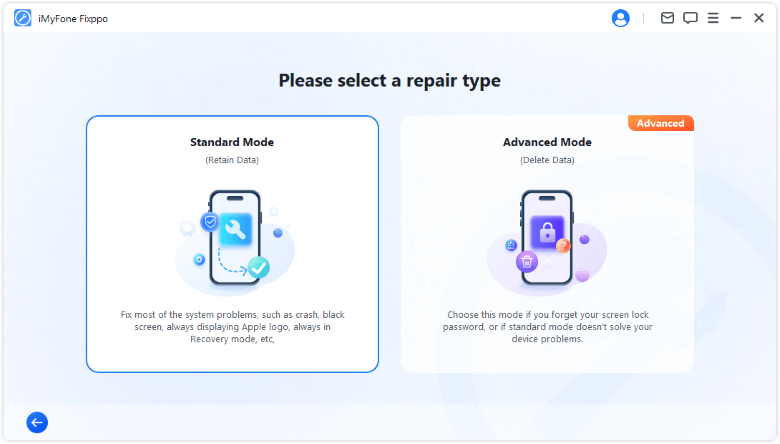
Its Standard Mode repairs common system issues while retaining device data. That gives you a repair option before choosing a full erase. Fixppo handles firmware detection, download, and repair from your Windows PC or Mac, with the connected device’s details displayed during preparation.
Use this route for persistent iOS or iPadOS symptoms after the app checks above. A Facebook service outage, account restriction, or bug confined to Meta’s app calls for help from Meta. Back up the device if it is accessible before starting system work.
Step 1: Connect and select Standard Mode. Install Fixppo, connect your iPhone or iPad with a USB data cable, and open Apple System Repair > Standard Mode. Follow any connection or recovery-mode instructions displayed.
Step 2: Download matching firmware. Confirm the detected device model and choose from the firmware versions offered by the program. Let the download finish before beginning repair.
Step 3: Run Standard Repair. Select Start Standard Repair and keep the device connected until completion. Advanced Mode erases data, so check the selected mode before confirming.
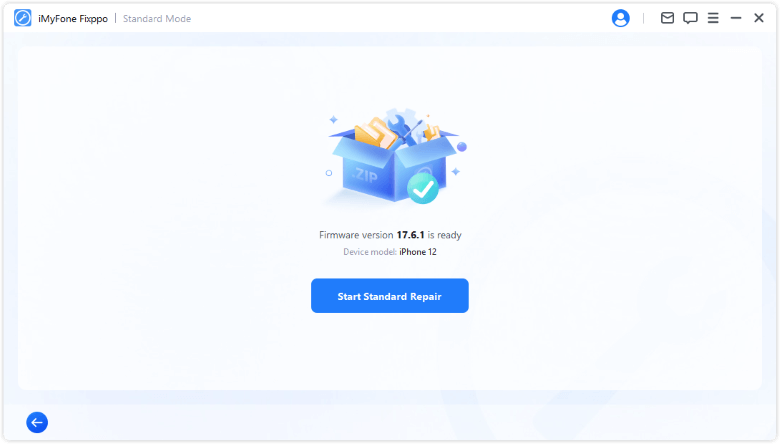
Illustrative interface: the iPhone 11 and firmware 18.6.2 shown are examples. Use the package offered for your connected device.
Step 4: Check Facebook again. After startup, unlock the device, reconnect to the internet, and test Facebook and the other affected apps. You can review the official Fixppo repair instructions alongside the program.
Conclusion
When your Facebook screen goes black, start with the place where content stops appearing. If the Facebook website won’t load, refresh the session, check site data and extensions, and update the browser. On iPhone or iPad, reopen and update the app before reinstalling. For persistent software problems affecting the wider device, Fixppo’s Standard Mode provides a system-repair option that retains data. Test Facebook after each change, and stop once normal browsing returns.
FAQs About Facebook Black Screens and Loading Problems
Why Is My Facebook Screen Black on My iPad?
An app-loading problem can leave the iPad sidebar visible while the feed stays blank. Try Facebook in Safari, then update and reopen the app. A working browser session helps you continue using the account while investigating the app.
Why Won't Facebook Load When Other Websites Work?
Facebook-specific cookies, an extension, or a service or account issue can affect just this site. Compare a private window and another browser. If Facebook fails across devices, check account prompts and broader service reports before changing more local settings.
Why Does a Facebook Video Play Sound with a Black Screen?
Compare another video and test the same clip in an updated browser. Check extensions and, on desktop, test graphics acceleration if needed. If only one upload fails across devices, report that video through Facebook.
Why Does Facebook Keep Going Black After Reinstalling?
Check whether the same account works in a browser or on another device. Recurring trouble limited to Facebook belongs with Meta support. Freezing or black screens across several apps call for wider device troubleshooting on the affected iPhone or iPad.
