



 Ronnie Barnes
 Last updated: Nov 17, 2026 12:00 am
 iOS System
If your iPhone won’t turn on after a drop, a black screen can make it look like the phone has lost power. It may still ring or vibrate when you call it from another phone. How your dropped iPhone responds can help you decide whether to check the display, test charging, or look into an iOS startup issue.
Quick answer. A dropped iPhone that still rings or vibrates can be running with a blank display. If it gives no response and there are no signs of damage, try a force restart and a safe charging check. If you suspect damage to the phone or battery, stop using it and arrange service before connecting a charger or computer.
If the problem points to iOS startup, Fixppo Standard Mode lets you attempt a system repair from Windows or Mac while aiming to keep your photos, messages, and other data.
Check Whether Your Dropped iPhone Is Still On
Try a Force Restart and a Safe Charging Check
Repair an iOS Startup Fault with Fixppo Standard Mode
Check Whether Your Dropped iPhone Is Still On
Look at the phone before pressing more buttons. A bent frame, a screen lifting away from the case, cracked glass, liquid exposure, or an unusually hot device calls for a service assessment. If you suspect damage to the iPhone or its battery, stop using it and leave it unplugged. An intact exterior cannot rule out damage inside. Apple’s iPhone safety guidance
If the phone is safe to handle, call it from another phone and listen for the ring or feel for a vibration on the iPhone itself. A ringback tone on the calling phone alone tells you little about whether the dropped phone is responding.
| What you notice | What it suggests | What to do next |
|---|---|---|
| The screen is black, but the iPhone still rings or vibrates. | The iPhone is still running. The impact may have affected the display or its connection. | If the screen stays black, have the display checked before trying an iOS restore. |
| The iPhone shows no image, makes no sound, and doesn’t vibrate. | The cause is still unclear. The battery may be drained, or the impact may have affected the phone’s ability to power on. | If there’s no reason to suspect physical or battery damage, try a force restart. If it still won’t turn on, charge it for one hour and try again. Arrange service if it remains unresponsive. |
| The Apple logo flashes briefly or keeps reappearing. | The iPhone is attempting to start but isn’t completing startup. An iOS fault or hardware damage can cause this. | If the loop began on impact, prioritize a hardware assessment. If it started before the drop, such as after a failed update, consider an iOS repair option that preserves data. |
A silent call is inconclusive. Focus, weak reception, and a low battery can all affect what you observe. A computer recognizing the iPhone also gives you only one piece of the picture. A phone in Recovery Mode may communicate over USB even when it cannot reach its Home Screen. A phone that needs you to unlock it or approve a trust prompt may be unavailable for a normal backup even though it is powered on.
Pay attention to timing, too. If the display went dark on impact and the iPhone kept playing audio, prioritize a display assessment. If it repeatedly shows the Apple logo and then goes dark, note whether this happens only while plugged in.
Try a Force Restart and a Safe Charging Check
If there is no reason to suspect damage and the buttons work normally, try the sequence for your model. A force restart reboots the phone without a factory erase. On a model with separate volume presses, release each volume button before moving to the next one.
- iPhone 8 or later, including newer iPhone SE models. Briefly press Volume Up, then Volume Down. Hold the side button until the Apple logo appears.
- iPhone 7 or 7 Plus. Hold the side button and Volume Down together until the Apple logo appears.
- iPhone 6s or earlier, including the first-generation iPhone SE. Hold Home and the side or top button together until the Apple logo appears.
If there is still no response and the phone is safe to charge, use a working wall adapter, a known-good charging cable, and a working outlet. Apple recommends charging for one hour before trying again. If you see a low-battery icon, the display and phone are giving you a response. Follow Apple's charging guidance for that state. If you notice unexpected heat or another sign of damage, stop the test.
Once the phone starts, check whether the screen stays on and responds to touch. Back up the device while you can use it.
Repair an iOS Startup Fault with Fixppo Standard Mode
Consider desktop software repair when the phone is safe to connect, the computer can communicate with it, and there is a reason to suspect iOS. One example is an iPhone that had already started looping on the Apple logo after a failed update.
iMyFone Fixppo brings device detection, firmware download, and iOS repair into one desktop app. Standard Mode is designed to keep existing data during repair. This makes it an option when you want to attempt a software fix without choosing an erasing restore. If you can unlock the phone, make a backup first.

- Choose the repair mode. Open Fixppo on Windows or Mac, select Apple System Repair, and choose Standard Mode.
- Connect the iPhone. Use a data-capable USB cable. If Fixppo prompts you to enter Recovery Mode, follow the instructions for your model.
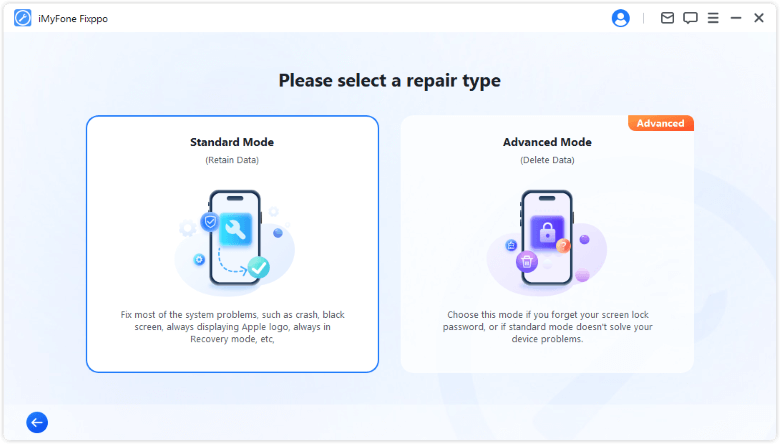
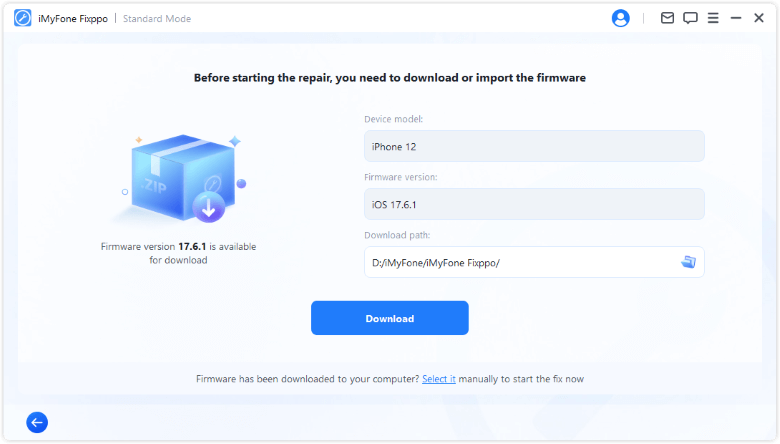
- Check the detected model and download the firmware. Confirm that the device shown in Fixppo matches your iPhone. Use the firmware offered for that device and allow the download and preparation to finish.
- Run Standard Repair. Start the repair in Fixppo and leave the phone and computer connected until it finishes.
Protect Your Data Before You Book a Repair
Book an assessment if the screen stays black while the iPhone receives calls, if it remains unresponsive after safe restart and charging checks, or if the problem returns after the phone briefly starts. A technician can test the display and power systems. Describe what you observed rather than ordering a screen or battery replacement based on a symptom alone.
Bring a short timeline. Say when the phone fell, which part hit the ground, and whether it showed a picture, made sounds, heated up, or restarted afterward. If a safe USB check is inconsistent, try a known-good data cable and a different computer port. Our iPhone computer recognition guide explains how to check the connection. If the screen comes back, back up the iPhone while you can unlock it.
Conclusion
If your dropped iPhone won’t turn on, call it from another phone. If it still rings but the screen stays black, have the display checked. If it gives no response and there’s no reason to suspect physical or battery damage, try a force restart and check whether it charges. If the symptoms point to an iOS startup issue, Fixppo Standard Mode can attempt a repair without erasing the device.
FAQs About an iPhone That Won’t Turn On After a Drop
Why Does My Dropped iPhone Ring With a Black Screen?
Ringing from the iPhone shows it can still receive a call. The display or its connection may have been affected by the impact. Tell the technician that it rings and whether you ever see an image or flicker.
Can an iPhone Stop Working After a Drop Without Cracking?
Yes. A fall can damage internal parts while leaving the glass intact. Mention the impact and any change in sound, charging, or startup when you arrange service.
Should I Factory Reset a Dropped iPhone?
A reset is an erasing software operation. When trouble starts on impact, get an assessment first. Check your backups before agreeing to any procedure that will erase the phone.
Can I Save My Photos if the Screen Is Still Black?
Check for synced photos and existing backups first. A new computer backup may depend on unlocking the iPhone and approving a trust prompt. If you cannot do that, ask about a data-preserving assessment before approving a reset or replacement.
